Organisation
Overview
Organisation
CXO and Admin users can access settings.
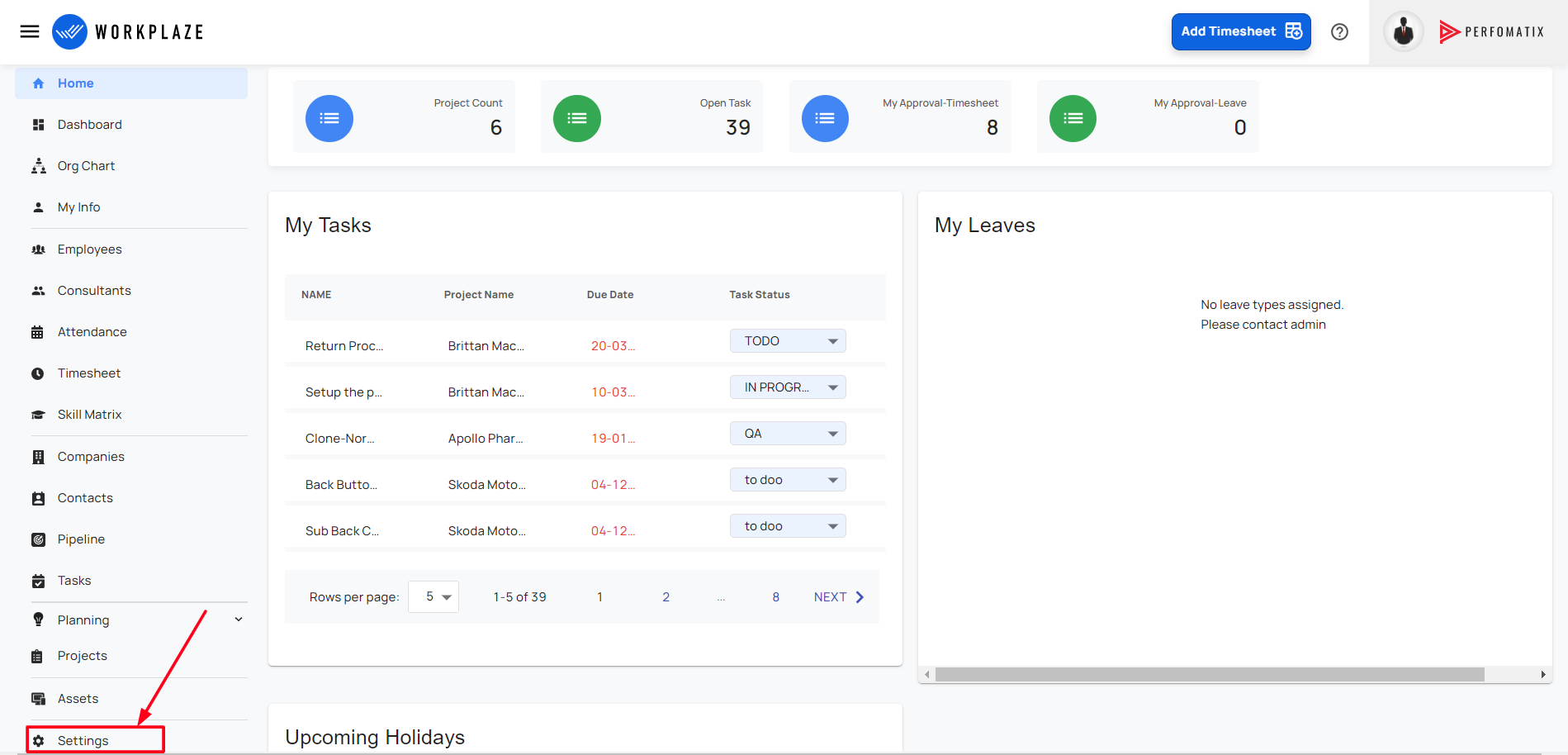
Navigate to settings
- Workplaze -> Settings -> Organisation
General
- General
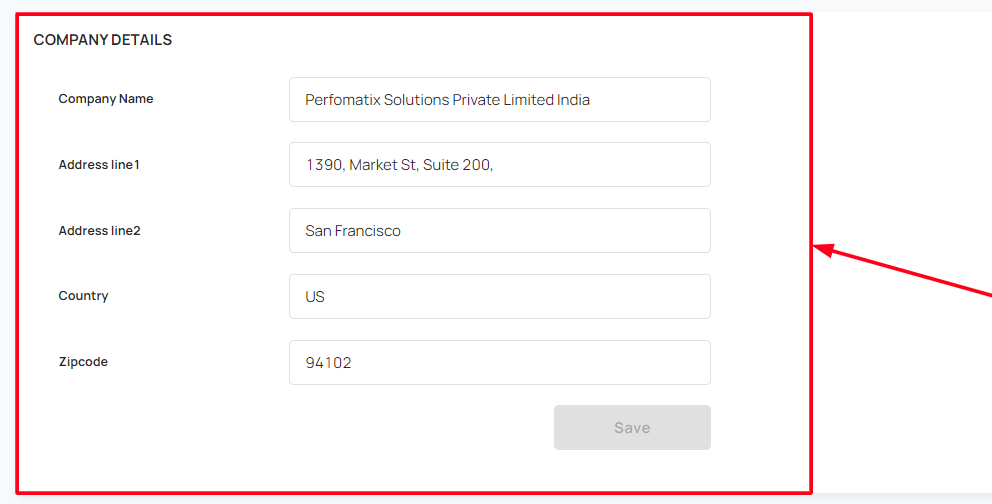
Company Details
- Company Name
- Name of the company, max limit is 150
- Address Line 1
- Address Line 2
- Country
- Zip code
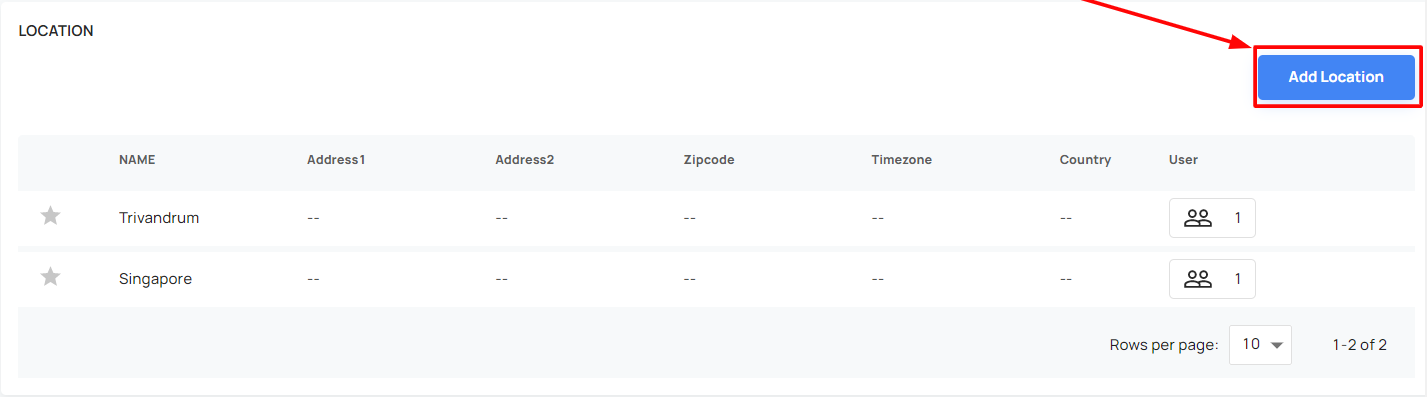
Location
- Able to add multiple locations
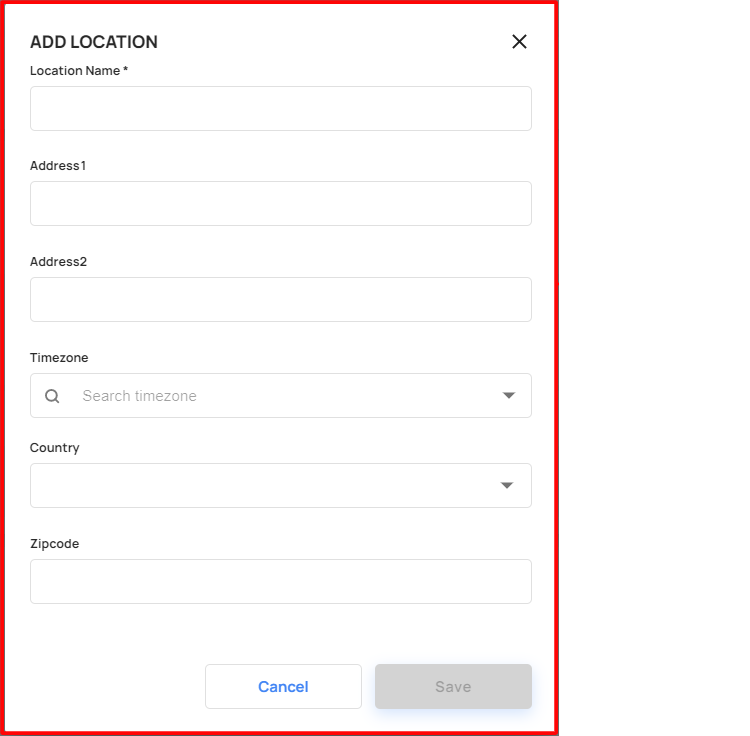
- Location requires the following details
- Location Name
- Address1
- Address2
- Timezone
- Country
- Zip code
- Able to mark the particular location as default
- Able to view the employees, who are allocated to the particular location
Timezone for the Application

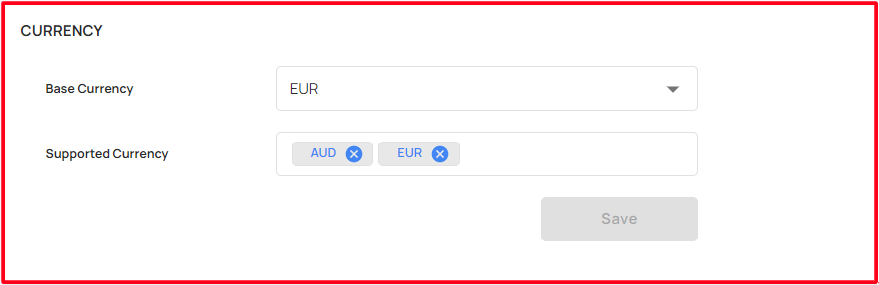
Currency
- Base Currency
- Supported Currency
- Multi-Currency support is not supported but will be supported in the future release
Financial Year
- Start Month
- Allow you to enter starting month of the financial year

Date Format
- Able to change the date format in two types like
- DD / MM / YYYY
- MM / DD / YYYY


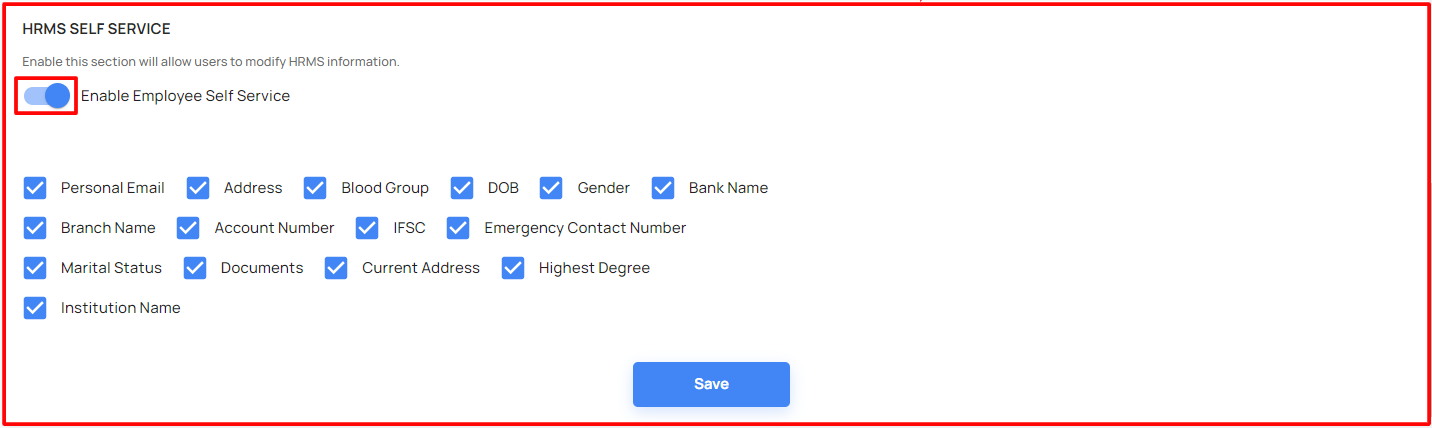
HRMS Self Service
- Enable this section will allow users to modify HRMS information.
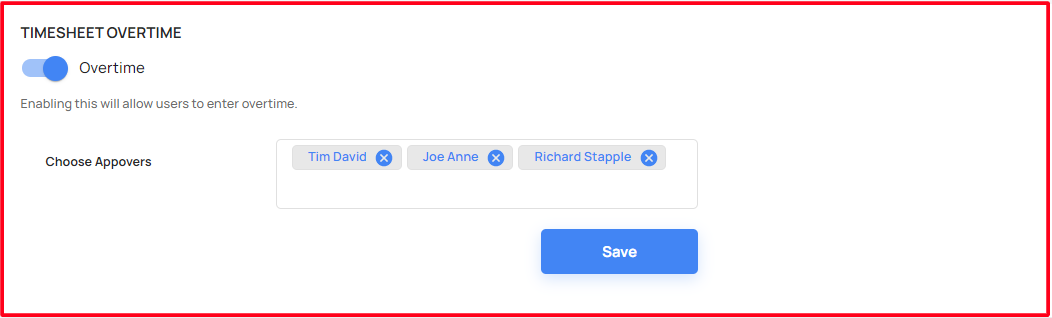
Timesheet Overtime
Enabling this will allow the users to enter overtime information.
Also the user have an option to choose single/ multiple approvers
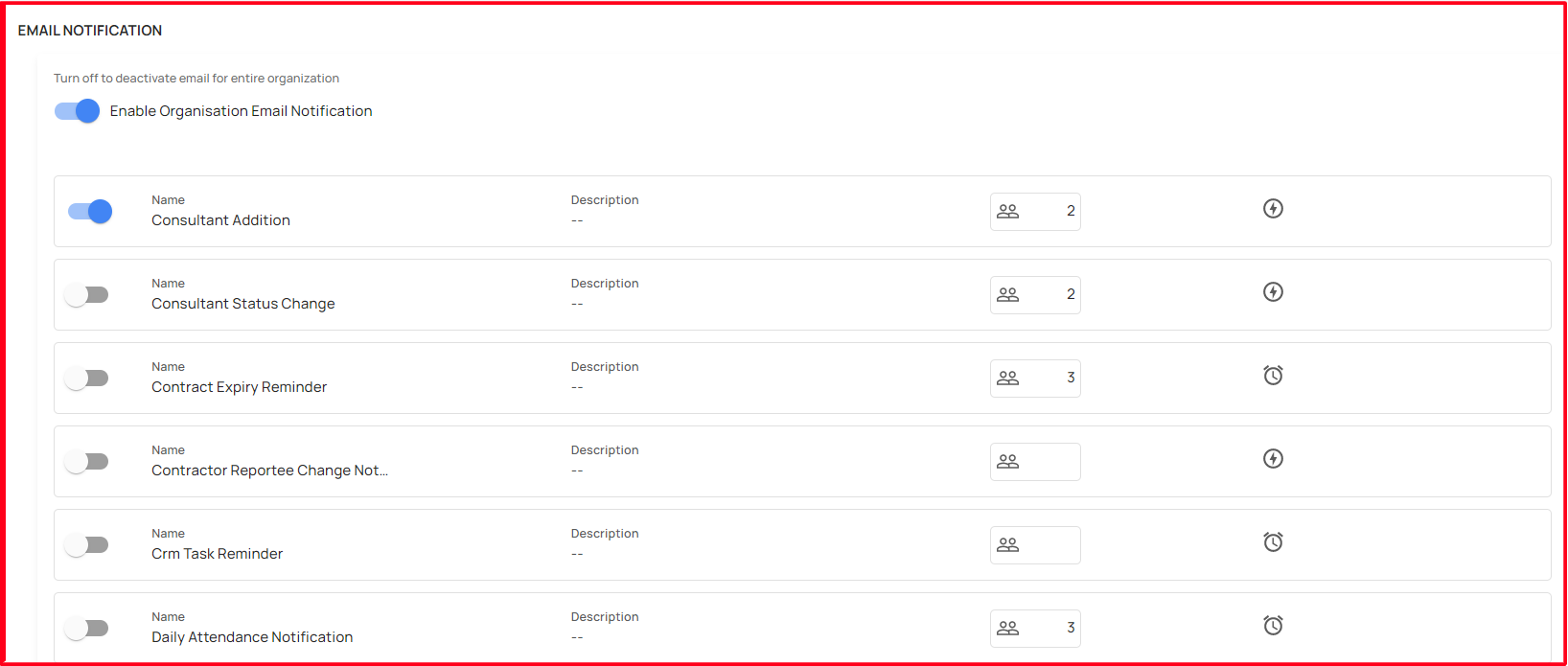
Email Notification
Enabling this will allow the users to receive the email notification based on the event-based or schedule email for the following process:
- Consultant Addition
- Consultant Status Change
- Contract Expiry Reminder
- Contractor Reportee Change Notification
- Crm Task Reminder
- Daily Attendance Notification
- Employee Addition
- Employee Reportee Change Notification
- Employee Status Change
- Employee Timesheet Reminder
- Leave Application Approval
- Leave Application Rejection
- Leave Application Submission
- Opportunity Email
- Probation Ending Notification
- Project Creation
- Project Deletion
- Project Expiry Notification
- Project Resource Allocation Notification
- Project Status Change
- Project Task Creation
- Project Task Deletion
- Project Task Reminder
- Project Task Status Change
- Resource Allocation Ending
- Timesheet Approval Notification
- Timesheet Draft Notification
- Timesheet Rejection Notification
- Timesheet Submission Notification
- Weekly Summary Notification
- Weekly Timesheet Defaulters List
Leave Management
- Leave management allows users various types of leaves according to the company policies
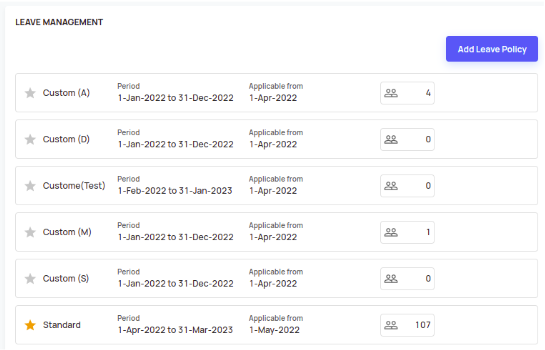
Add Leave Policy
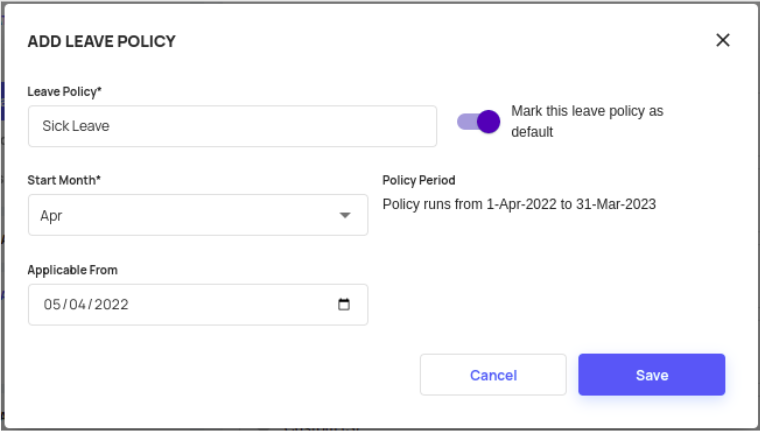
- A button from the leave management will pop up a form
- Leave Policy
- Name of the leave policy
- Mark this leave policy as default will allow a particular policy as default and be starred in the leave management list
- Start Month
- Specify the start month of the specific policy
- Policy period show‘s start to the end date of the policy period i.e. from the respective start date to 12 months
- Applicable From
- Indicates when this policy starts
- Leave Policy
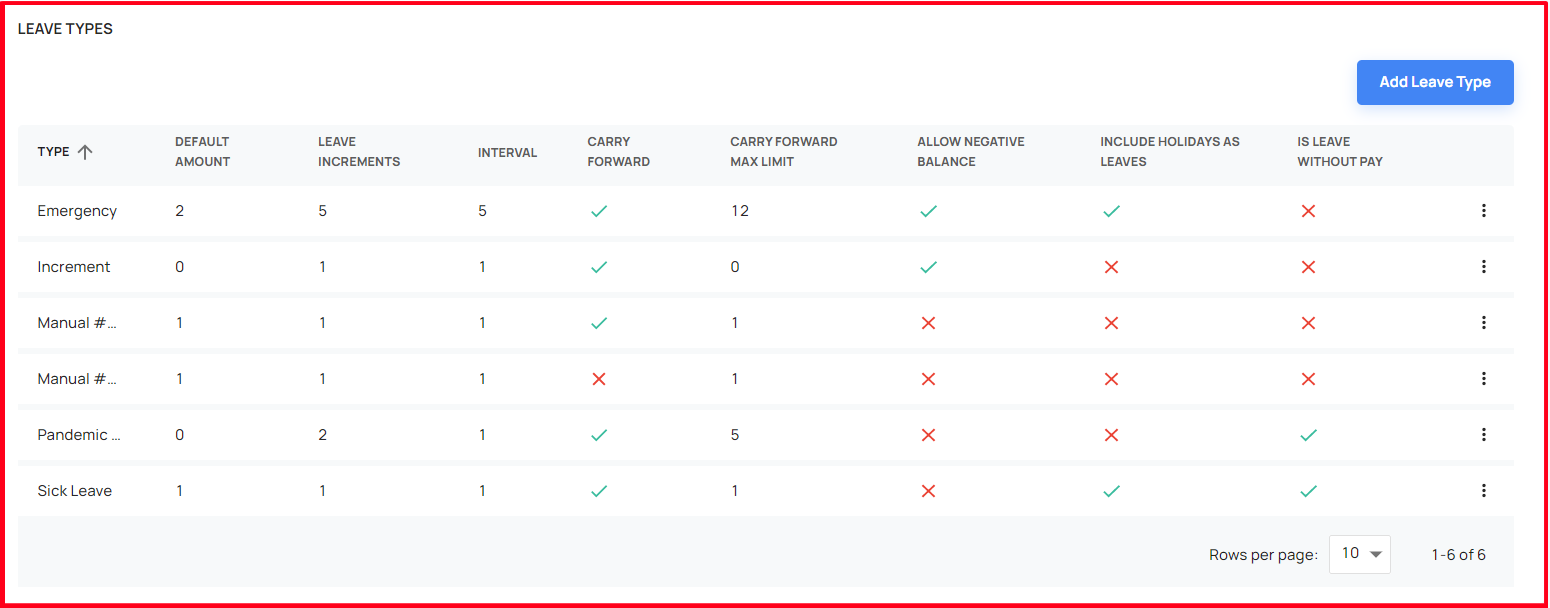
Add Leave Type
- The user able to add, modify/ delete the leave types
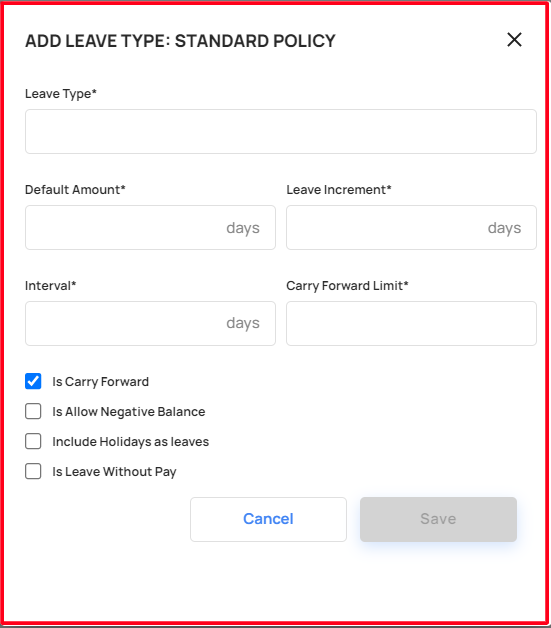
- A button from the leave type will pop up a form
- Leave Type
- Name of the leave type
- Default Amount
- Leave Increment
- Interval
- Carry Forward Limit
- Is Carry Forward
- Is Allow Negative Balance
- Include Holidays as leaves
- Is Leave Without Pay
- Leave Type
Shift and Timing
Work Shifts
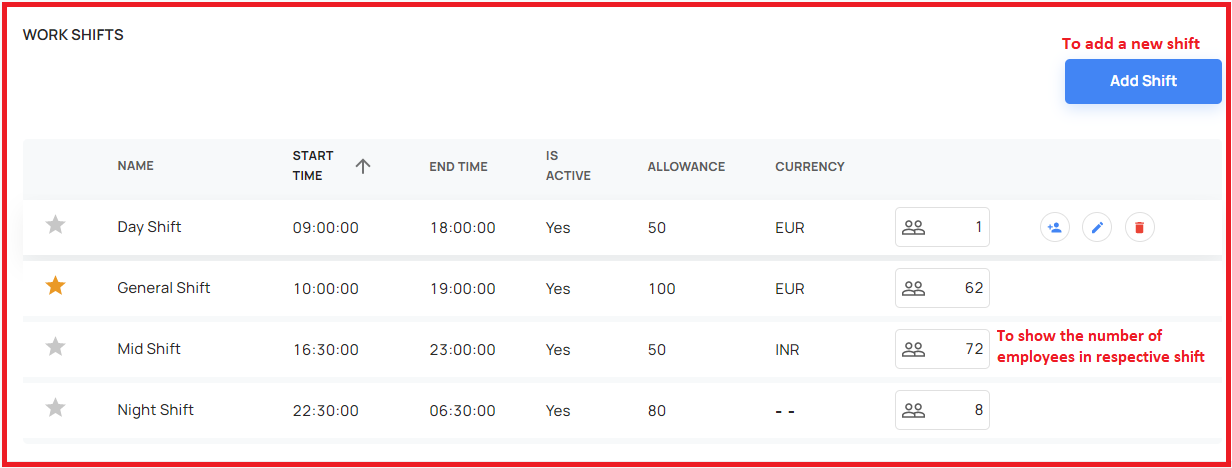
- Allow entering various work shift timing
- Slack and the email notification will be based on the shift
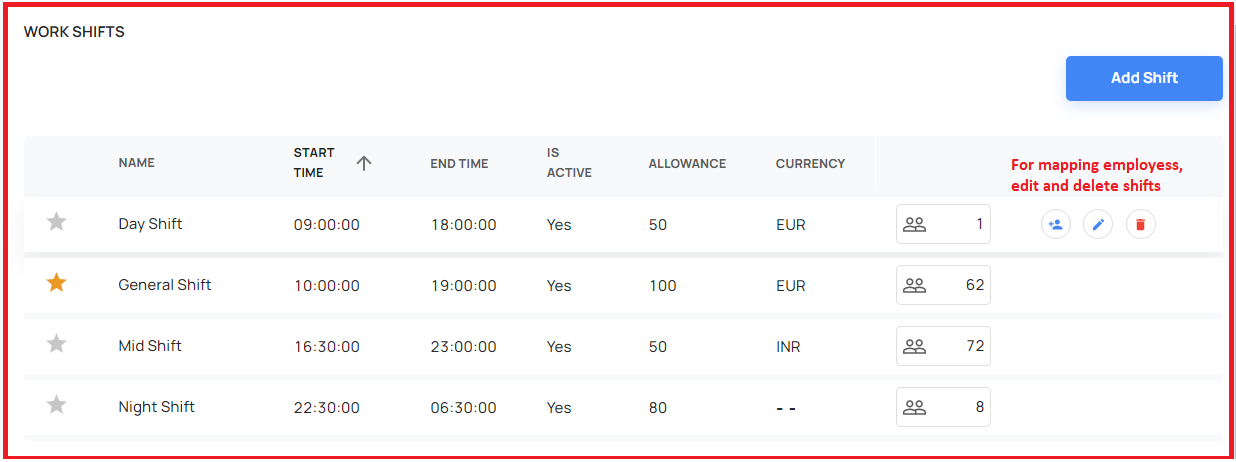
For Map Employees, Edit and Delete Shifts
- Using the right-side buttons we can map employees, edit and delete
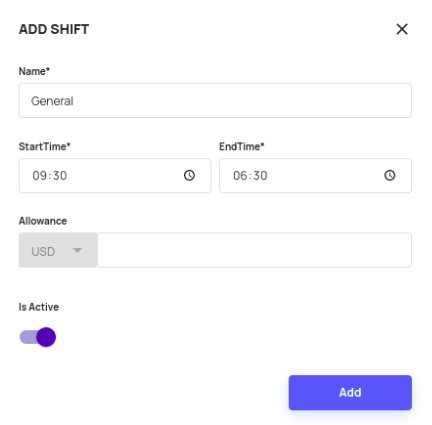
Add Shift Form
To create a new shift
Name
- Save the name of the shift
StartTime
- Save the start time
EndTime
- Save the end time
Allowance
Is Active
- Enabling this feature, mark as the default shift
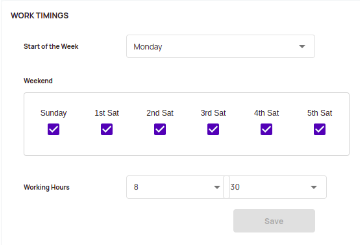
Work Timings
Start of the week
- Saves the start of the week
Weekend
- The check box will allow specifying the weekends
Working Hours
- This will be the organisation working hours. Based on this various calculations happens across the application.
Holidays
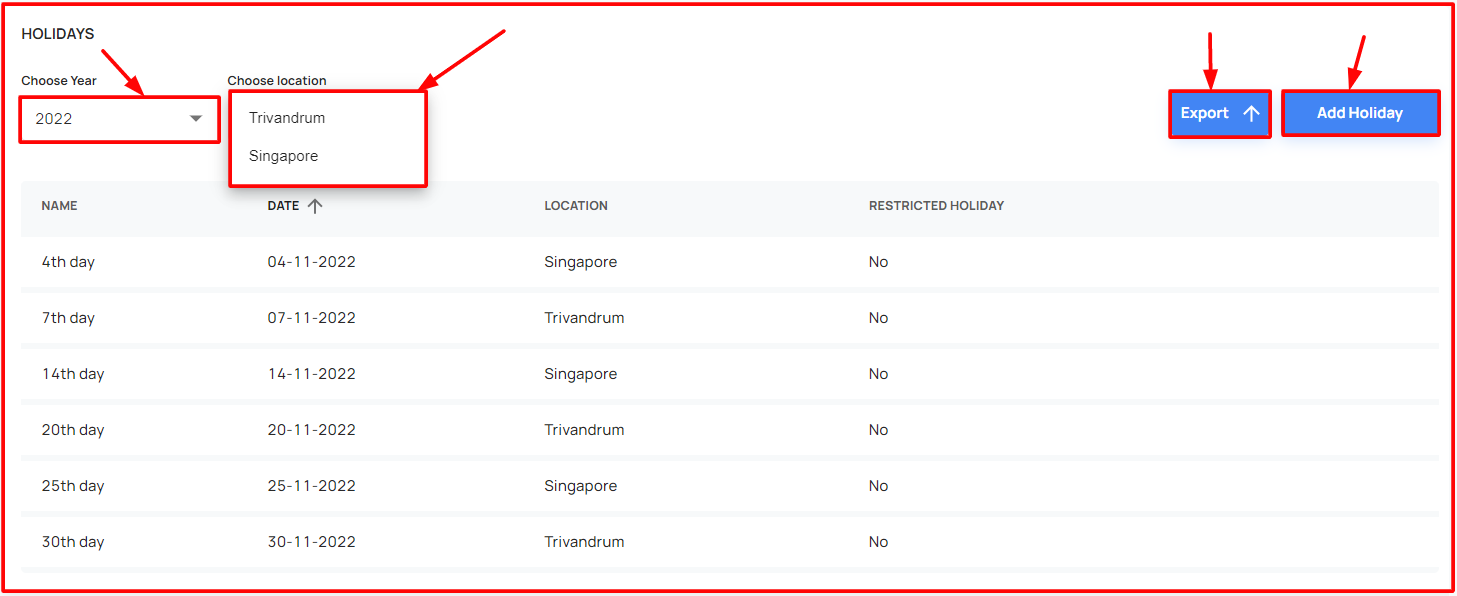
- Adding a New Holiday
- Exporting Holidays Data
- Dropdown to check data
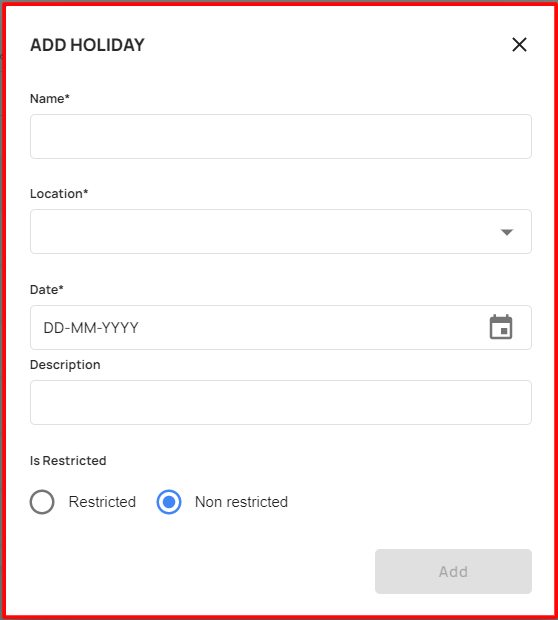
Add Holiday Form
- Click the Add Holiday button, by filling the mandatory fields, the user able to add the holidays.
Exporting Holidays Data
- Click the export button, the user can export the holiday details data
Dropdown to check data
- Able to switch & check the holidays data and export it.