Master Data
Overview
Master Data
CXO and Admin users can access settings.
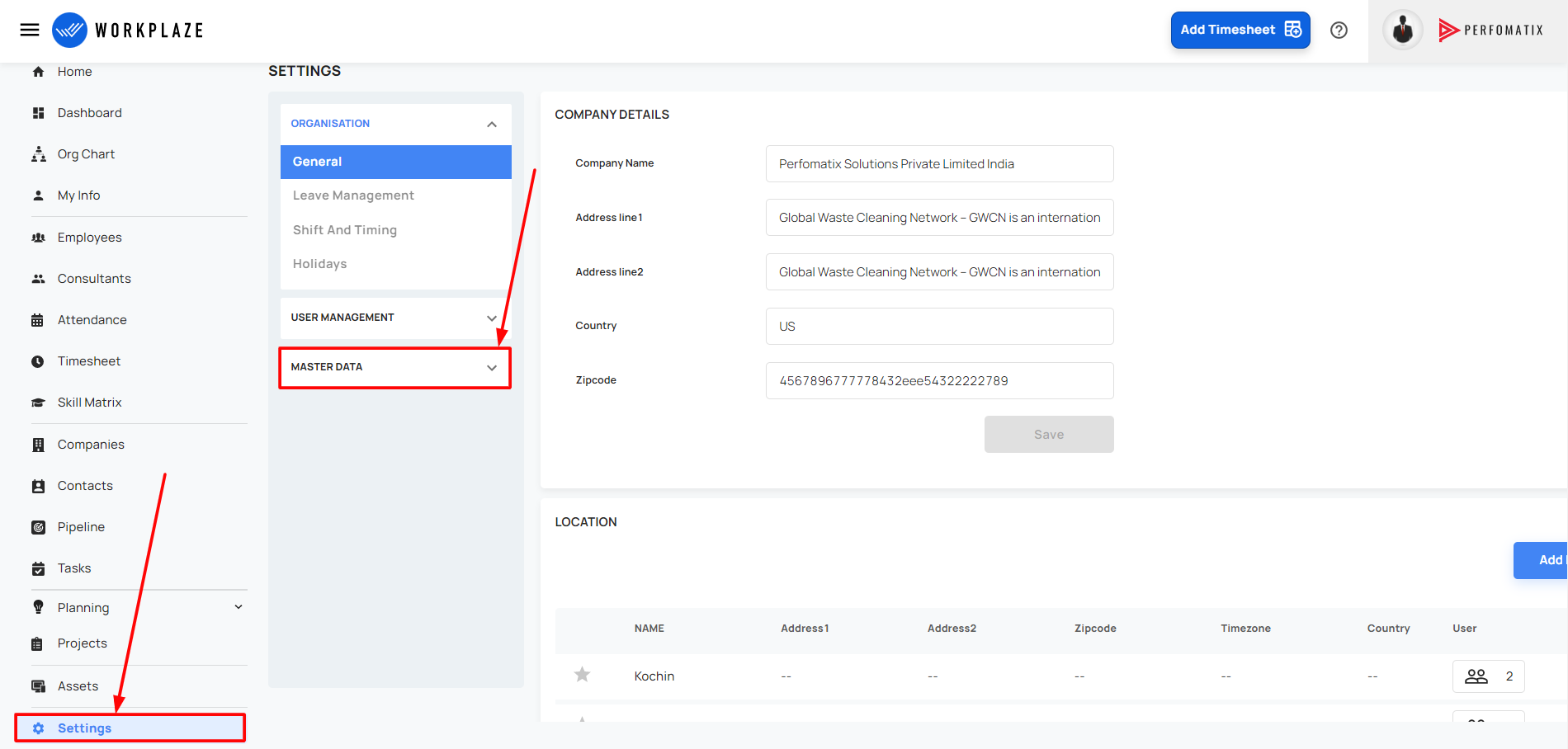
Navigate to settings
- Workplaze -> Settings -> Masterdata
HRMS
- HRMS
Probation Period
- Able to modify the probation period interval

Notice Period
- Able to modify the notice period interval

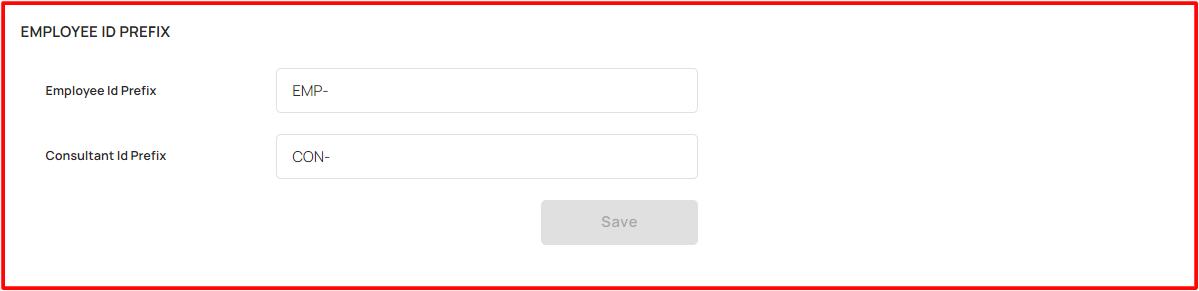
Employee ID Prefix
- Able to add the prefix for the Employees and Consultants
- Can add alphanumeric values and special characters also
Profile Picture Upload
Able to allow the users to modify their profile pictures!

To enable this option, the user can modify their profile pictures!

Teams
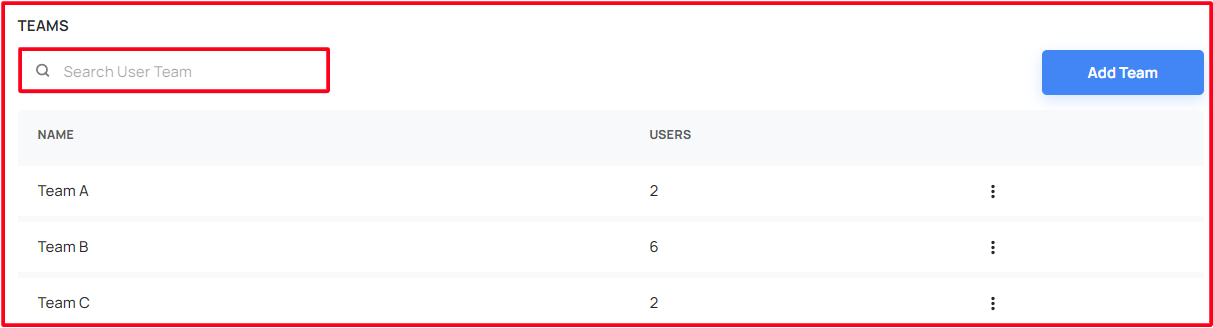
Able to group the resources like team wise and manage them!
Able to search and view the team
Click the Add Team option, the user able to add the team
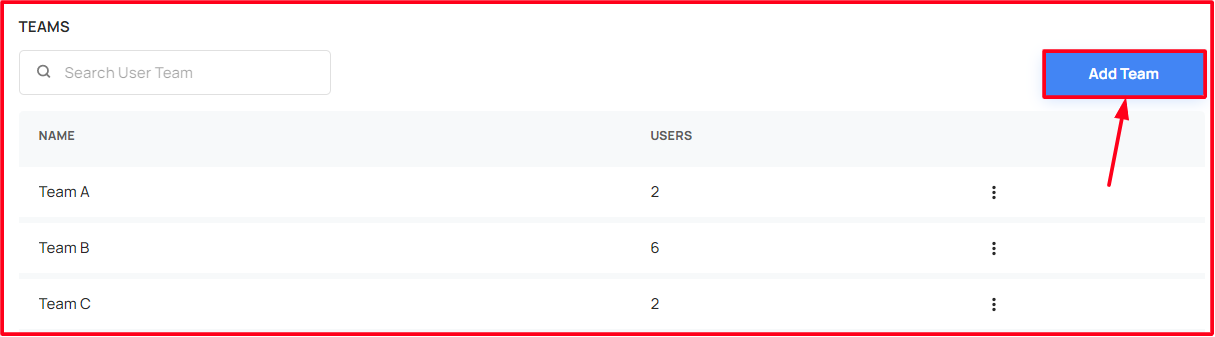
By filling the mandatory fields, the user can create the team

Able to modify/ delete the created team!
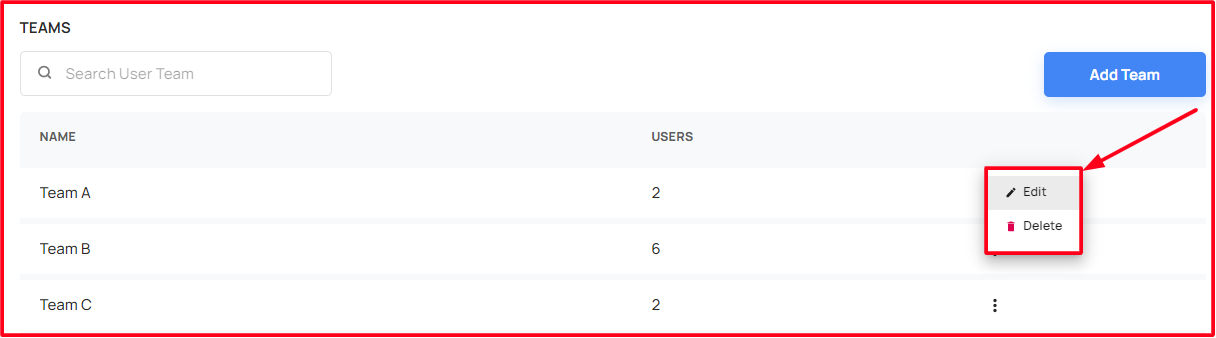
This feature will enable the user team filter in the following sections:
- Project Planning
- Project Planning → List View
- Project Planning → Resources Allocations → Add/ Edit Resources
- Resource Availability
- Resource Availability → List View
- Projects
- Projects → List view
- Projects → Resources Allocations → Add/ Edit Resources
- Projects → Kanboard → Milestone → List View
- Projects → Milestones → List View
- Projects → Timesheet → Summary → List View
- Projects → Timesheet → Day wise → List View
- Projects → Timesheet → Task wise → List View
- Project Planning
Department
Able to add/ edit/ delete the departments
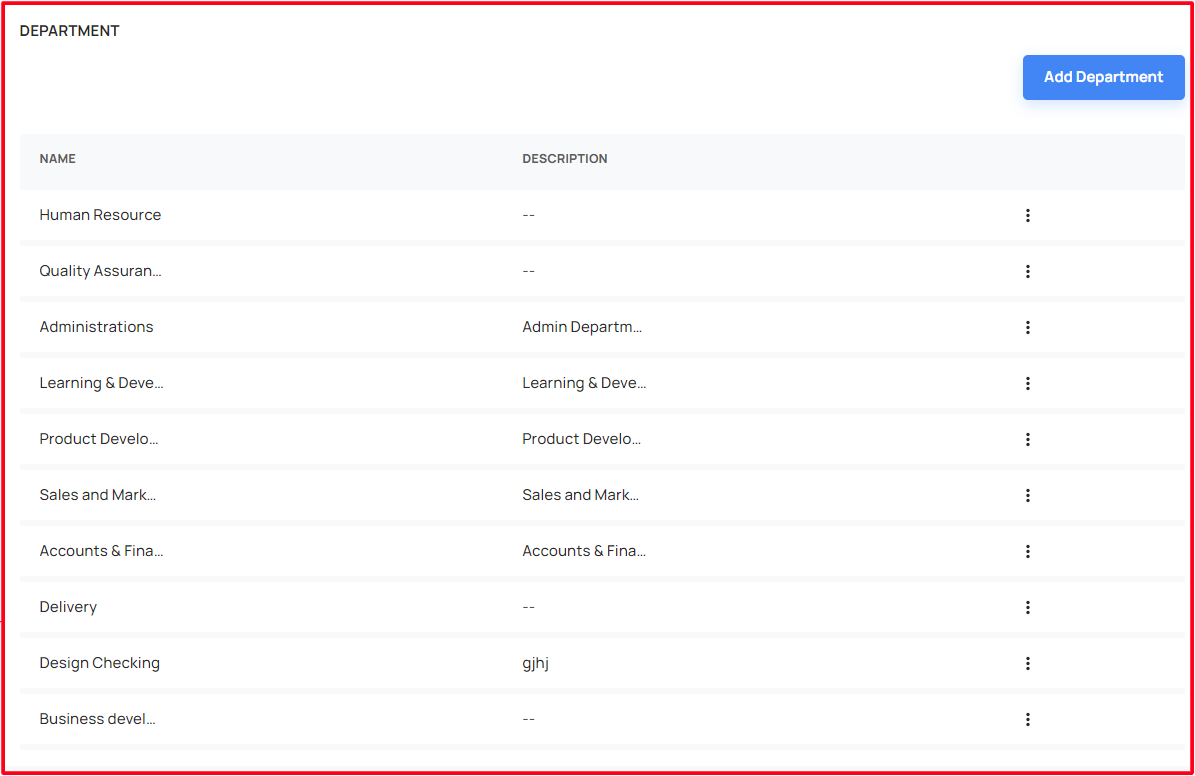
By filling in the mandatory fields, the user can add a new department

Able to edit/ delete the created/ existing departments
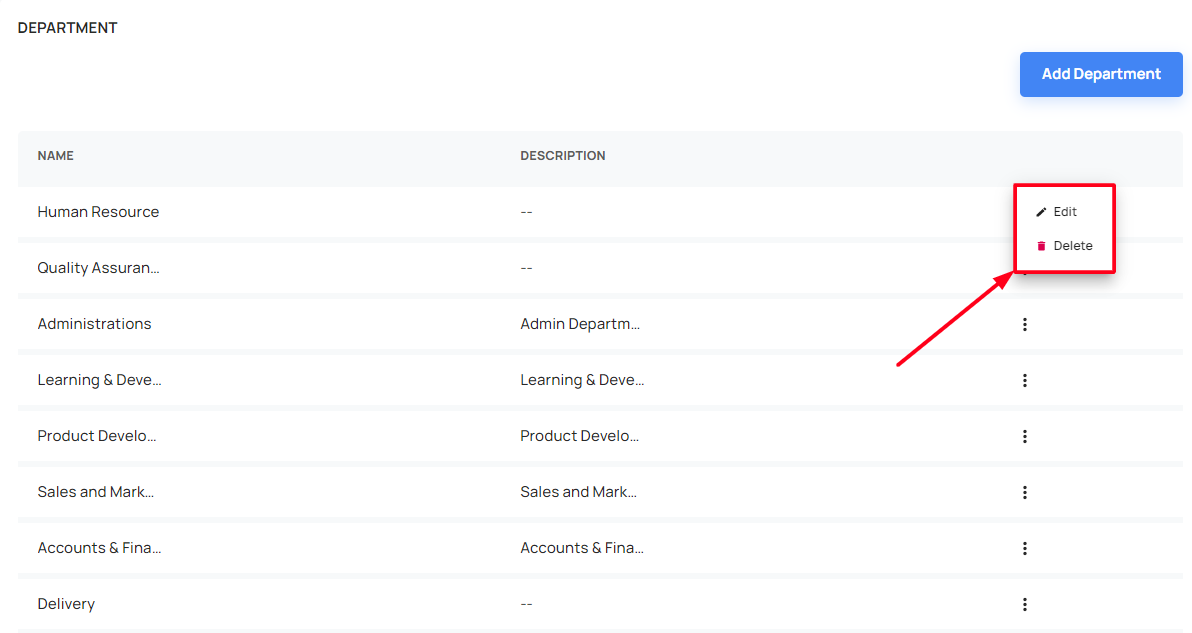
When trying to delete a department,
- If any employee/ consultant assigned to that specified department, couldn't delete it
Designation
Able to add/ edit/ delete the designation
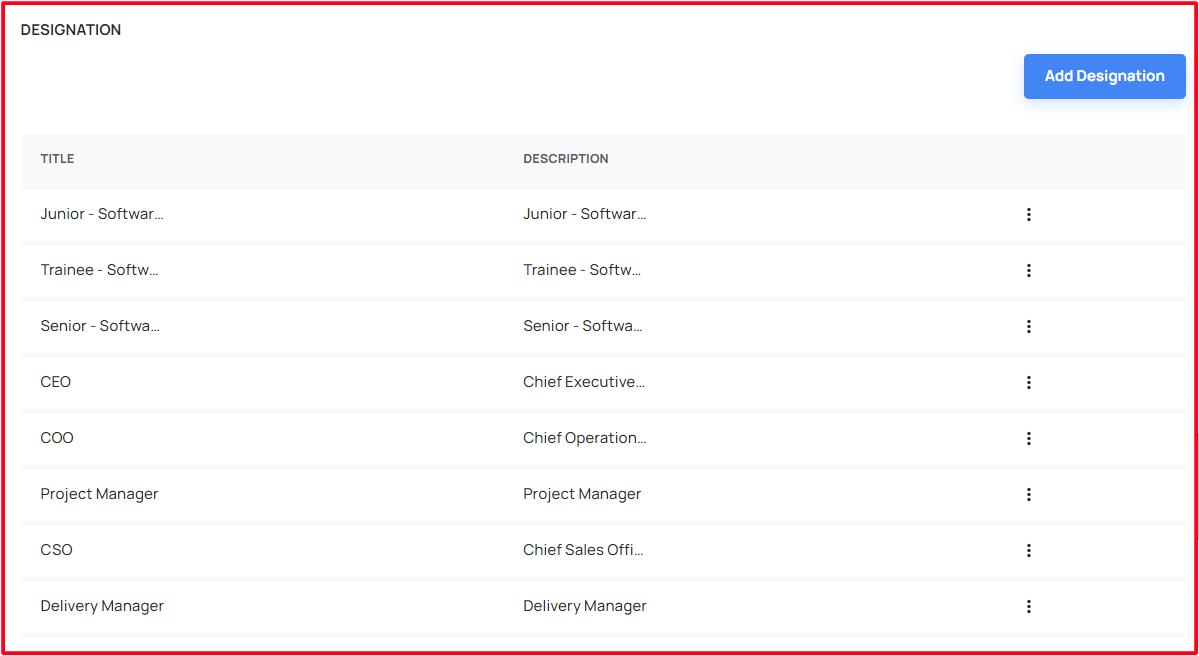
By filling in the mandatory details, the user can add a new designation

Able to edit/ delete the created/ existing designations
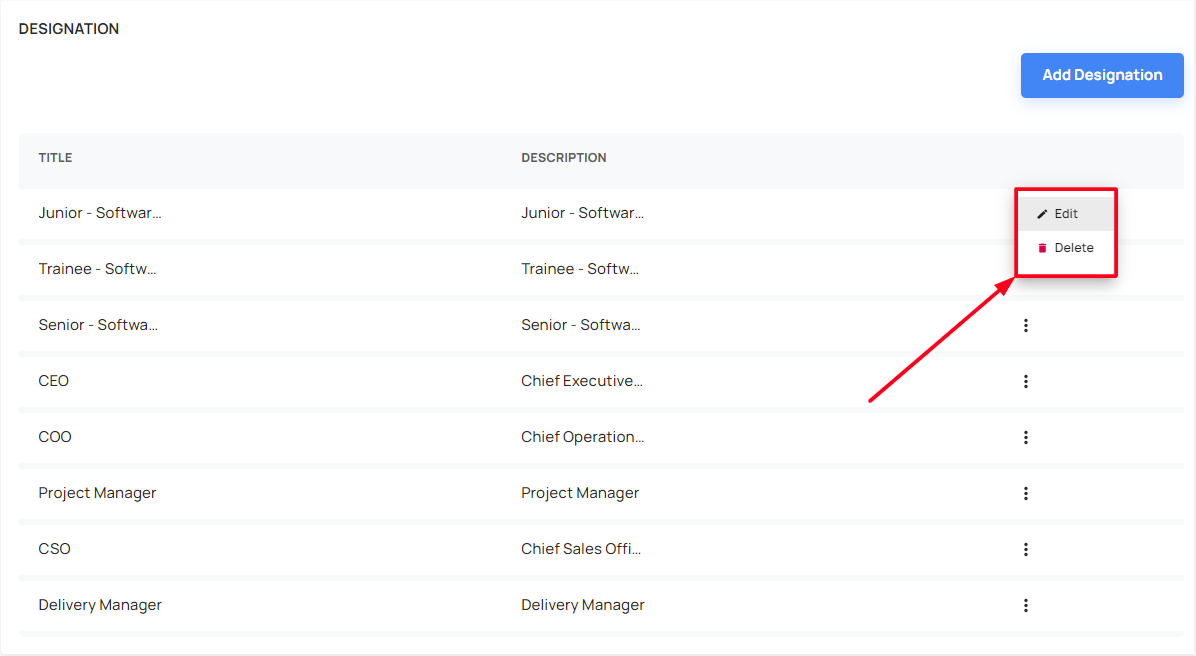
When trying to delete a designation,
- If any employee/ consultant assigned to that specified designation, couldn't delete it
Job Level
Able to add/ edit/ delete the Job Level
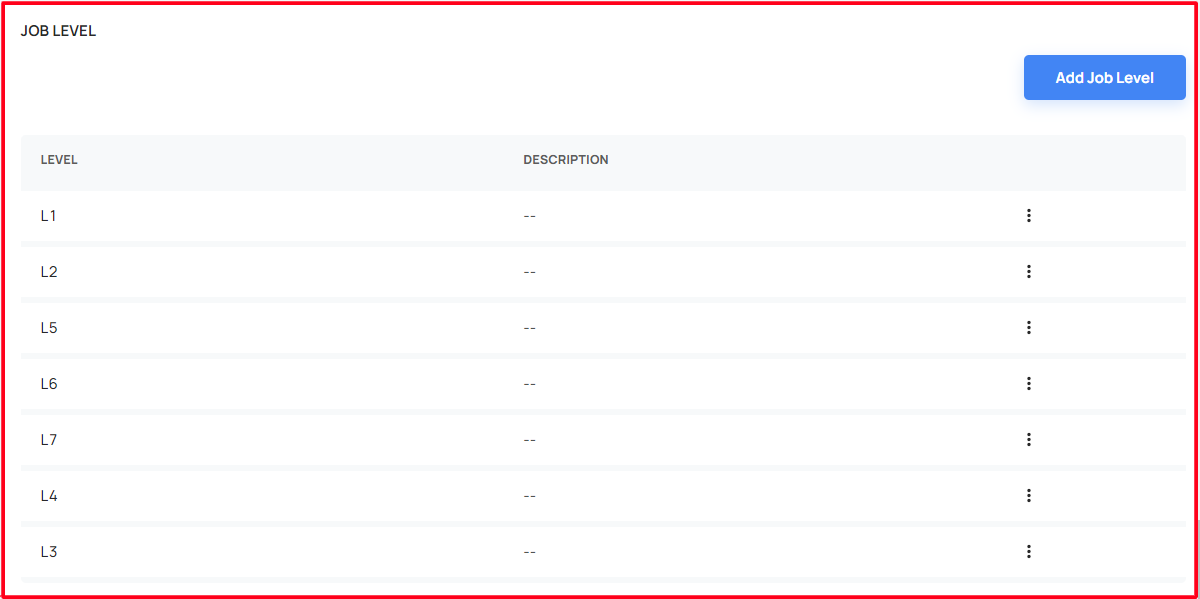
By filling in the mandatory details, the user can add a new job level

Able to edit/ delete the created/ existing job level
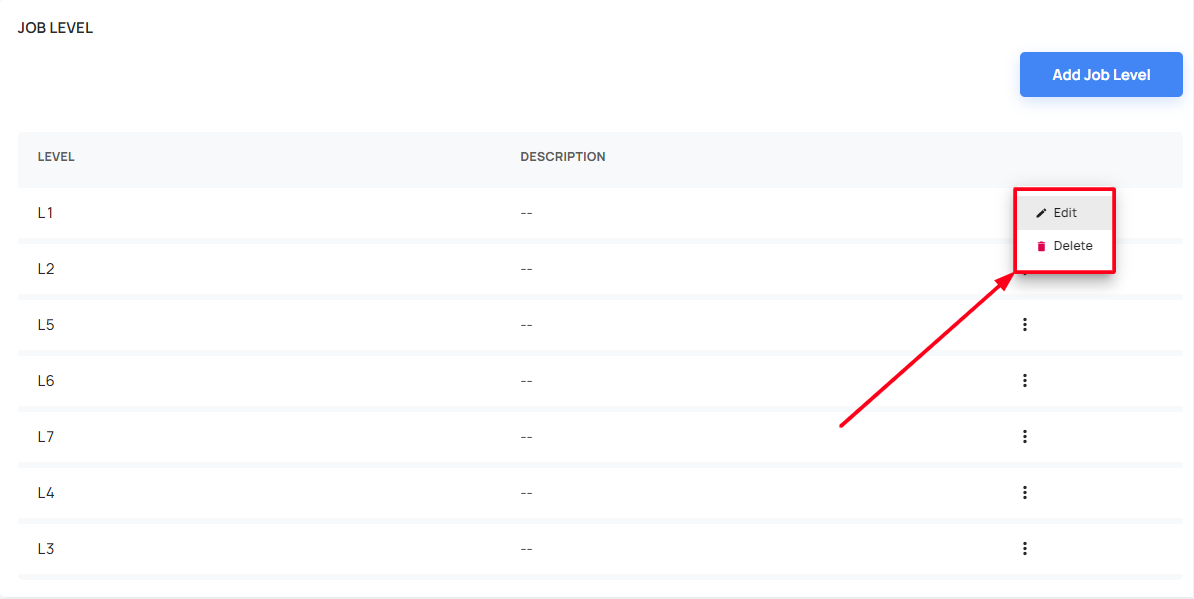
When trying to delete a job level,
- If any employee/ consultant assigned to that specified job level, couldn't delete it
Skill
Able to add/ edit/ delete the Skill
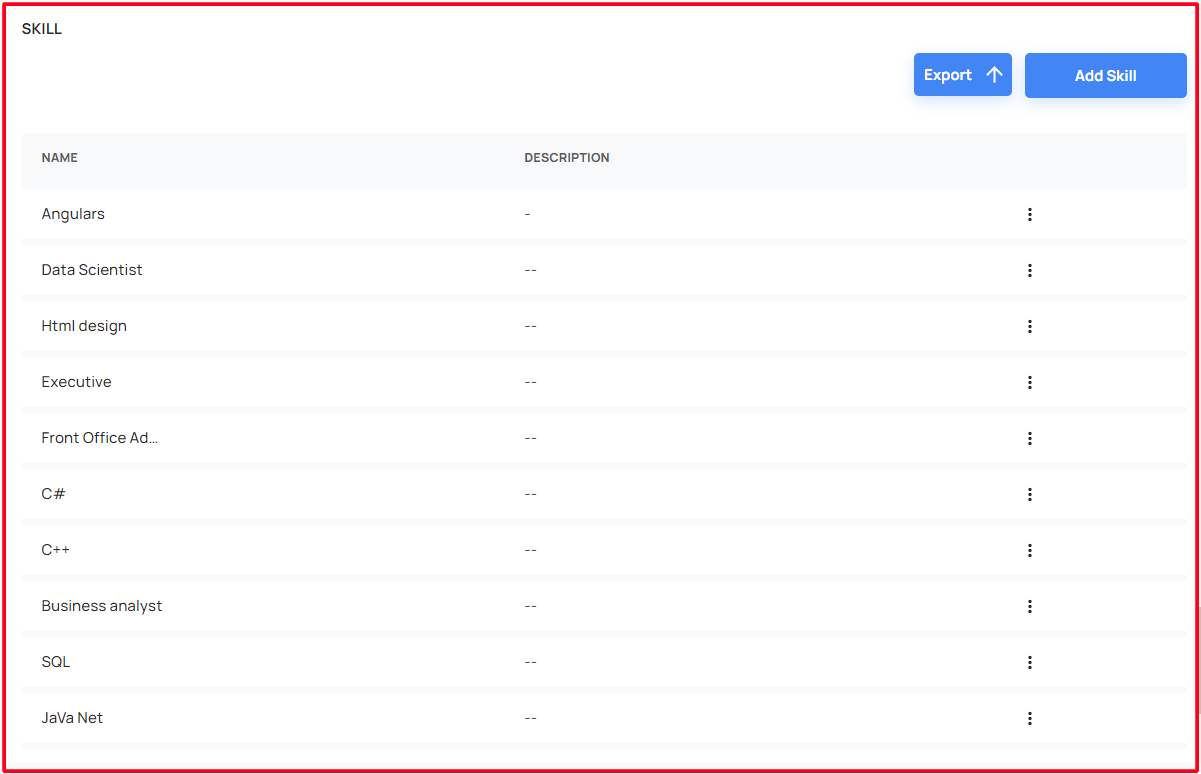
By filling in the mandatory details, the user can add a new skill

Able to edit/ delete the created/ existing skills
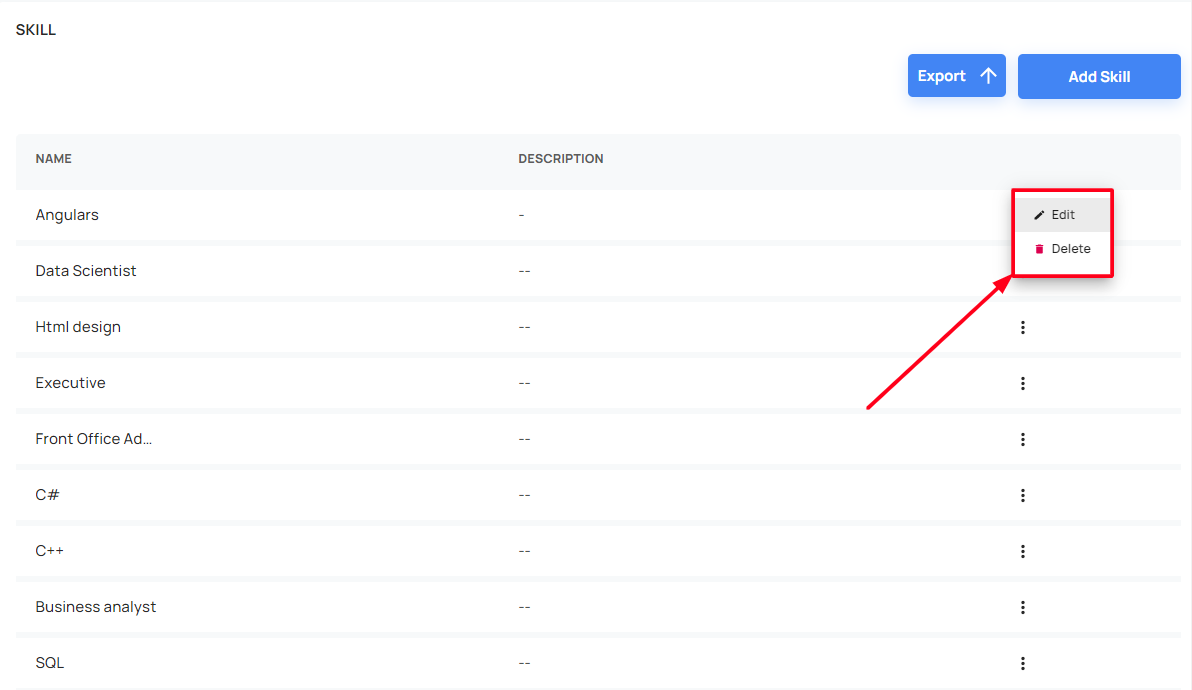
When trying to delete a Skill,
- If any employee/ consultant assigned to that specified Skill, couldn't delete it
Kanban Settings
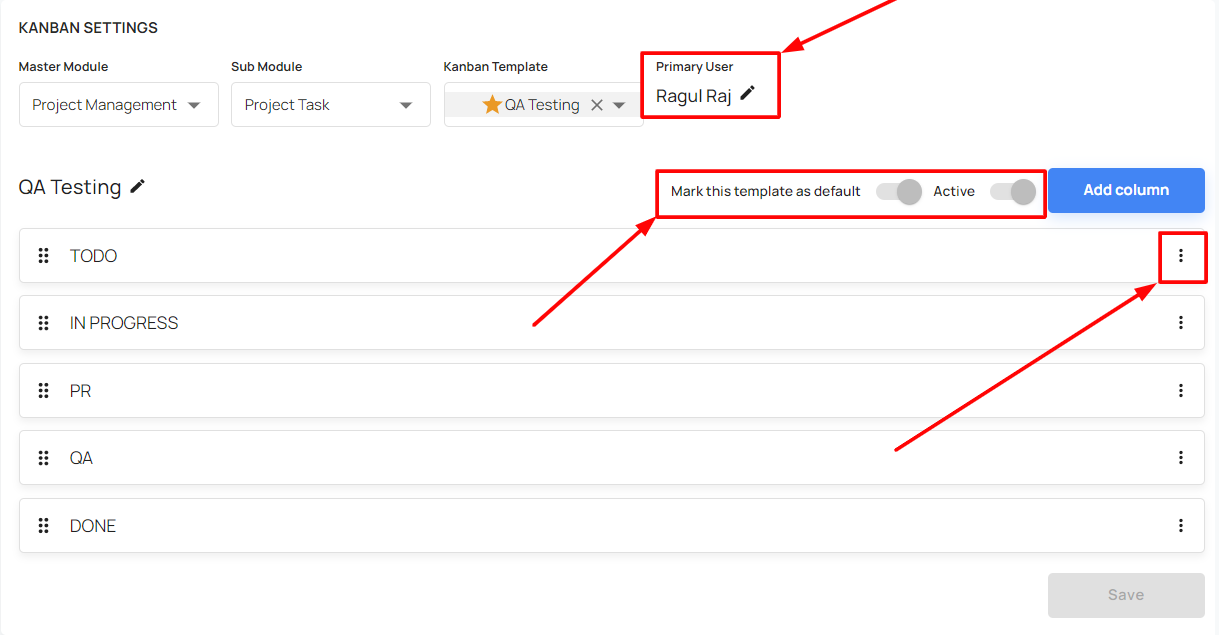
Can manage the kanban templates
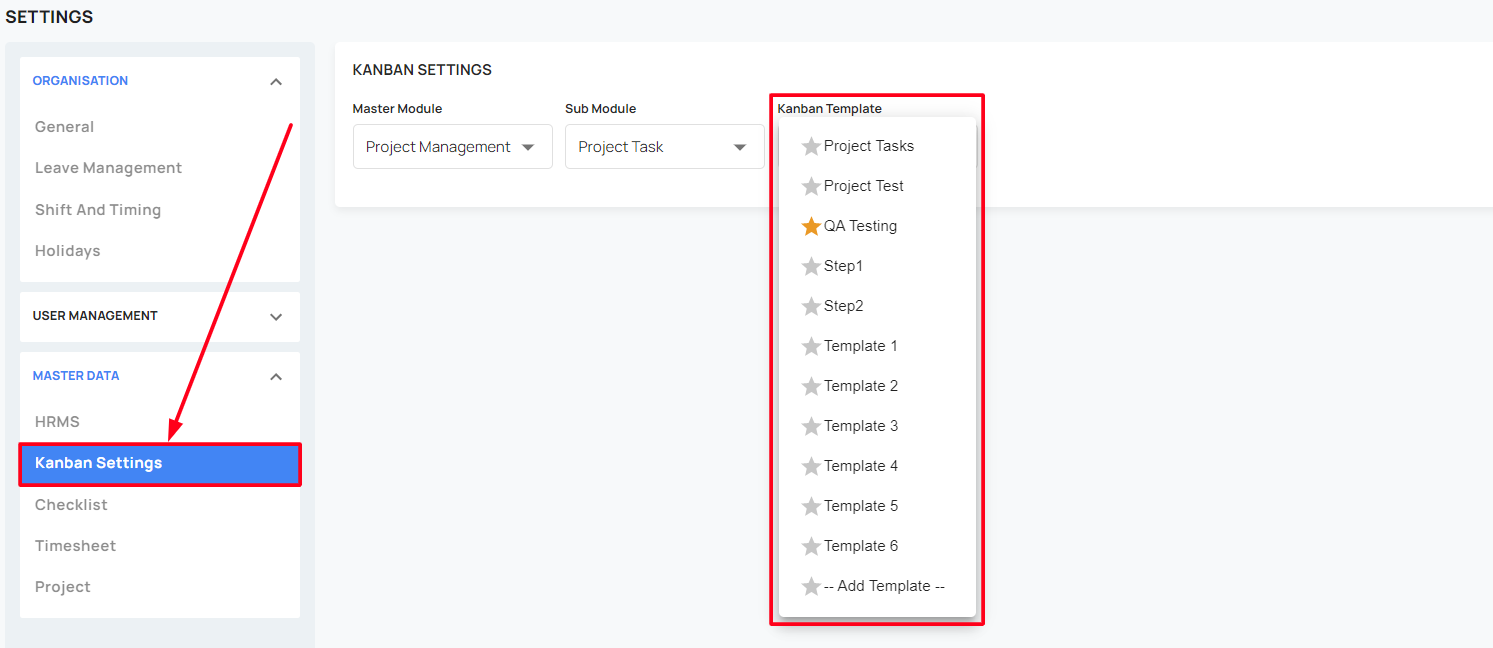
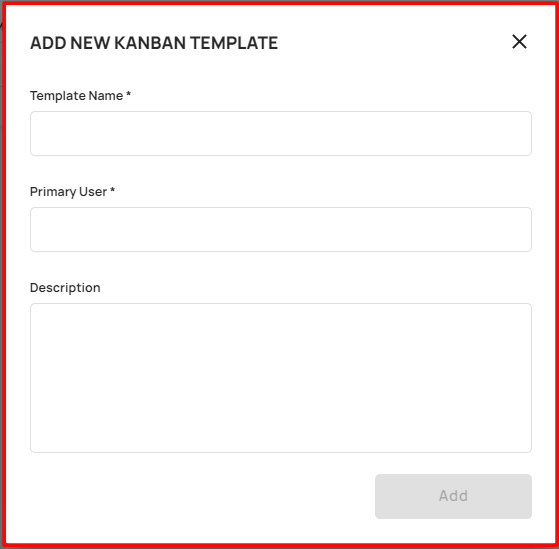
Clicking the add new kanban template, the user can add the new kanban template
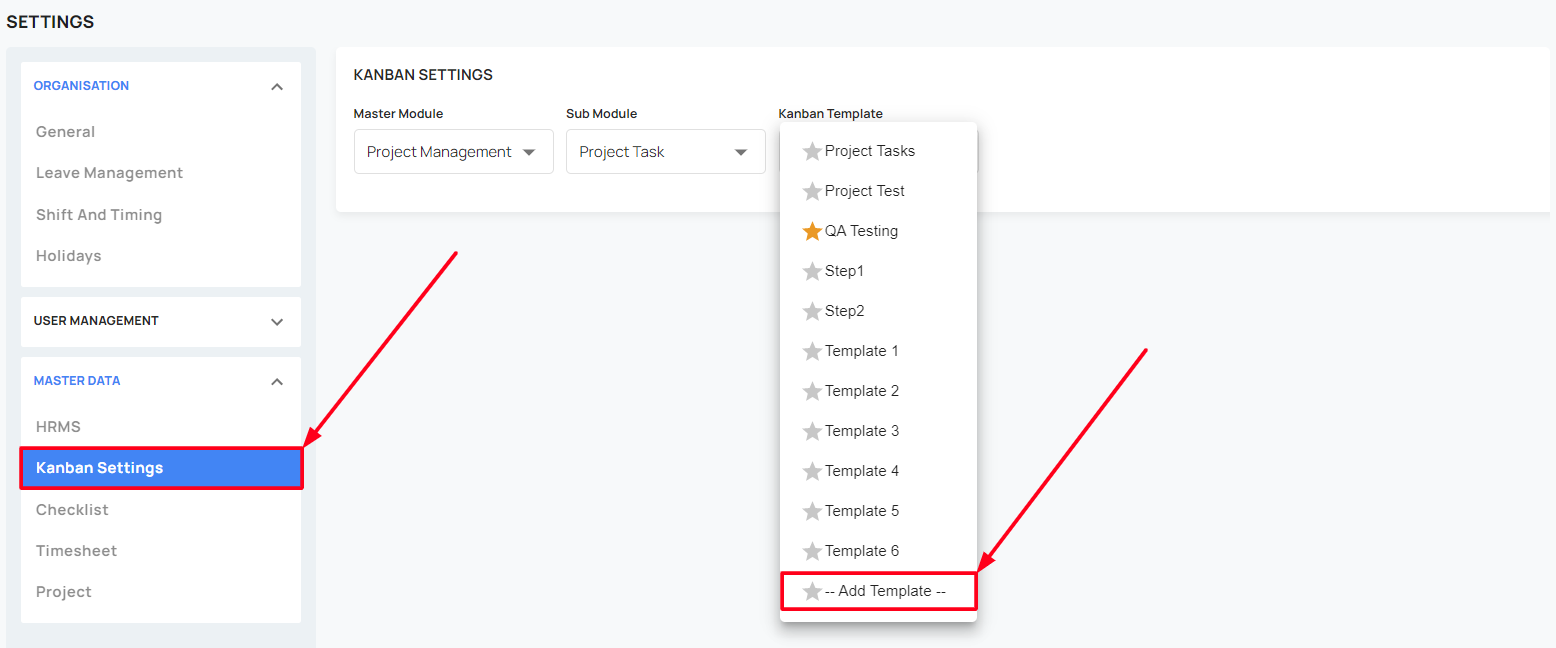
Able to mark the template as default
Able to mark the template as active or inactive
Able to add/ modify the primary users
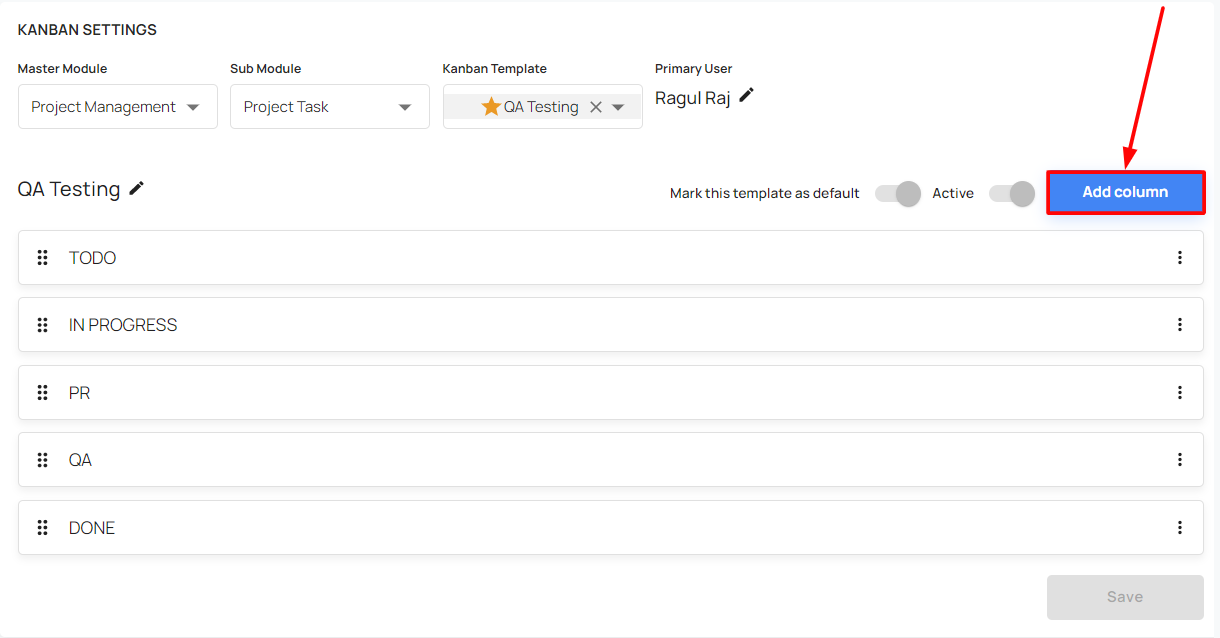
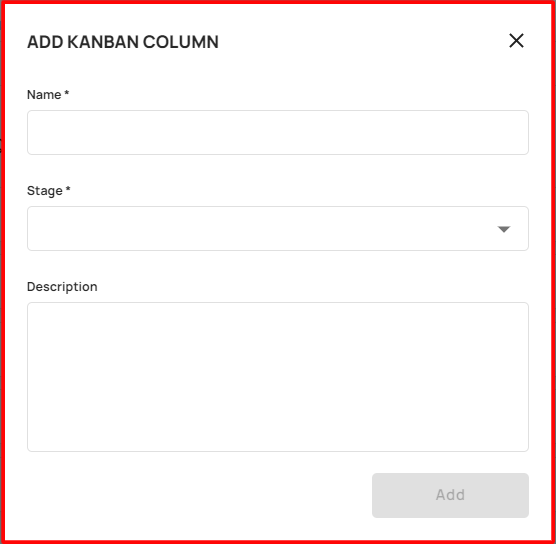
By clicking the Add column, the user can add the kanban column
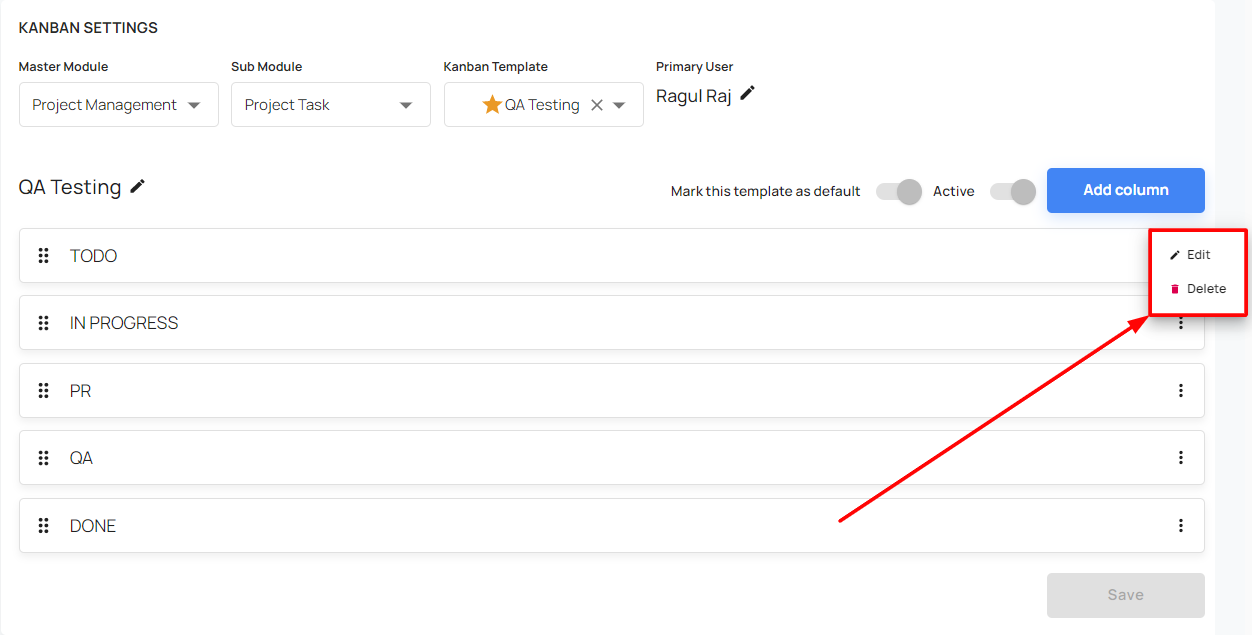
Able to Edit/ delete the kanban column
Checklist
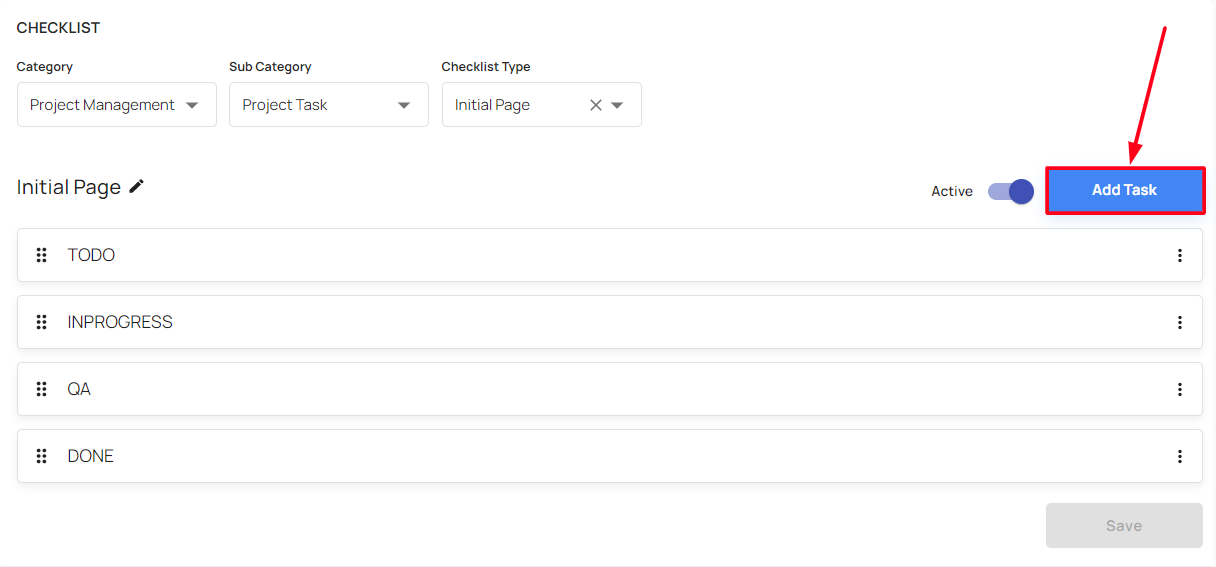
Able to manage the checklists
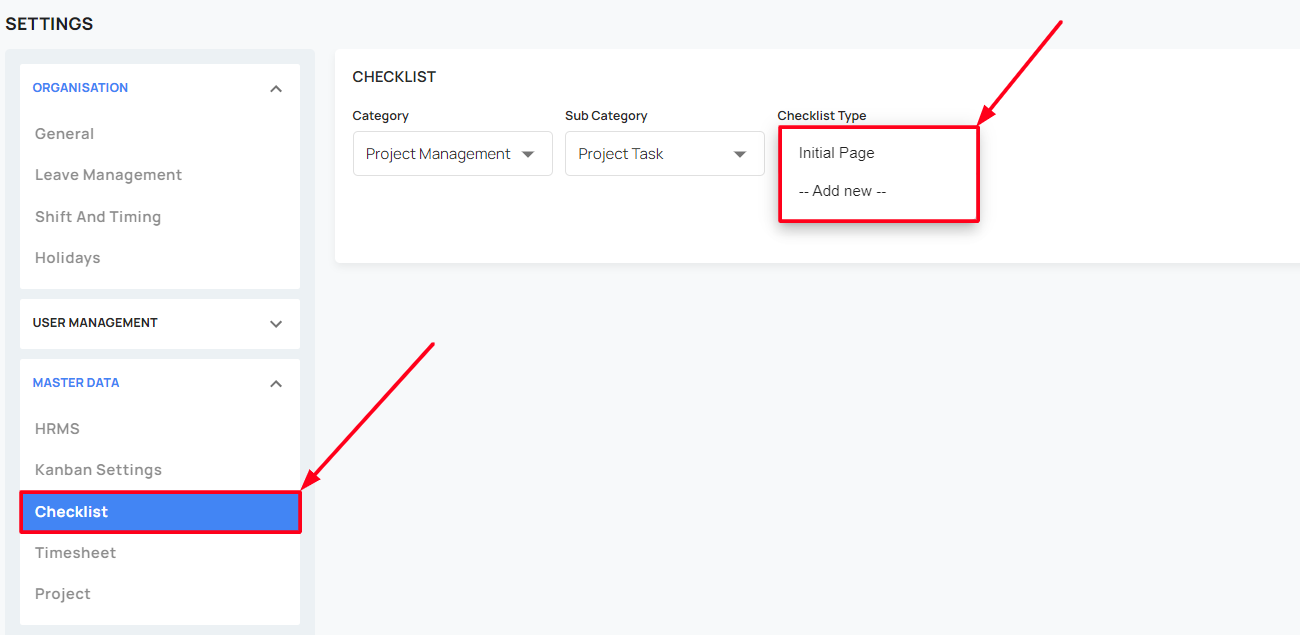
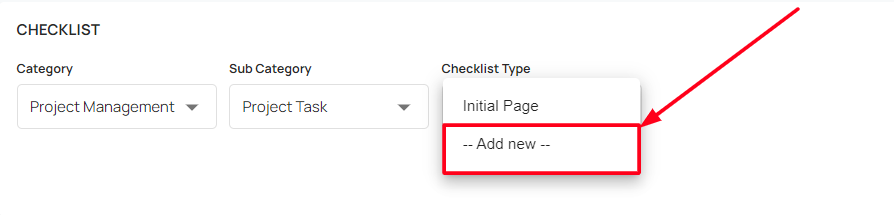
Clicking the add new, the user can add the new checklist
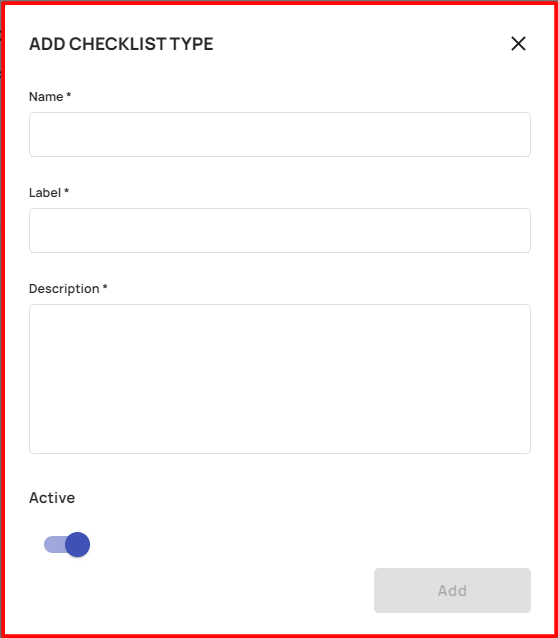
Able to mark the checklist as active or inactive
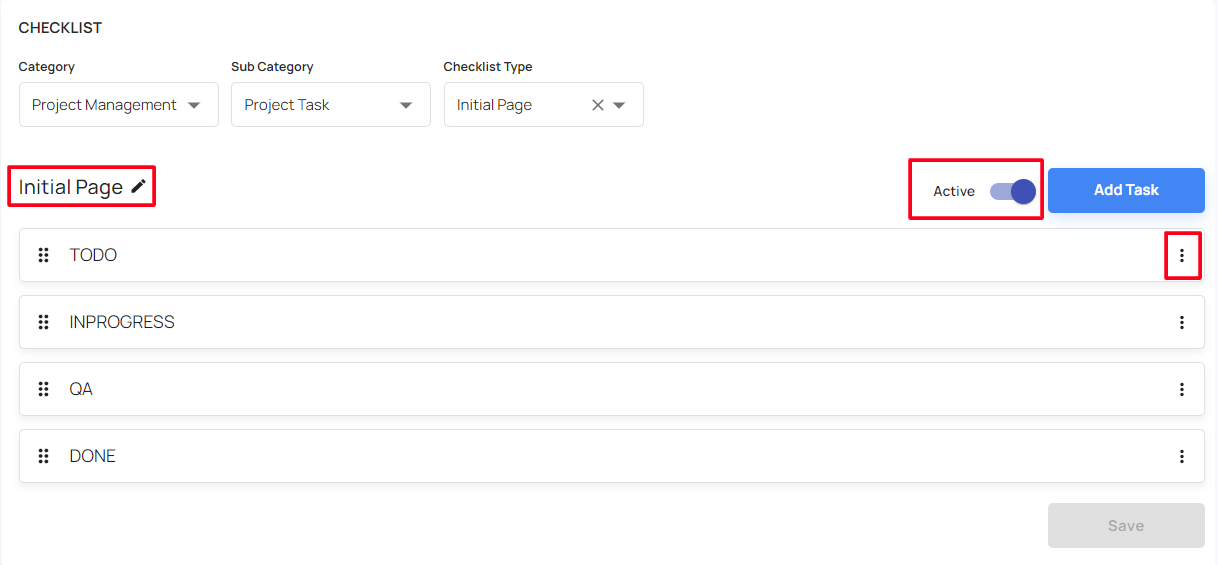
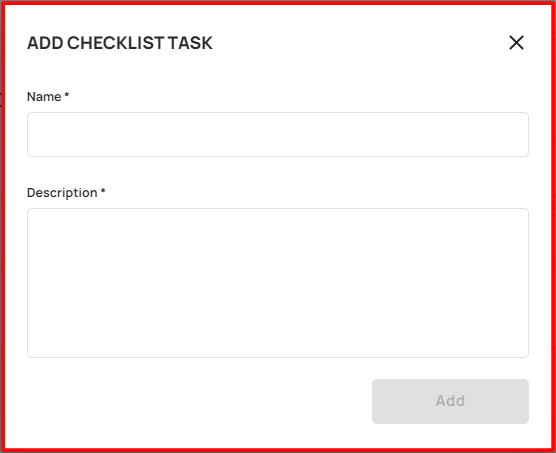
By clicking the Add task, the user can add a new checklist
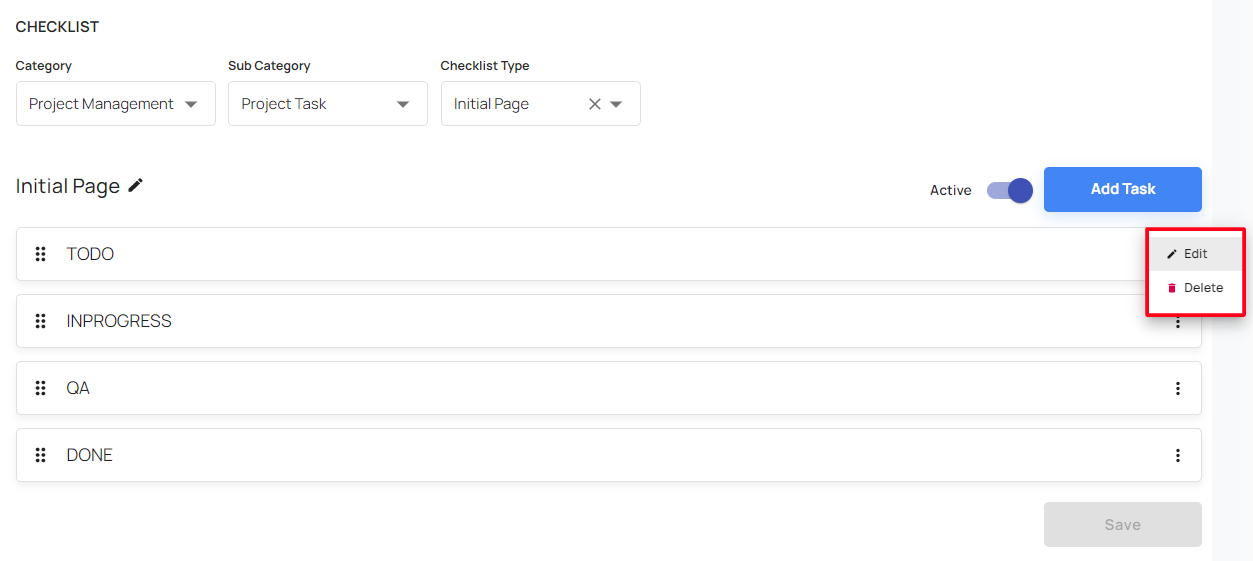
Able to Edit/ delete the created/ existing checklist
Timesheet
Draft Timesheet
- To Enabling this, will allow to view time sheet that are not submitted but saved by the users.

Week View
- To Enabling this will allow the users to enter timesheet in week view.

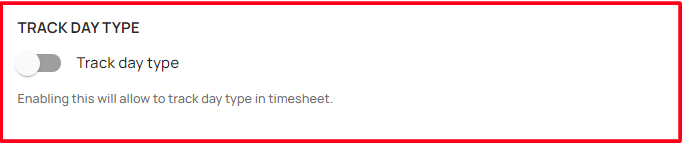
Track Day Type
- Enabling this will allow to track day type in timesheet.
Project Tasks
These are general tasks and will be applied to all projects.
All allocated resources to the project will be able to enter the timesheet against these tasks.
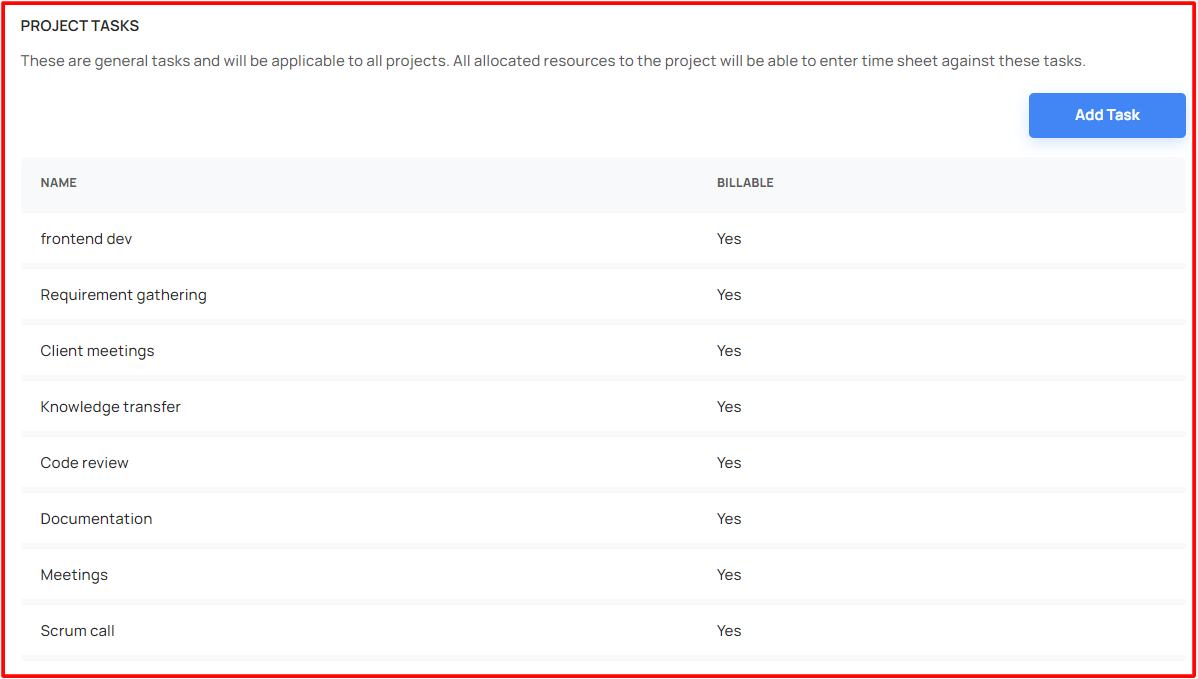
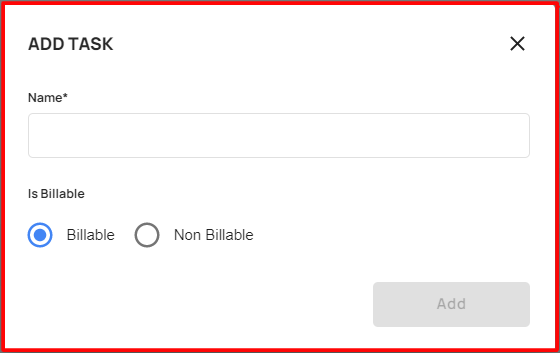
By clicking the add task and filling in the mandatory fields, the user can add the new project task
Able to edit/ delete the created/ existing project task
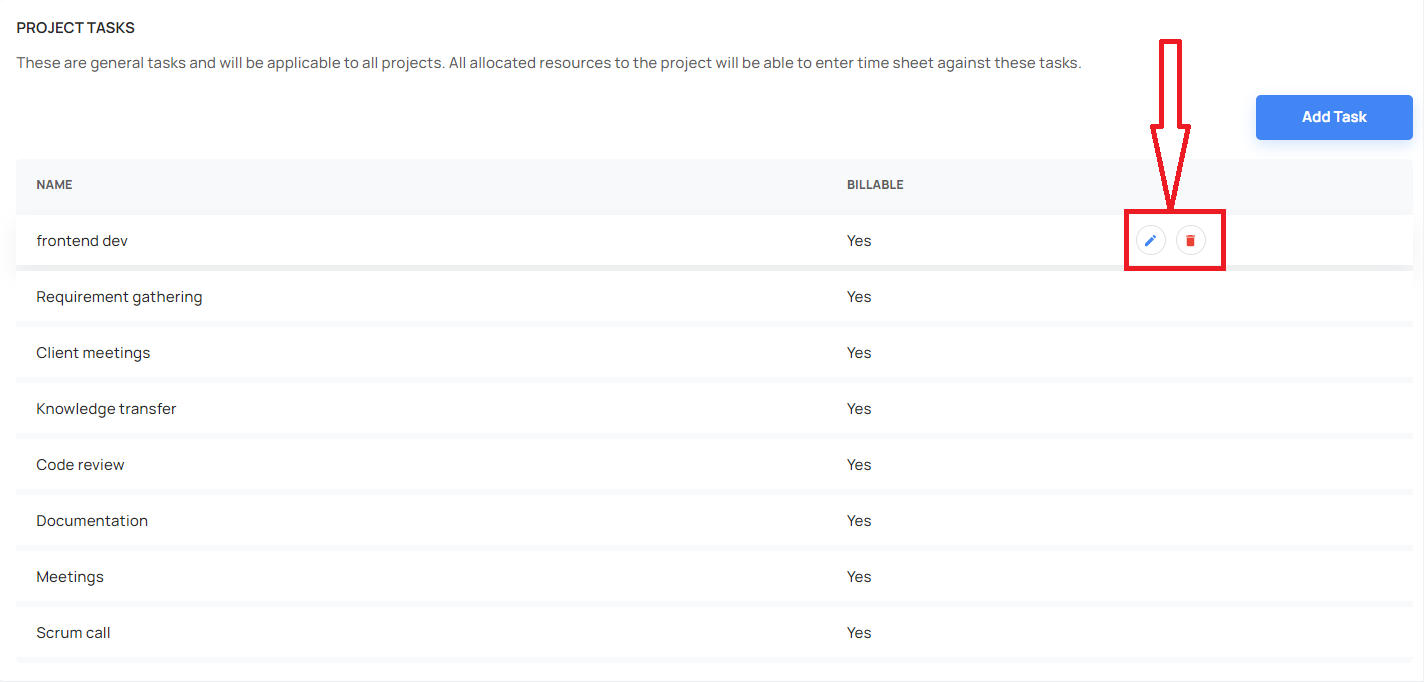
When trying to delete a project task, the user can delete it
Organisation Tasks
These are all Org level tasks and These will apply to all active users
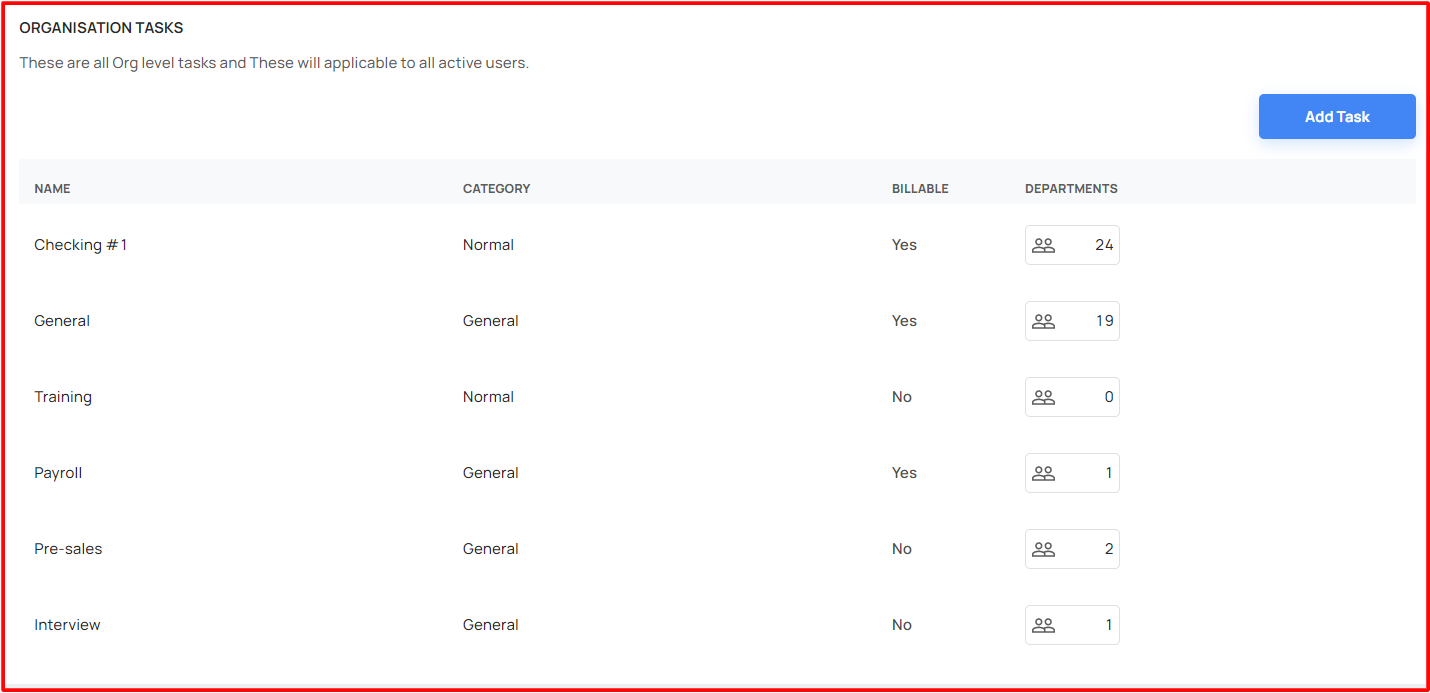
By clicking the add task and filling in the mandatory fields, the user can add the new organisation task
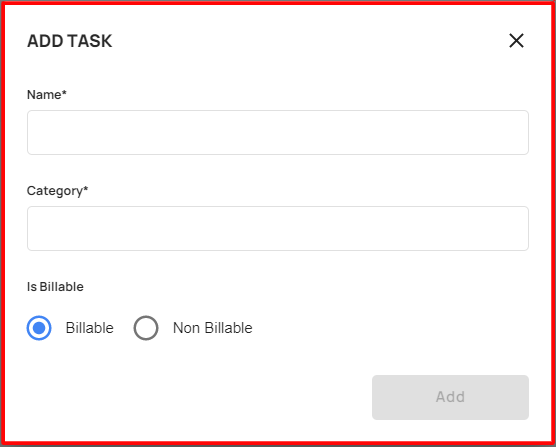
Able to edit/ delete the created/ existing organisation task
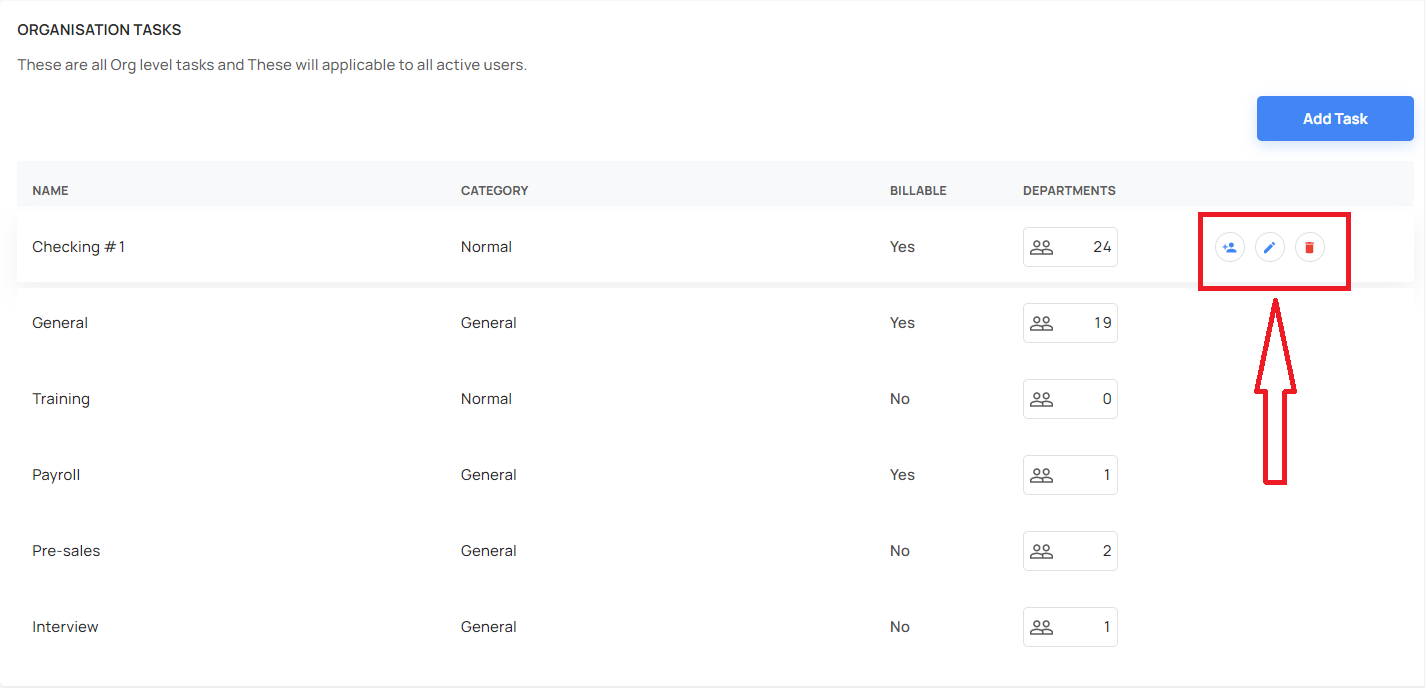
When trying to delete an organisation task, the user can delete it
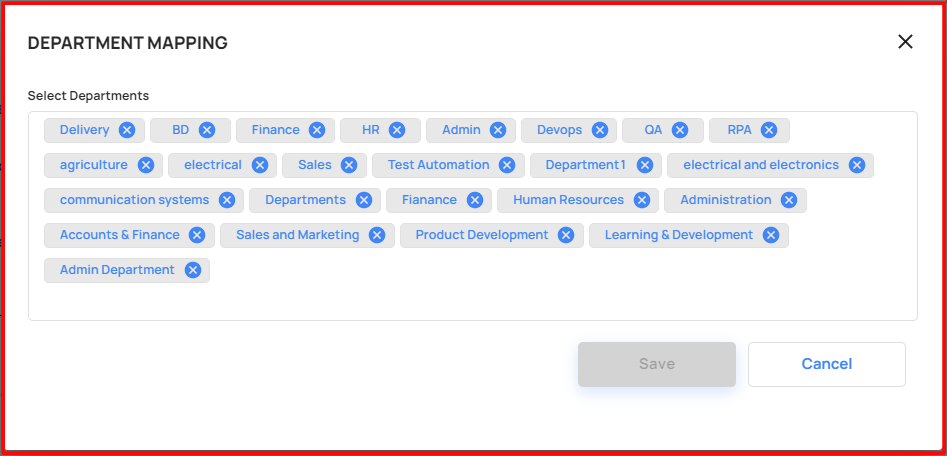
The user can able to mapping the departments into the organisation tasks
By clicking the add department option, the user can map/ unmap the department into the organisation task
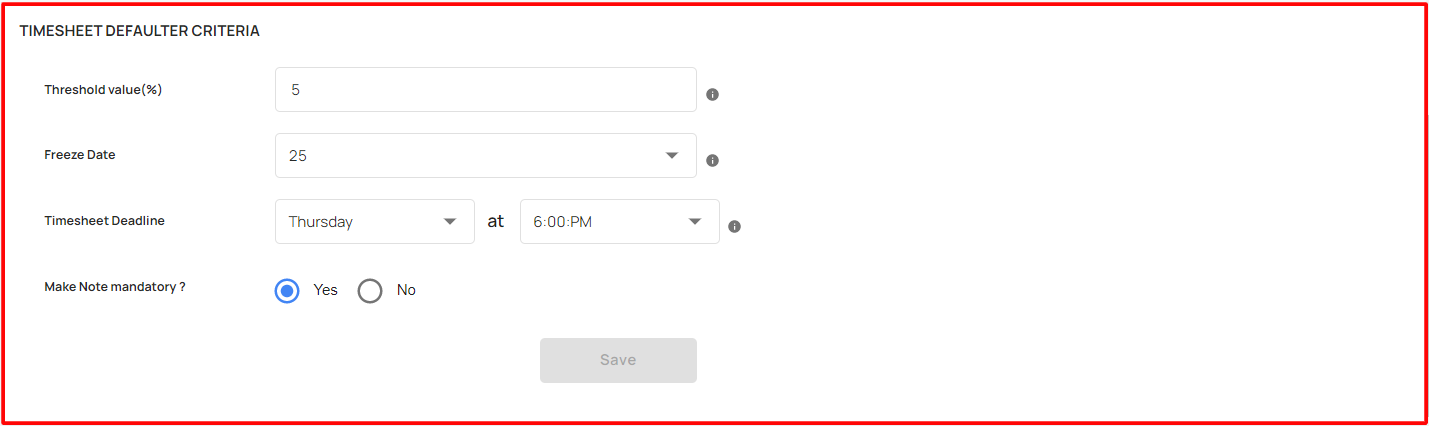
Timesheet Defaulter Criteria
- Able to set the timesheet default criteria, by filling in the fields
Project
Project Status
Navigates to the projects in the Master Data, the user able to create and manage the project status
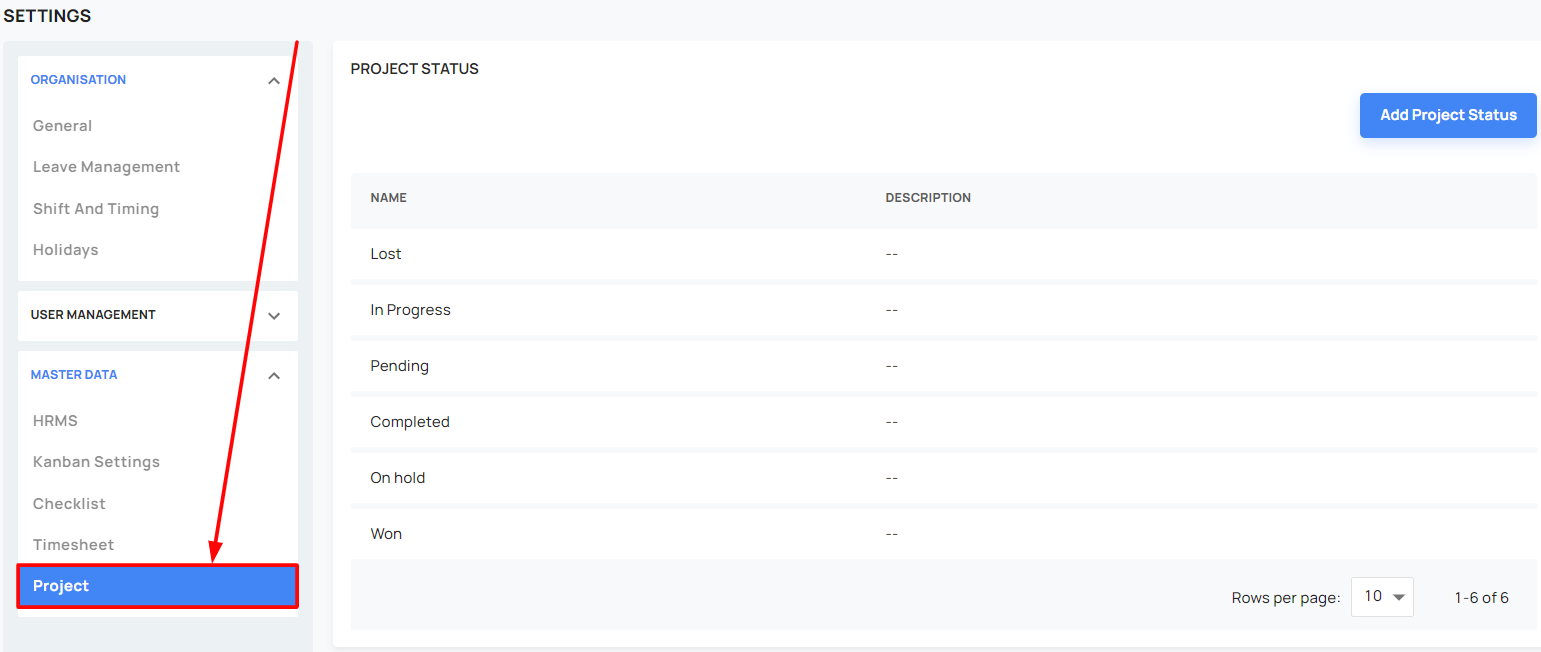
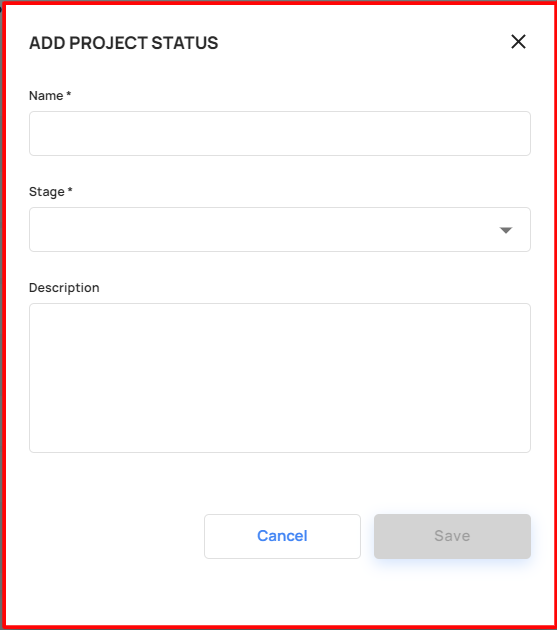
By clicking the Add Project Status, will pops up the form and fill the mandatory fields, the user can add the project status
The User able to edit and delete the created/ existing project status
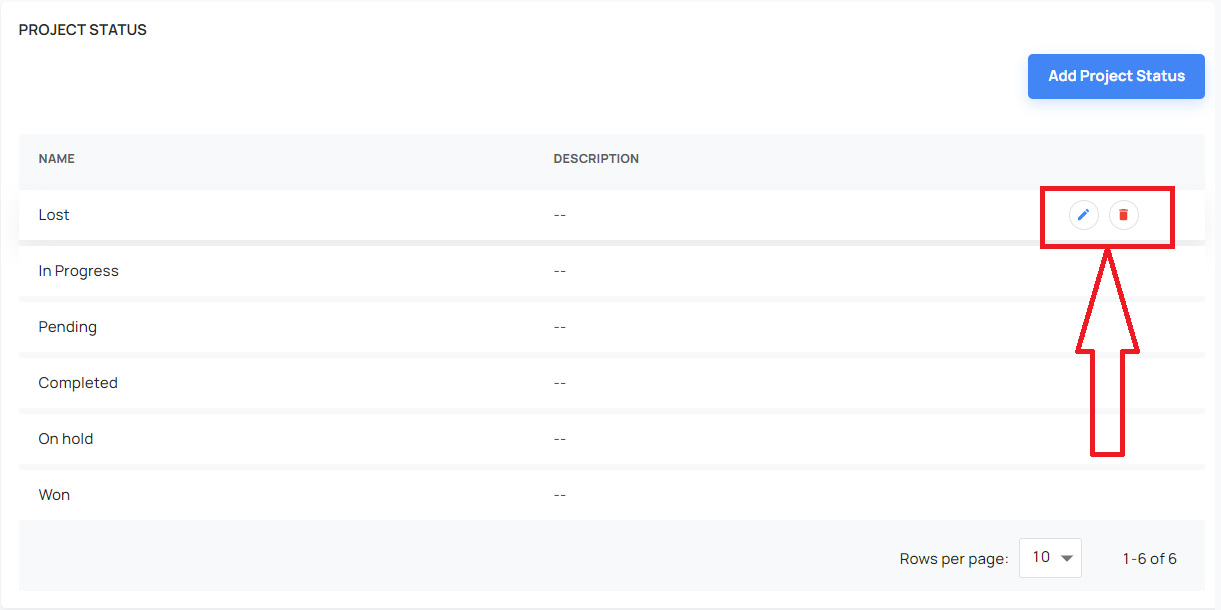
When trying to delete the project status,
- If the project status was mapped into any project, the user can't delete it
Project Category
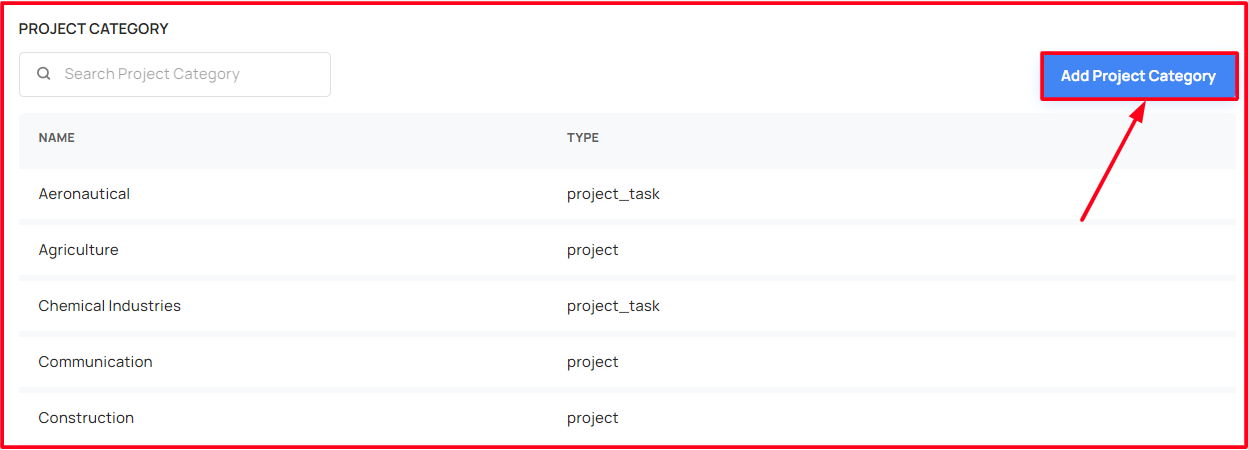
The user able to create and manage the project category
Also the user able to search and view the project category
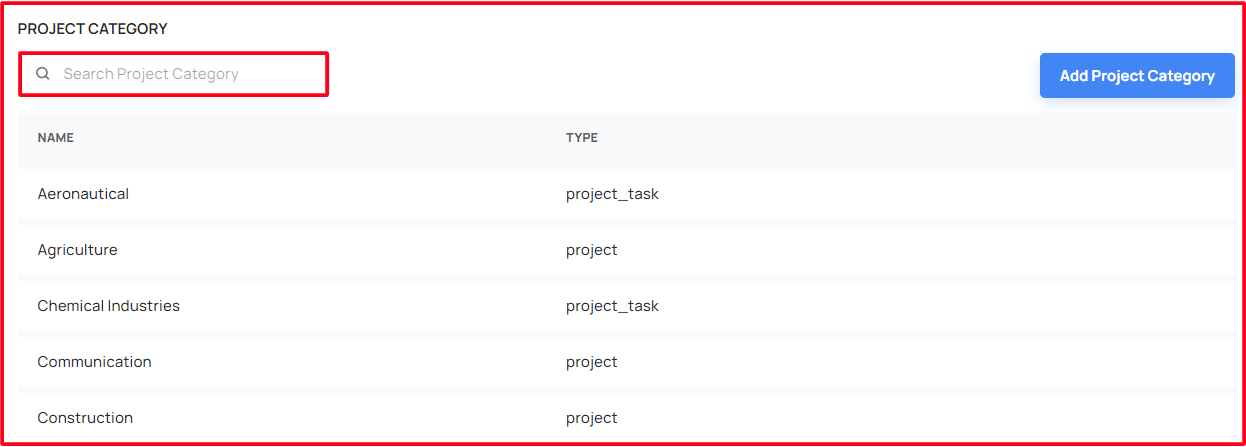
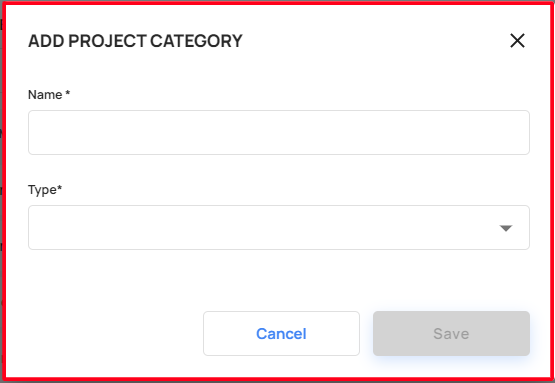
By clicking the Add Project Category, will pops up the form
Fill the mandatory fields, the user can add the project category
The User able to edit and delete the created/ existing project category
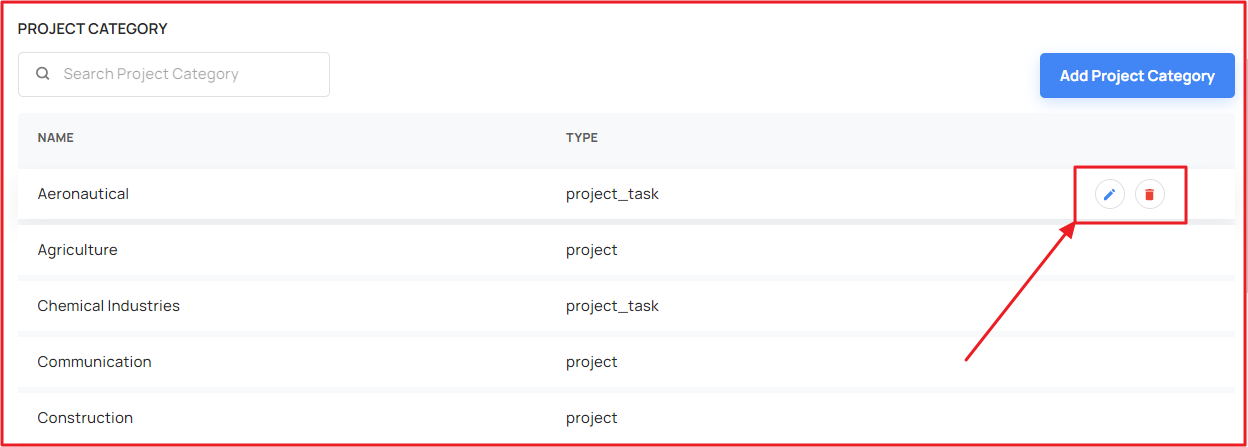
When trying to delete the project category,
- If the project category was mapped into any project, the user can't delete it
Project Label
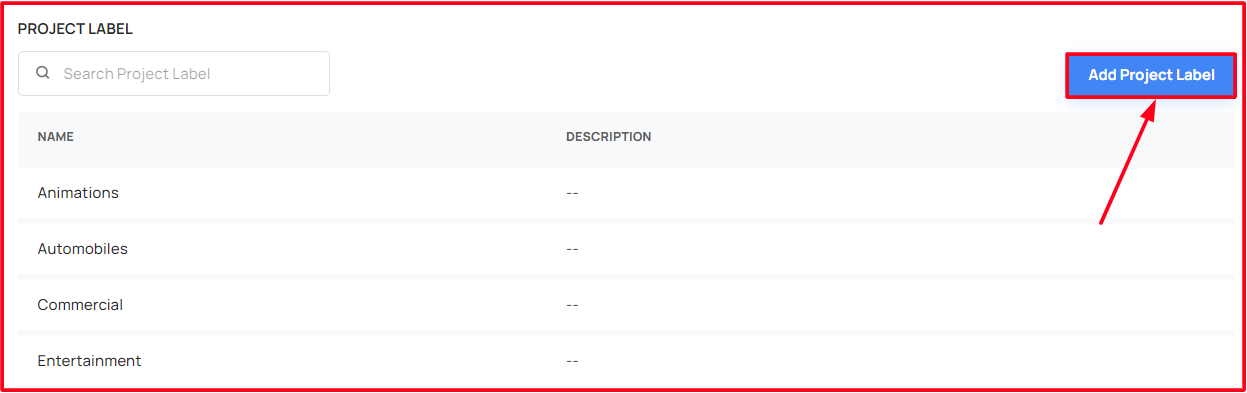
The user able to create and manage the project label
Also the user able to search and view the project label
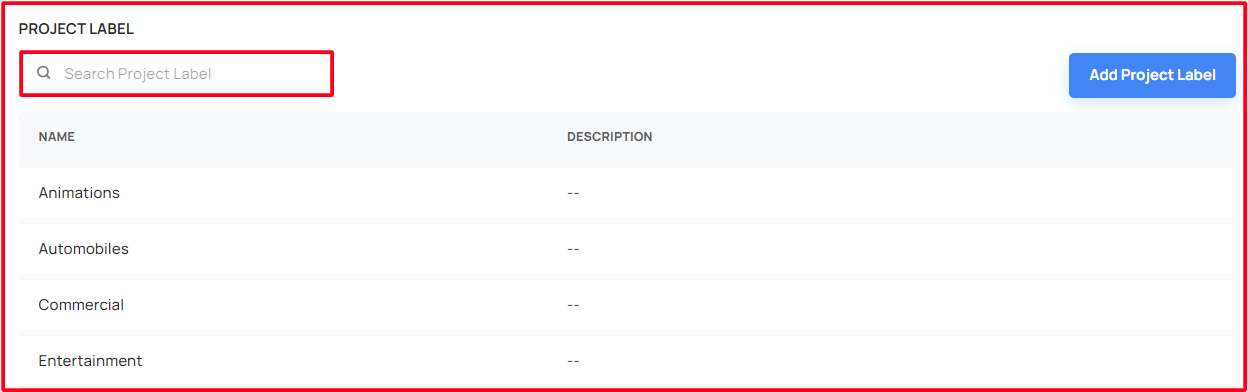
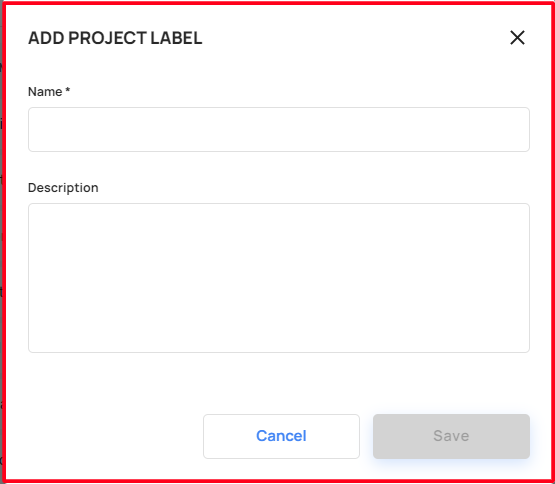
By clicking the Add Project Label, will pops up the form
Fill the mandatory fields, the user can add the project label
The User able to edit and delete the created/ existing project label
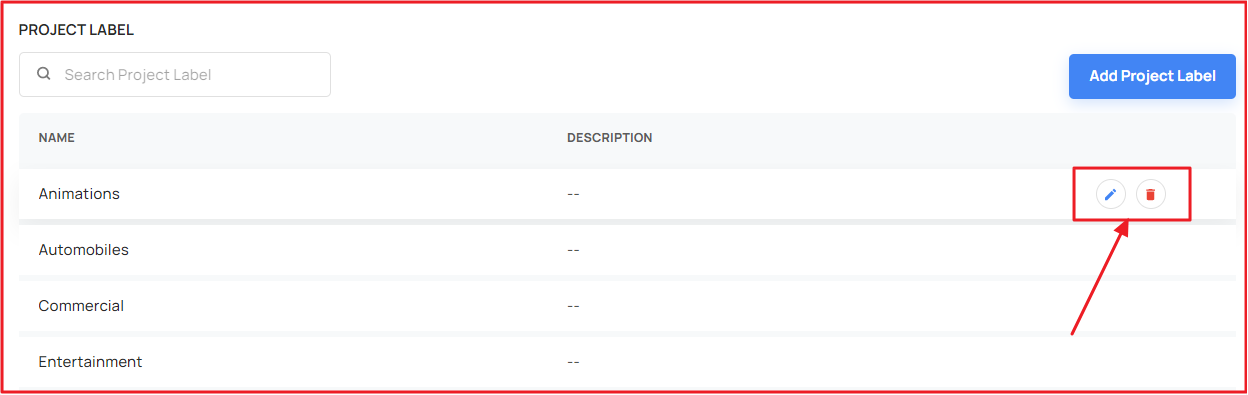
When trying to delete the project label,
- If the project label was mapped into any project, the user can't delete it