Project Module
In the application, Project module will allow the user to manage projects. The user can create, edit and delete projects. The resource allocation to the projects are also done in this module. Only CXO,Admin, Delivery Manager and Project Manager have access to edit this module.
The Project Module has various views.
- Projects
- Tasks
- Milestones
- Timesheet
- Resource Request
The default view is project view
Overview
Navigate to Project
Workplaze → Project
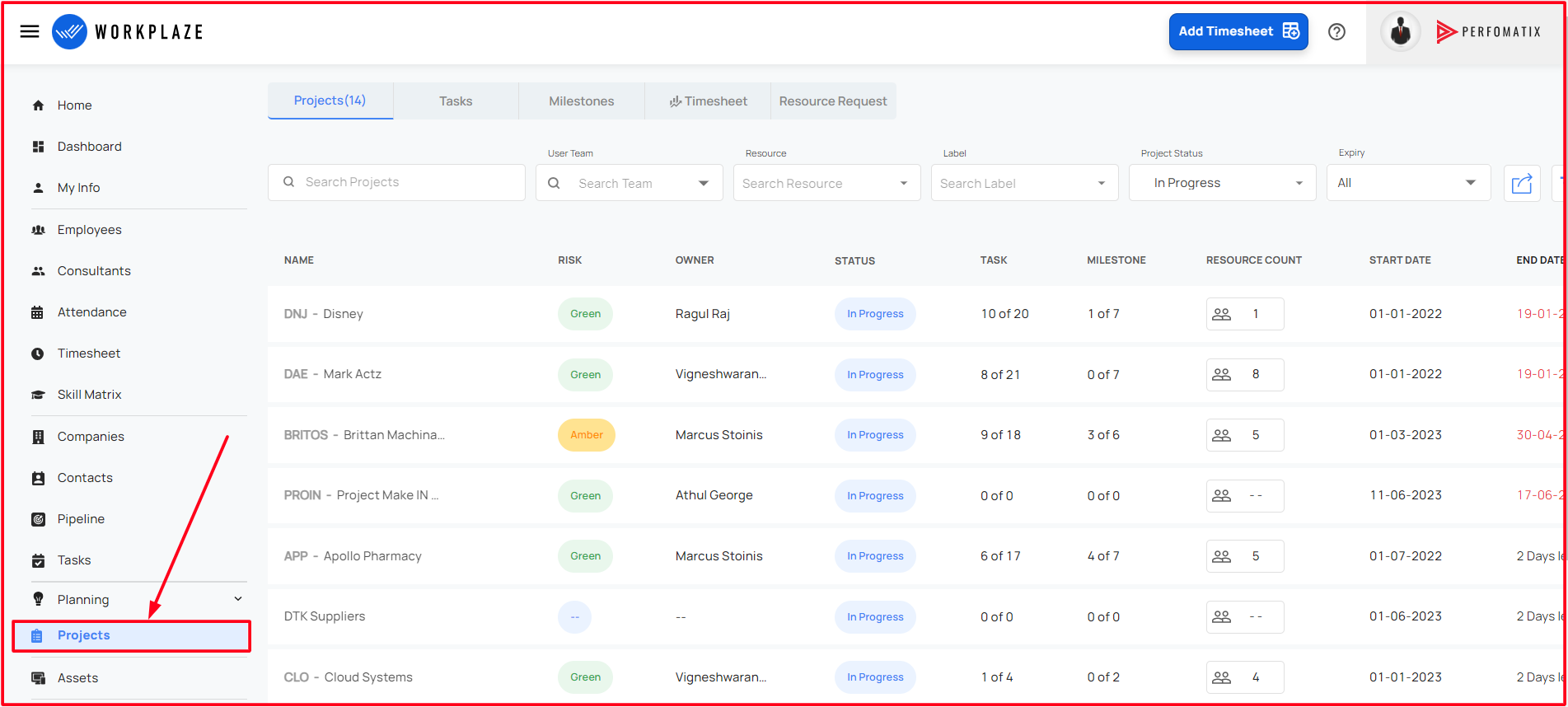
UI Options for Project View
- The user can only view the projects assigned to them
- The CXO, Admin, Project Manager can view other projects aswell.
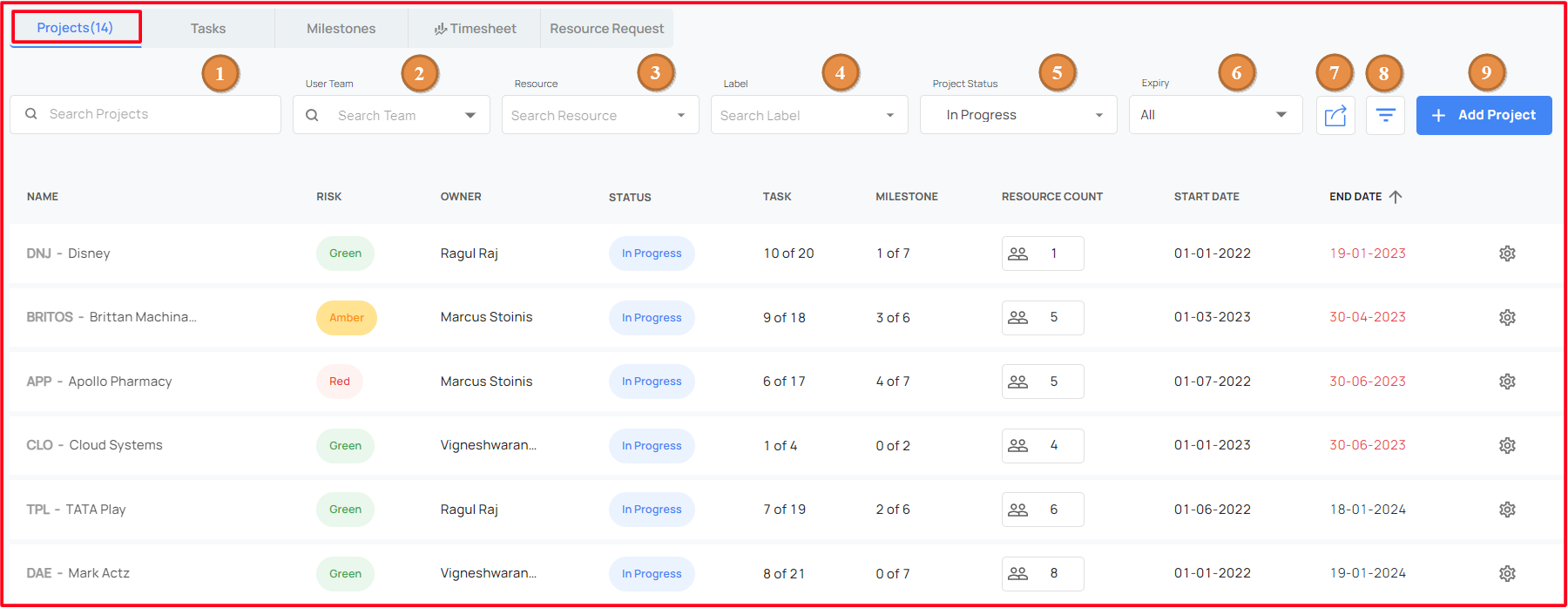
Search Projects
- Will allow the user to search project by the Project Name and project prefix
User Team
- Will allow the user to filter the resources by the User Team
Resource
- Will allow the user to search the projects using the resource name allocated to the projects.
- The filter option include All and each user name in resource allocation
Label
- Will allow the user to search projects using its label
Project Status
- The User can filter the project using the project status (All, OnHold, Completed, Pending, In Progress, Lost and Won)
- The default value is In Progress
Expiry
- The User can filter the project by thier respective end date (All, Expired, Expiring in 10 days)
- The default value is All
Export
- The user able to export the projects details
Filter Projects
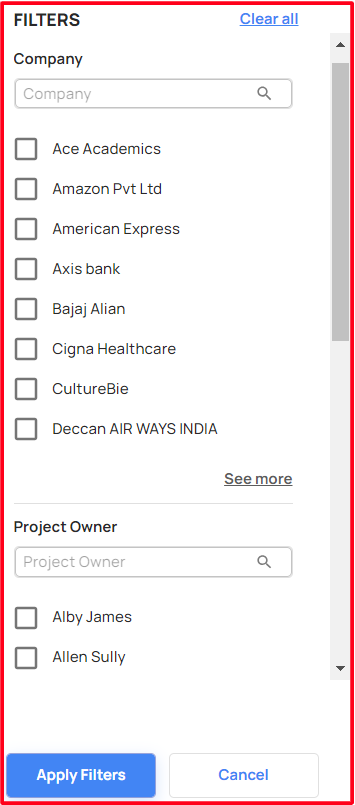
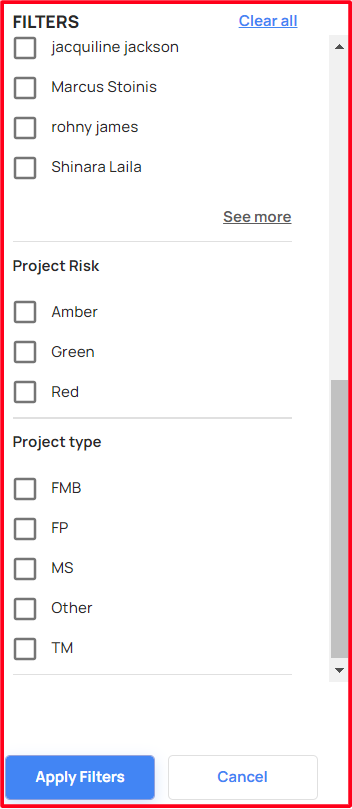
Advanced Filter will allows the user to search the project using the various filters.
When the user select the filter from UI, a drawer will render on the screen.
To Check below the image for filter options current filters are
- Company
- Project Owner
- Project Risk
- Project Type
Add Project
- Will allow the user to create a new project
Sorting
- Click on the label, Will allow the user to sort the projects
- The User able to sort the projects in two ways
- Project status
- Project End date
Project Details
- Click on the icon, will allow the user to view the project details
Kanban Details
- Click on the project, Will allow the user to navigate into the Kanban View and details
Category
- Will allow the user to search the projects using the category name under which the project is added at the time of creation
Add a new Project
To Add a new project
Workplaze > Project > Add Project

When Add Project Button is clicked a Project Form Pops up.
Add Project Form
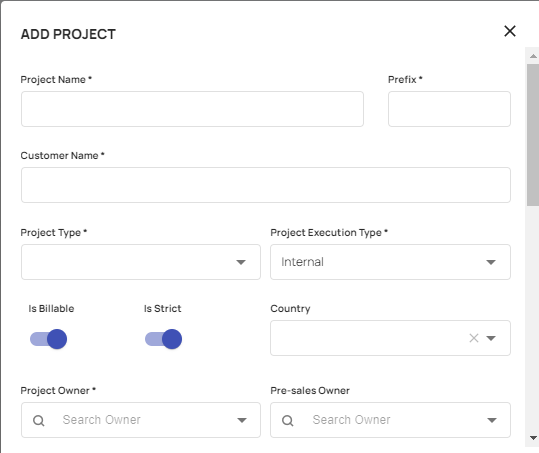
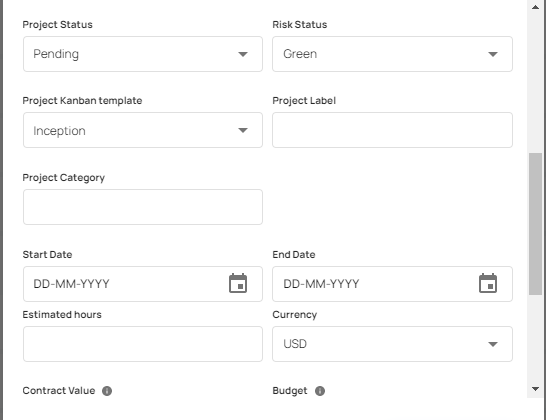

Add Project Form Details
- Project Name
- Records the project name
- Prefix
- Project prefix is the short name of the project. By default prefix take
The first three letters from the project.Minimum character length must
3and Maximum we can extend upto6characters.
- Project prefix is the short name of the project. By default prefix take
The first three letters from the project.Minimum character length must
- Customer Name Customer Name of that Project.
- Project Execution Type
- Will allow users to choose from External, Internal and Other, External projects whether client are External or project is out sourced and Internal projects are running inside the company itself.
- Is Billable
- To choose whether the project is billable or not
- Is Strict
- If is strict is true then system wont allow the user to enter timesheet after the end date
- Country
- Records project’s country
- Project Pre-Sales Owner
- Who brought the project to company
- Project Status
- Show the current status of the project
- Risk Status
- Show the project risk status
- Project Kanban Template
- Allow user to choose kanban template for the project.
- Project Label
- Can add label for the project
- Project Category
- Can add Project Catgory
- Start Date and End Date
- Records start date and end date of the Project.
- Currency
- type of currency used in that organization
- Contract Value
- Value same as SoW
- Budget
- Records the budget of the Project
- Project Overview
- User can enter project over in the text field
Edit a Project
- After project created, user can edit the project.
- Only CXO,Admin,Project and HR Manager have access to edit.
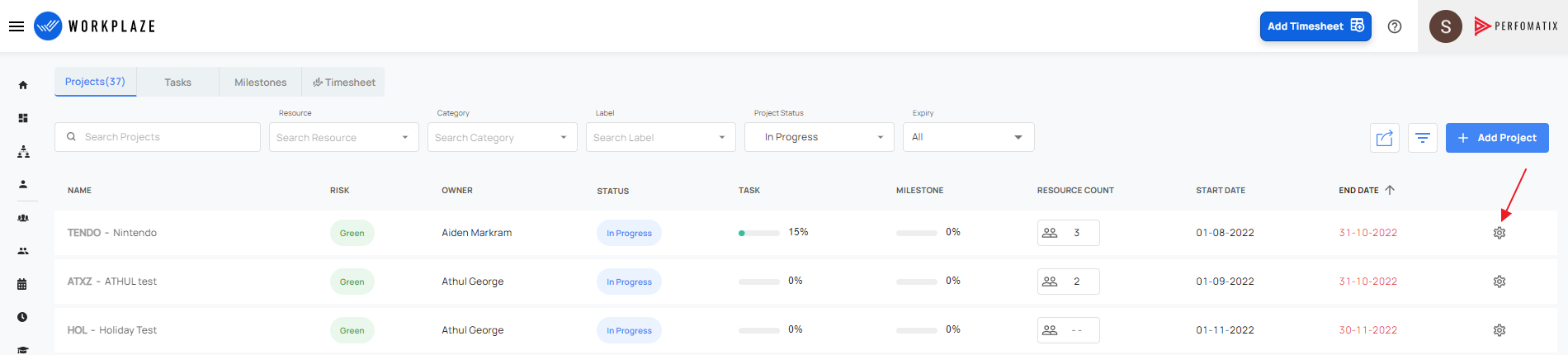
- When hover on the above shown button ,it shows project details and when clicked on it, redirected to project details page, where the details can be edited.
Edit Project Details
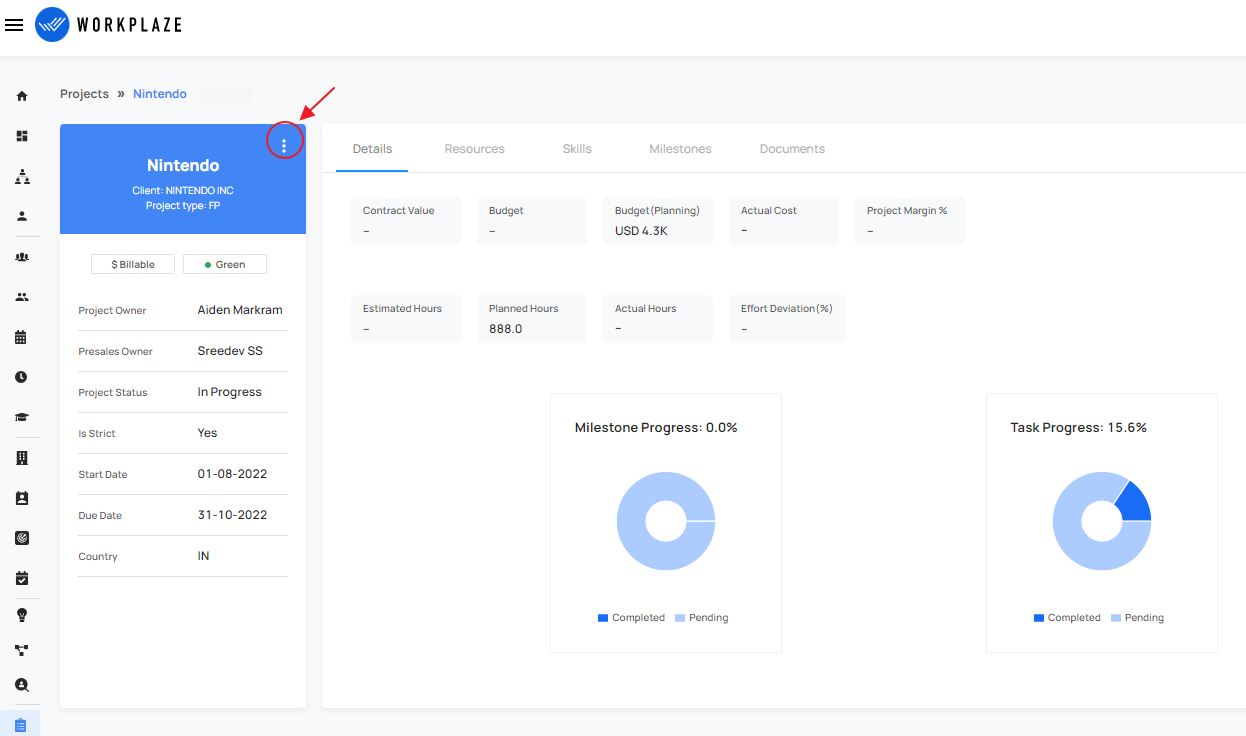
The project details added at the time of creation can be edited here.
Add Resource
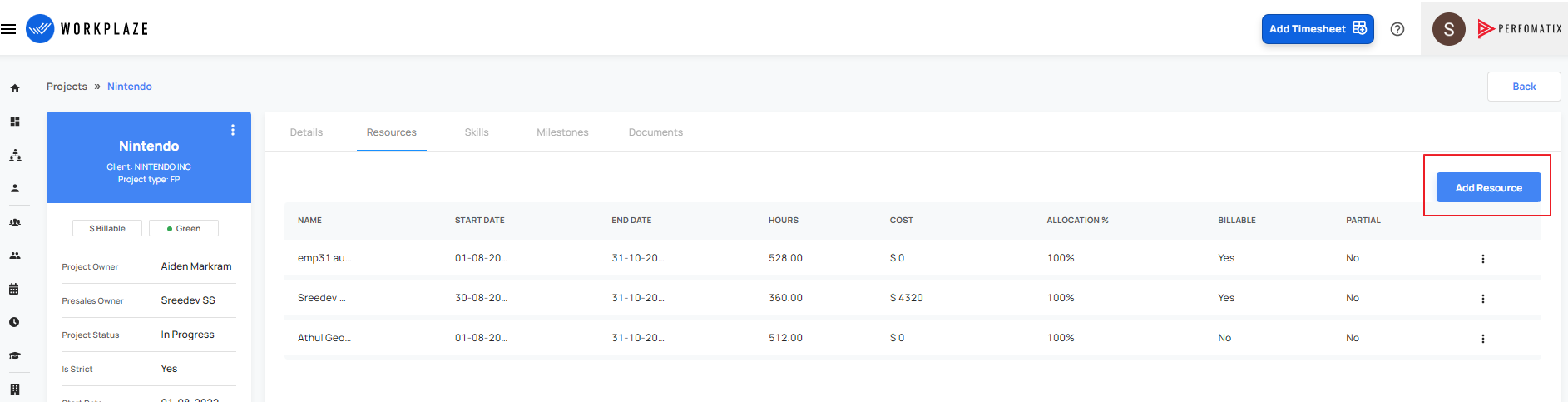
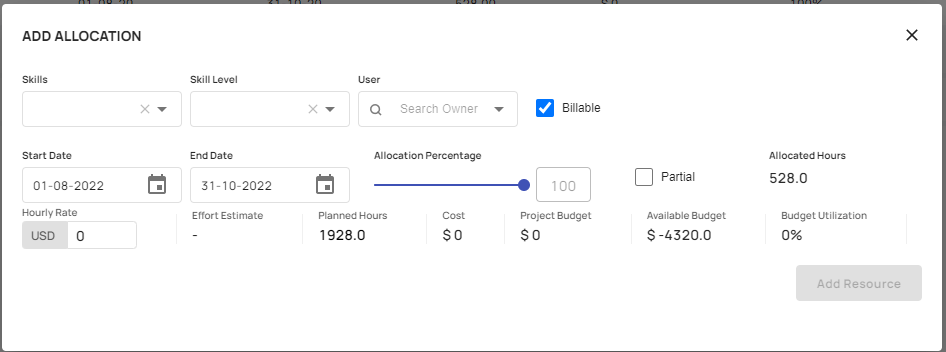
- User can add resources to that selected project. When clicked the add resource button, an allocation form pops up , and resource with required skill ,skill level and user can be added through that form. If the resource is a billable resourse ,his hourly rate can also be changed here.
Add Task
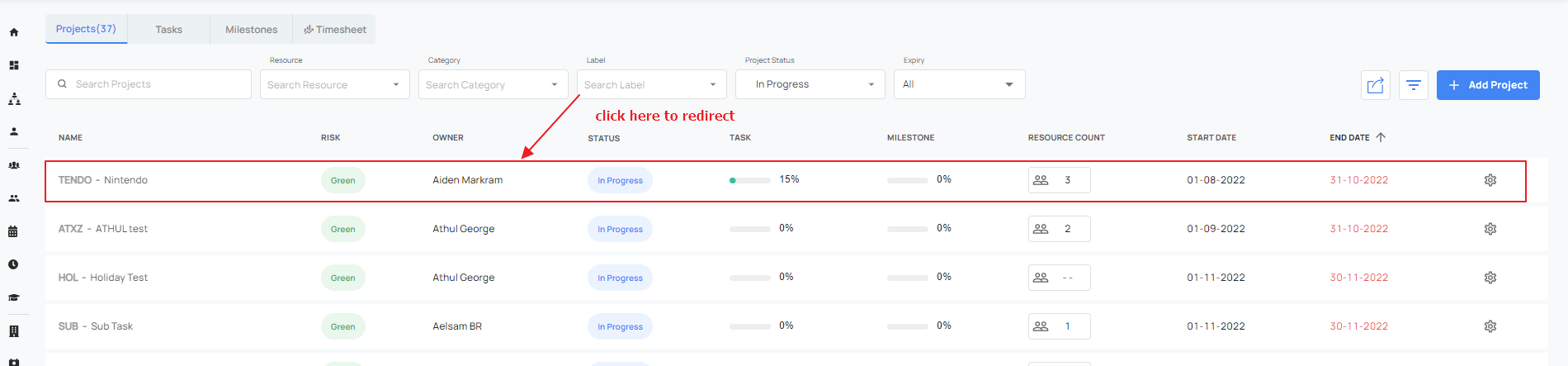
- To add a task to a project, click on that project, it is redirected to a page where user can see the kanban view of the tasks added to that project.
- To add new tasks to that project click Add Task button, the Add task form pops up.
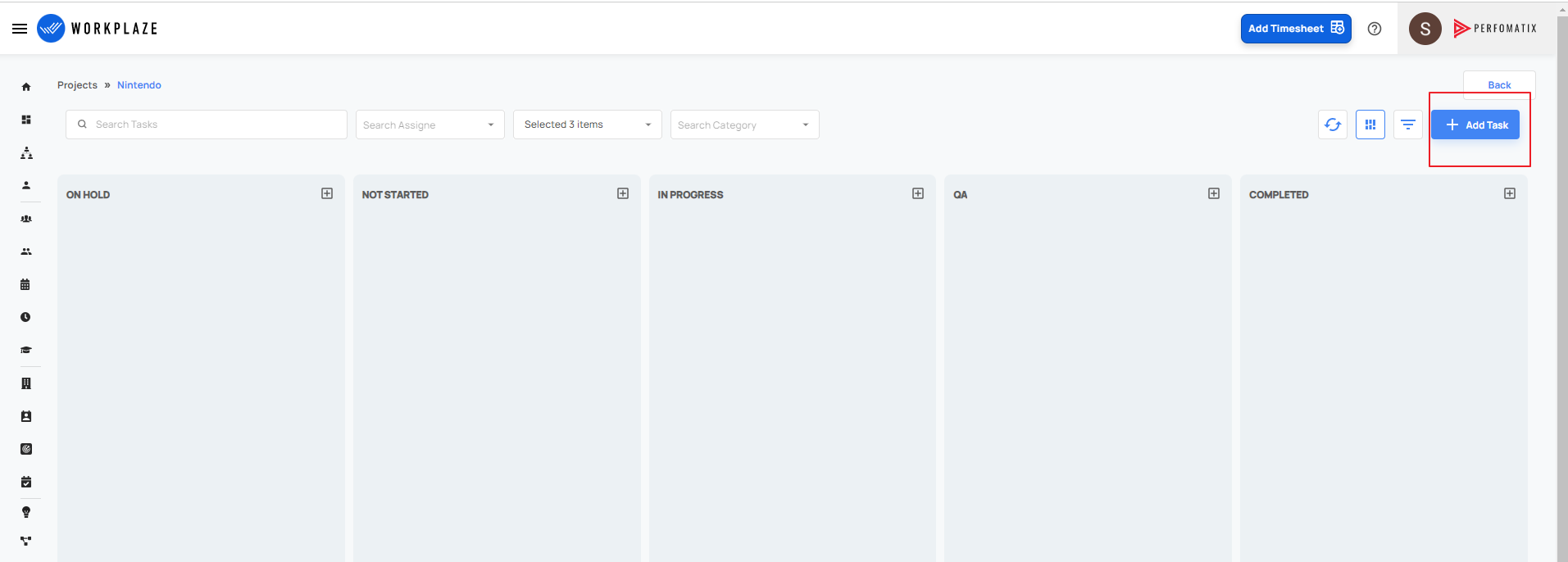
Add Task Form
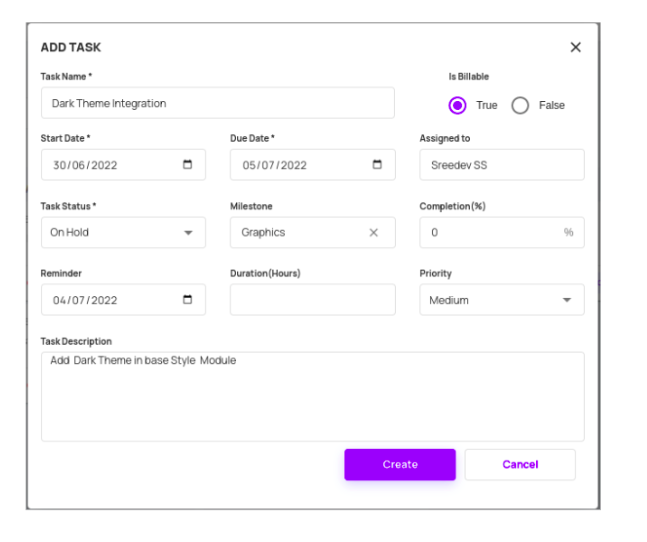
- clicking the '+' sign in each kanaban column also renders pop up form to add tasks to that corresponding column.

Add Task Form
Task Name
- Respective task name
Is Billable
- Is the task billable or not
Start Date
- Task start date
Due Date
- Task due date
Assigned To
- To whom task is assigned to( already added resource to that project)
Task Status
- Current status of the task
Milestone
- Task Milestone
Completion
- Task Completion percentage
Reminder
- Task Reminder Date
Estimated Hour
- Estimated Time for the task
Priority
- Task Priority(Medium,High or Low)
Task Description
- Description of the task if any
UI options for Task kanban view

- The tasks added to the projects can be filtered using various filter options like
Search Task
- Search Task by its name.
Search Assignee
- Search tasks by its assignees name.
Milestone
- Search the tasks by its milestone name.
Category
- Search tasks by its project category name.
Advanced Filter
- When clicked it,user can filter the taks by its priority like high, low or medium.

Edit Tasks
- Once tasks added, it can be viewed as cards - kanaban cards in the kanban column. User can filter and select the required task card using above mentioned filters. The kanban card can be edited by clicking to a perticular card.Loggedin user can see all the tasks assigned to him in that project.
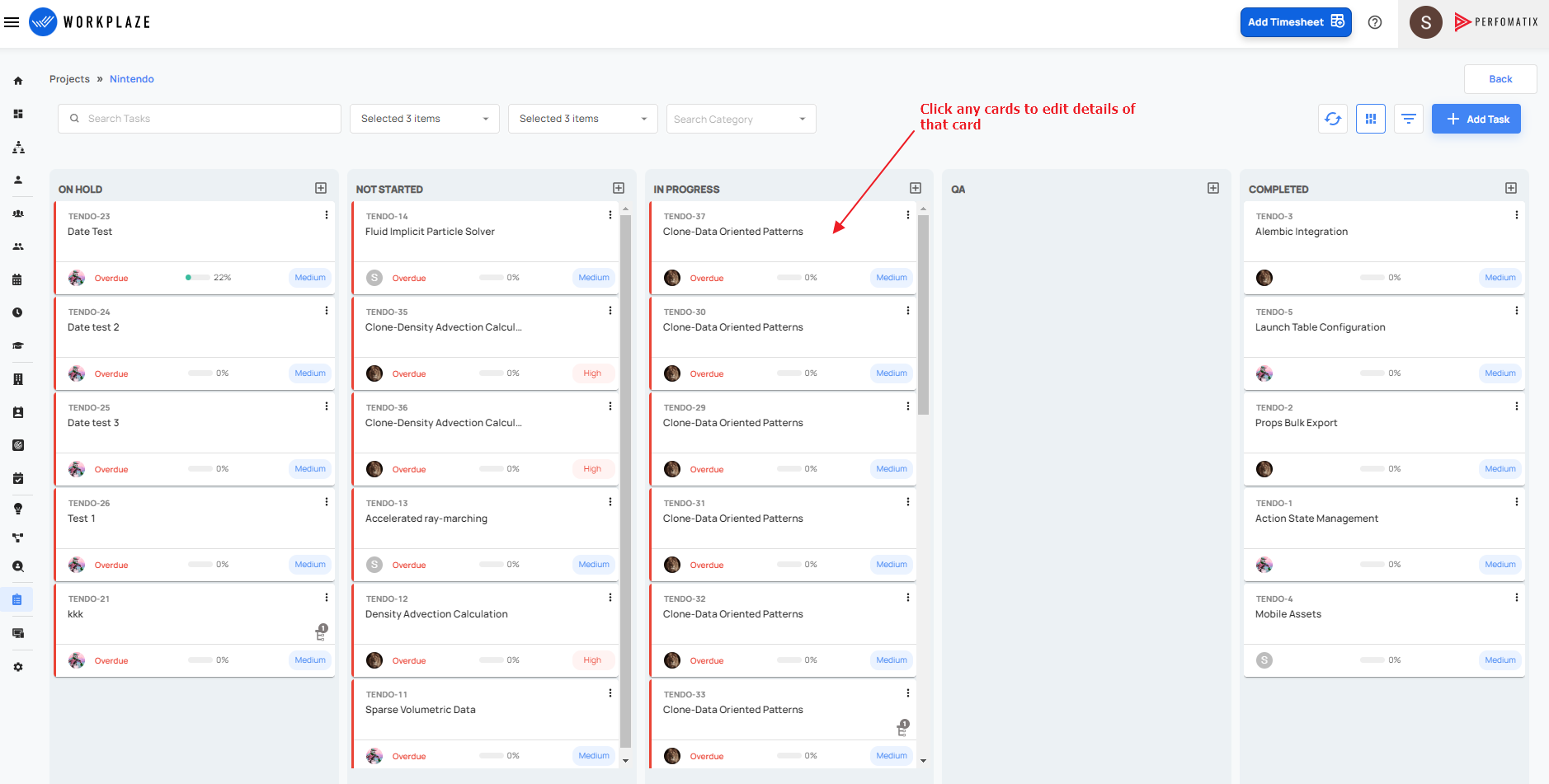
- clicking a perticular card will redirect to a page with a form where tasks details can be edited. Subtasks and comments to that tasks can also be added there.
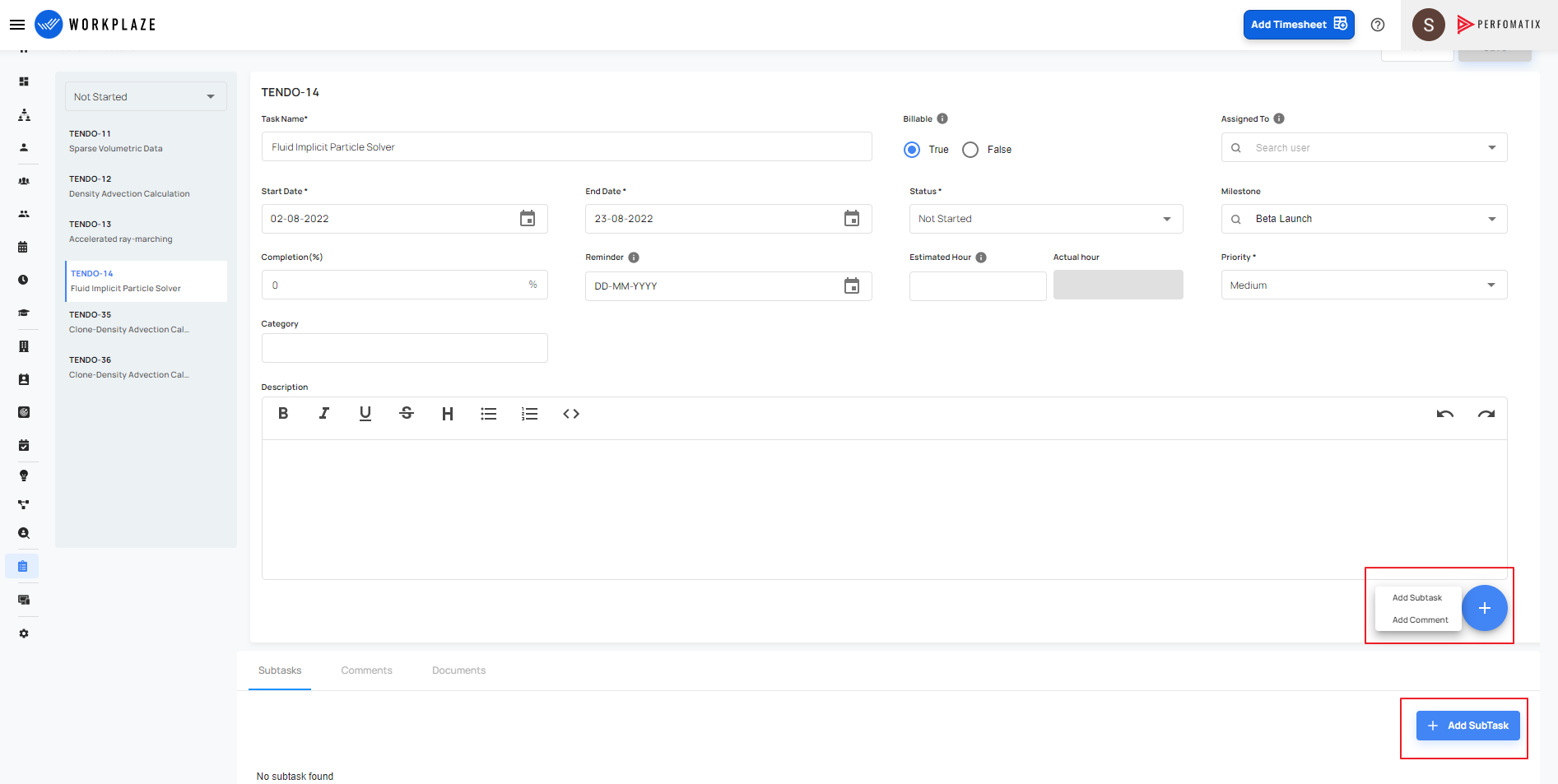
- Subtasks to a perticular tasks can be added by clicking the subtask button.
Task View
Workplaze > Project > Task
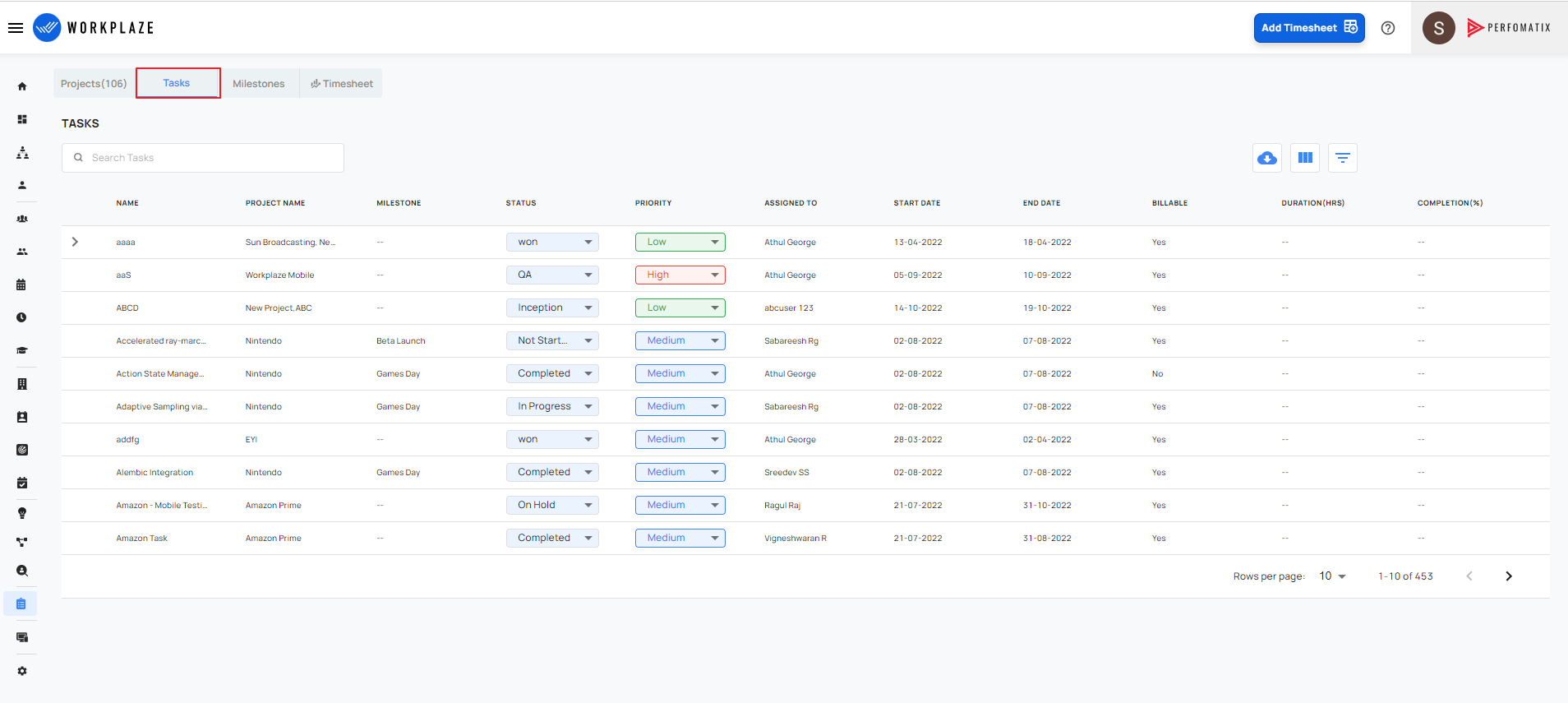
- In Task View user can view the list of all the tasks of the project he is in.
UI options for Task View
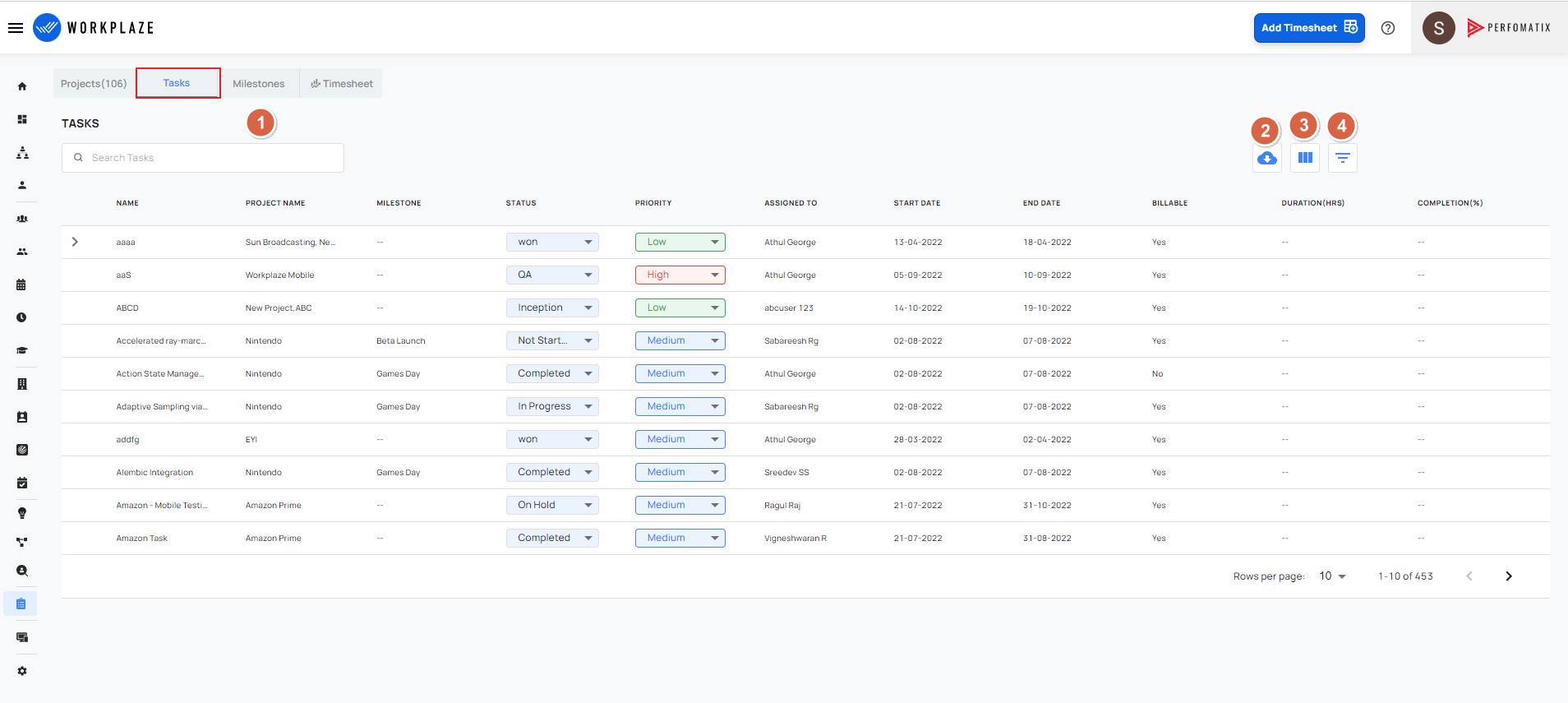
Search Task
- Search Task by name.
Download CSV
- Can download the task lists into a CSV file.
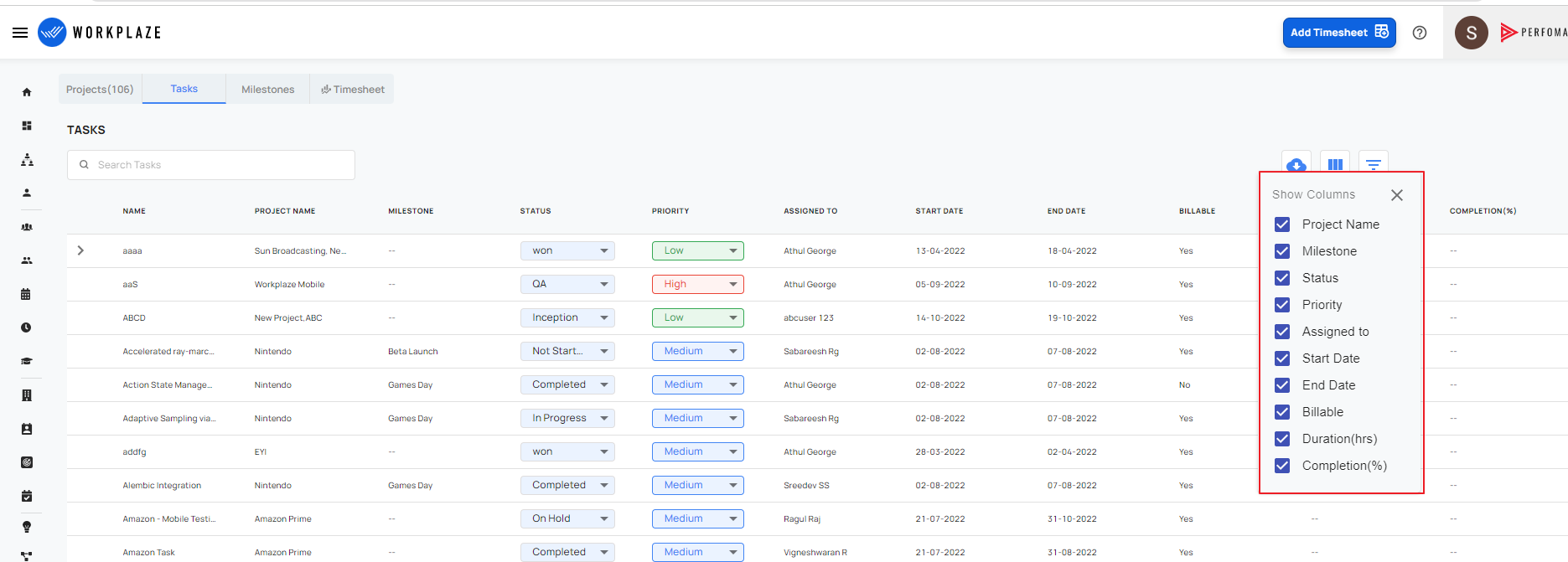
View Columns
- Gives the list of the names of all columns of the task list. Also by deselecting the column names, user can remove that column from the list view.
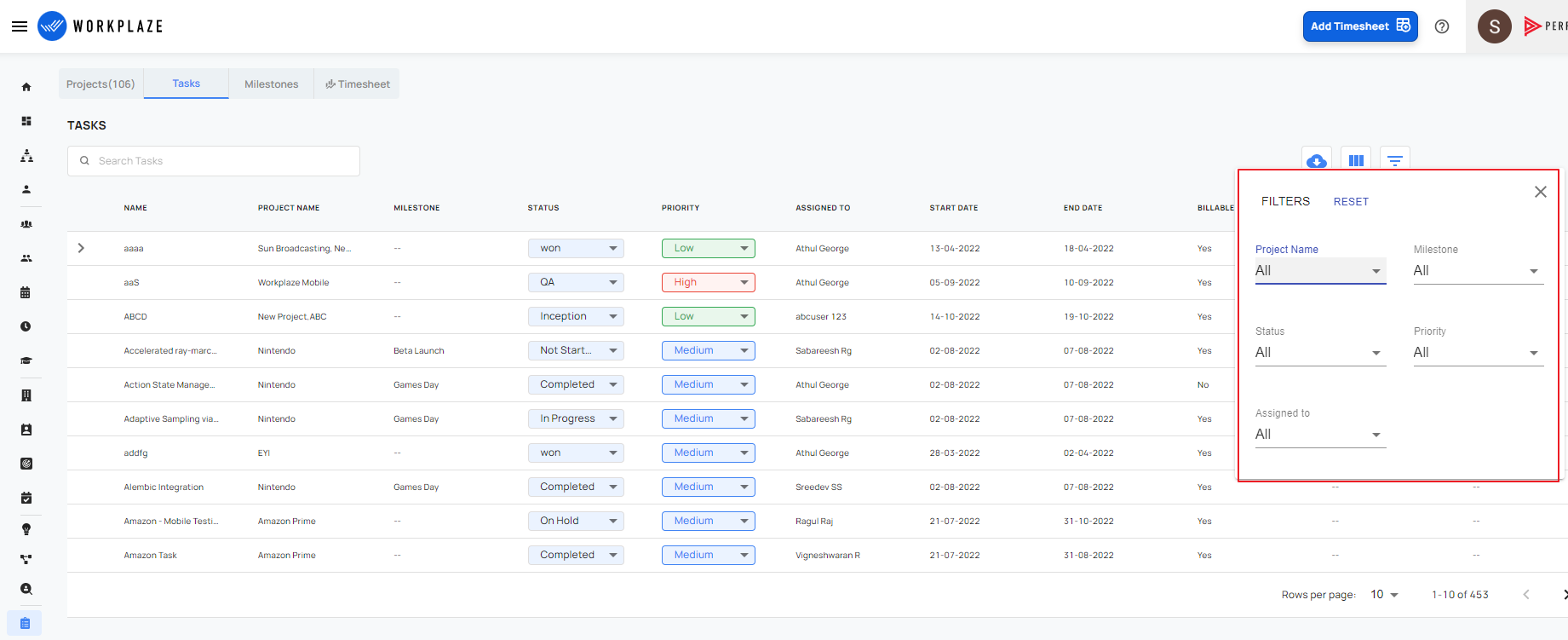
- Filter Table
This table will render a drawer with various options to filter the tasks listed. The options are
- Project Name
- Milestone
- Status
- Priority
- Assigned To
Milestone View
Workplaze > Project > Milestones
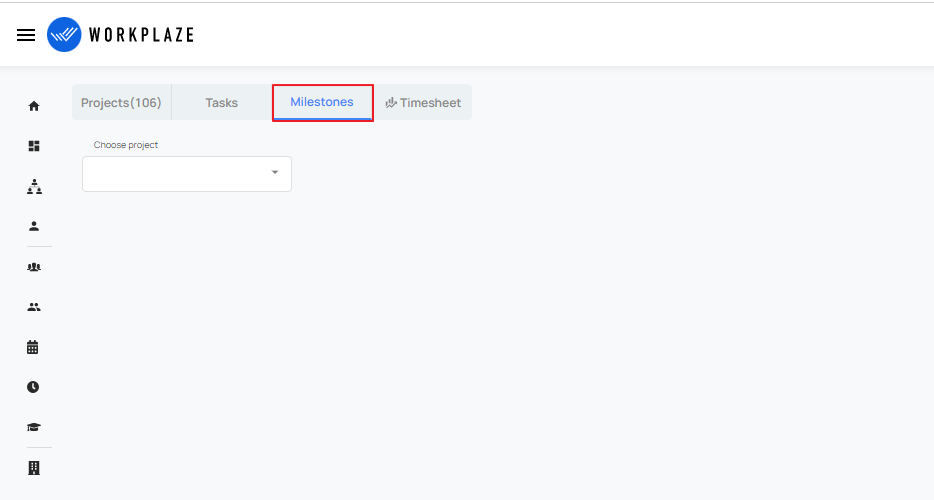
- In Milestones view ,user can select projects he is in, from the dropdown and see all the milestones related to that project tasks. The user with admin rights can see all the projects and its related milestones.
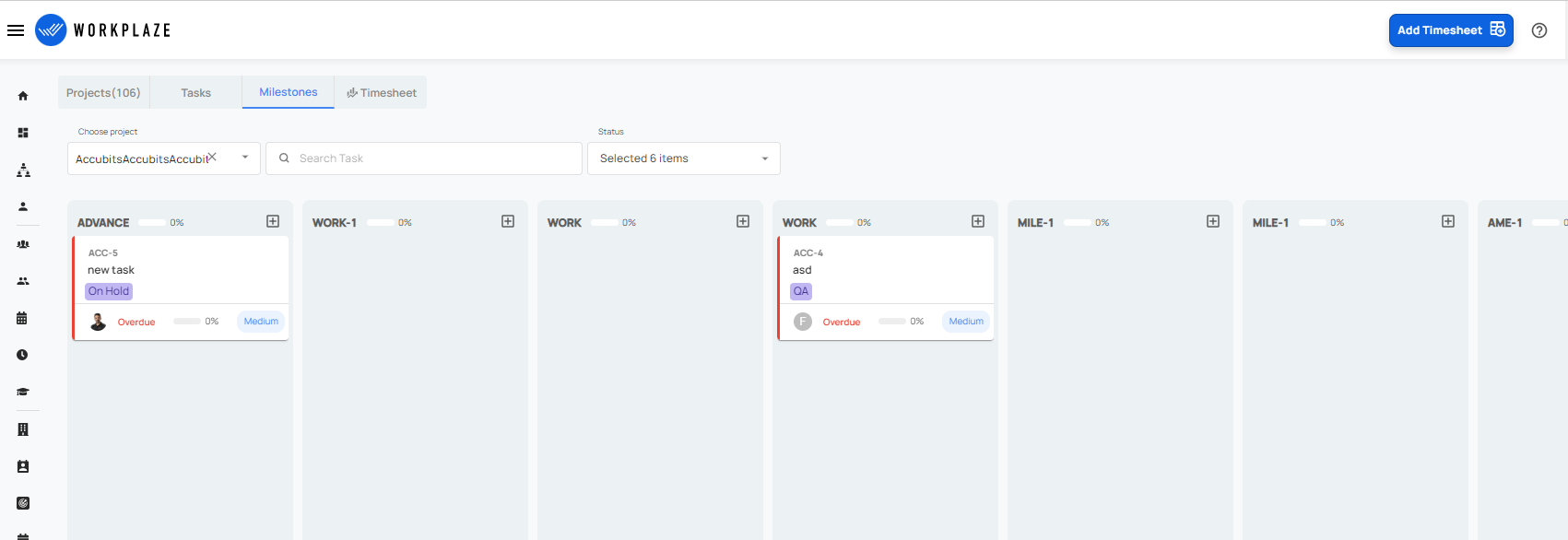
Each kanban column represents each milestone. Here user can filter the milestone cards using the task name and status.
Timesheet View
Workplaze > Project > Timesheet
- Timesheet view has 2 sub views.
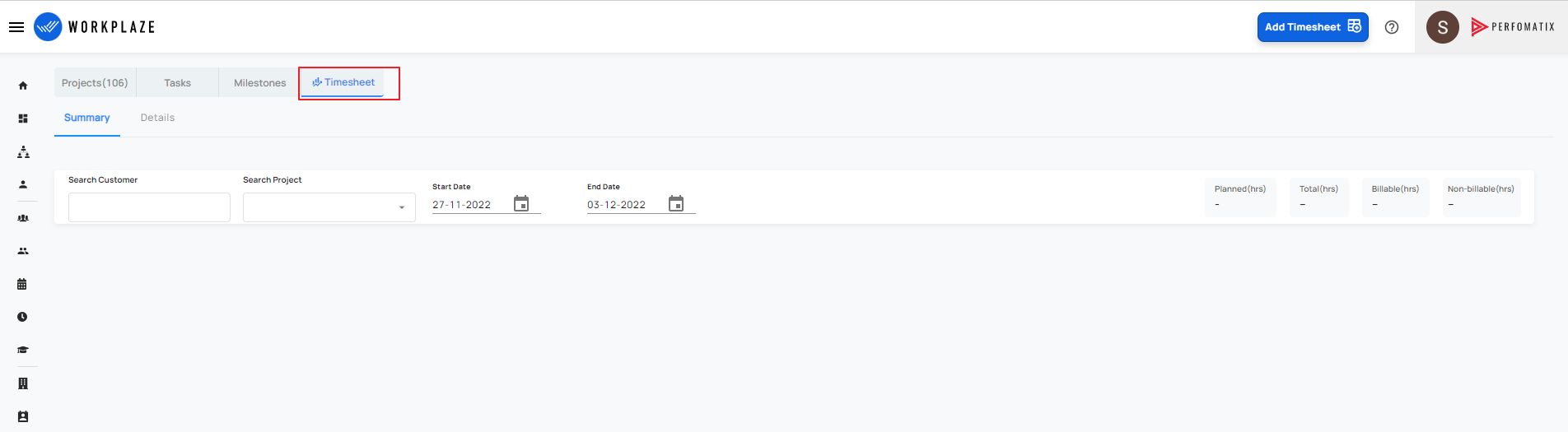
CXO, Admin, Project Manager and Delivery Manager can only view this Timesheet view
Summary
Details
Summary is the default view
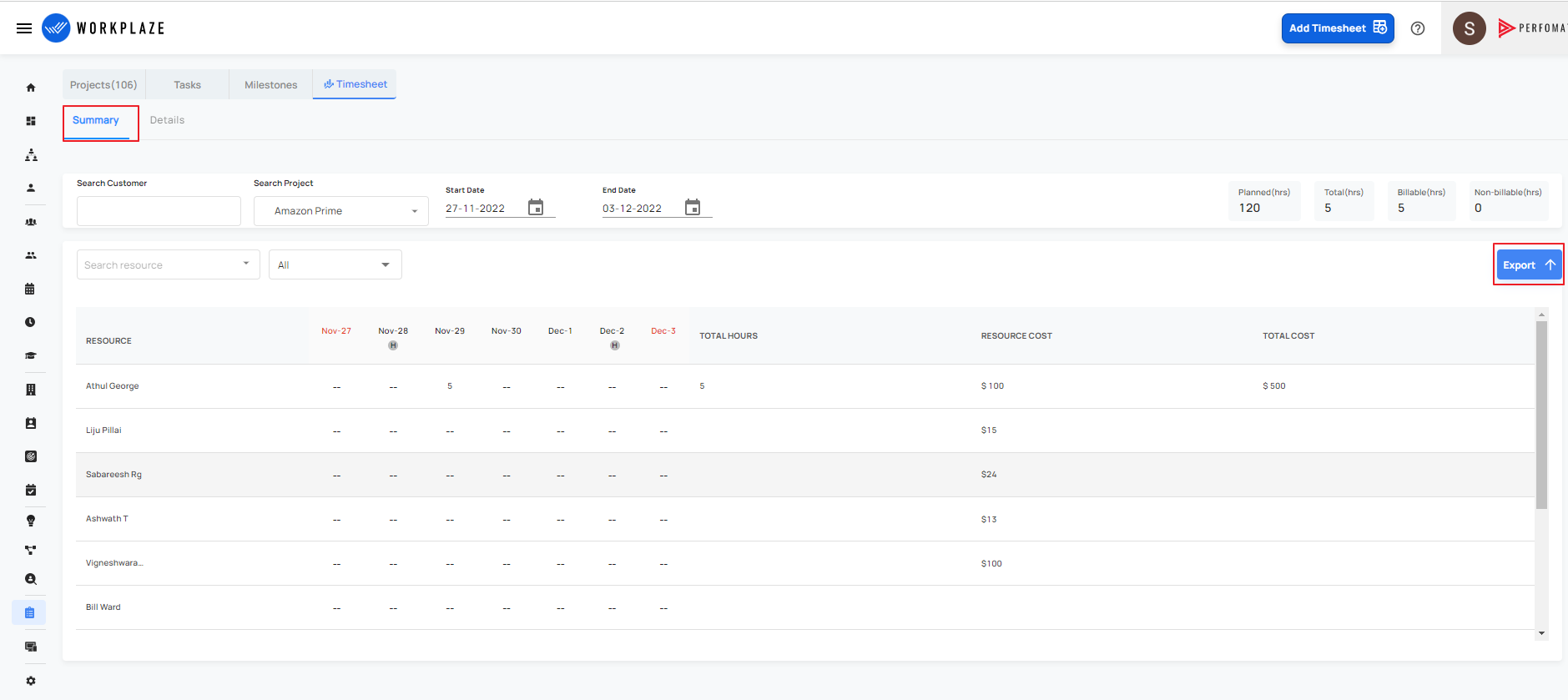
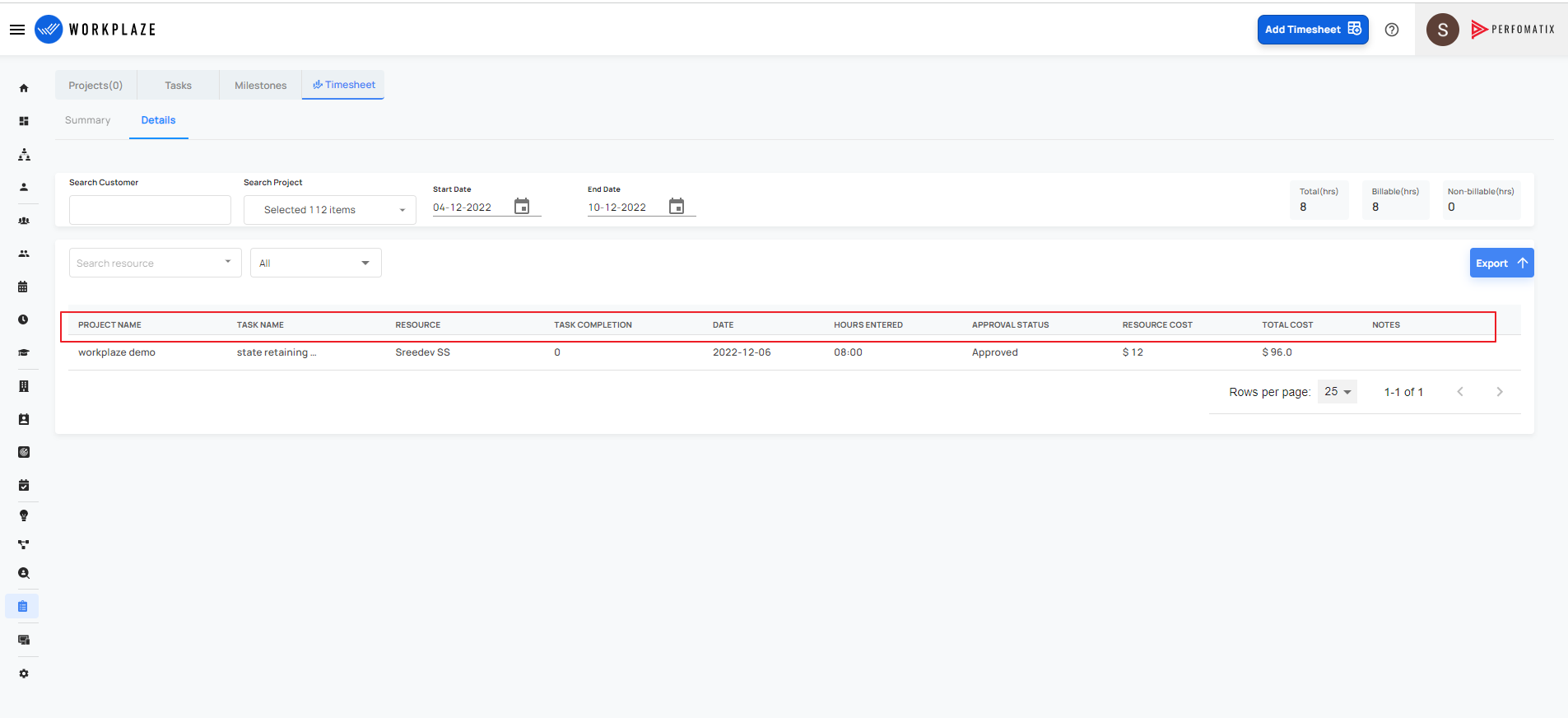
- In Timesheet Summary view user can see total hours he worked in that mentioned period(max 30 days). The user can filter the tasks using customer name and the project name. The user can get to know the planned hours, total worked hours, total billable and total non-billable hours for the selected project. Exporting the summary to a excel sheet is also possible using the export button.
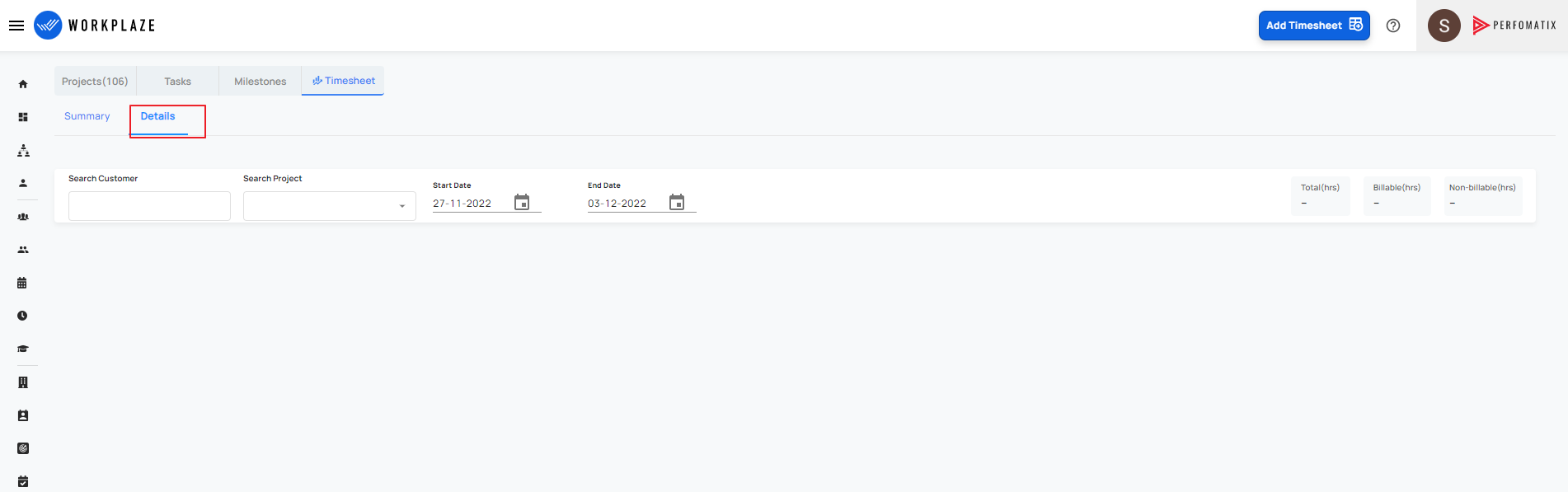
- The Timesheet details view is based on the timesheet submitted for a project in that mentioned period(max 30 days).The required timesheet can be seen by filtering the required project or customer name. Billable, Non billable, resource name etc can be used to filter the timesheet.
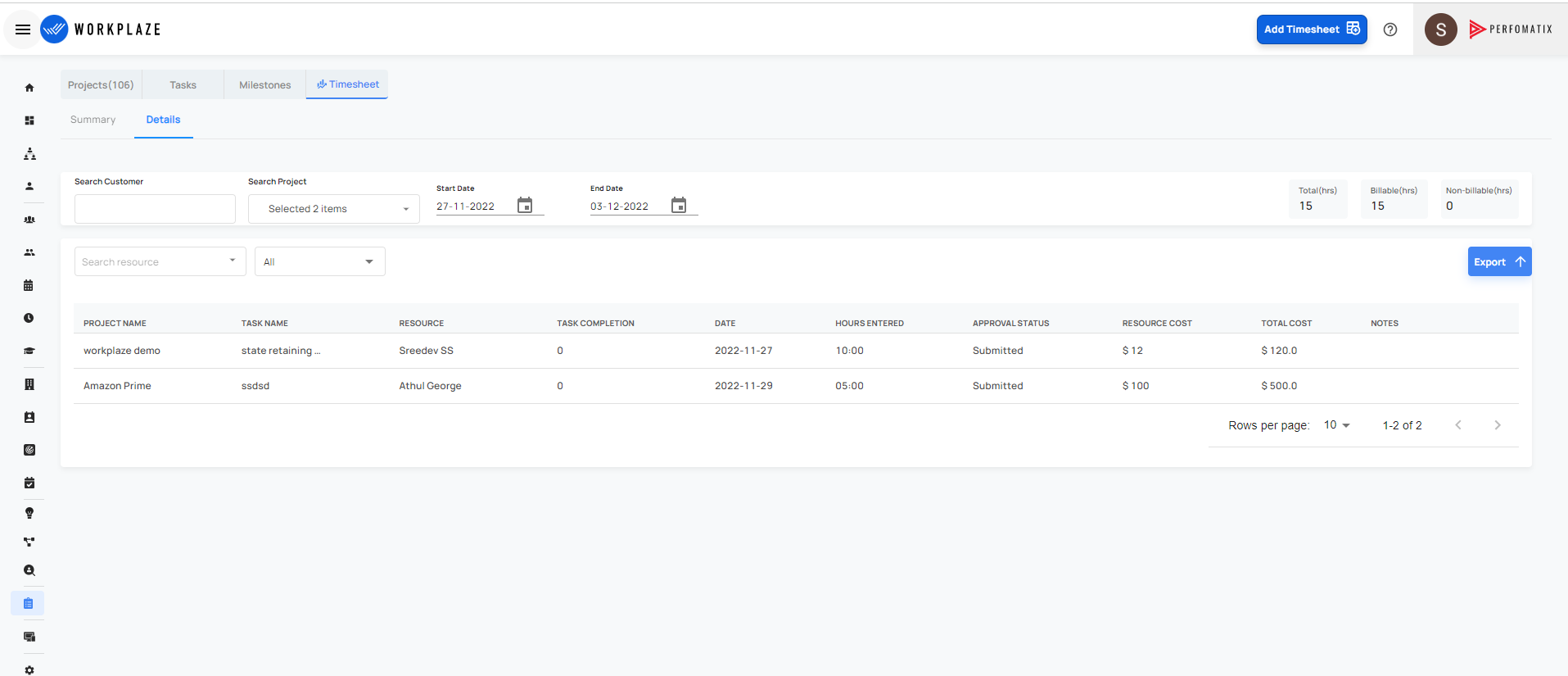
User can see the total hours, billable and non-billable hours in this timesheet detail view. The whole details on the timesheet submitted can be known here like, project, task name, Resource, hours entered, approval status, resource cost, total cost etc.