Pipeline
Pipeline Module has two views. Pipeline view and insight view. Pipeline is mainly for managing business development.
Overview
Navigate to Pipeline
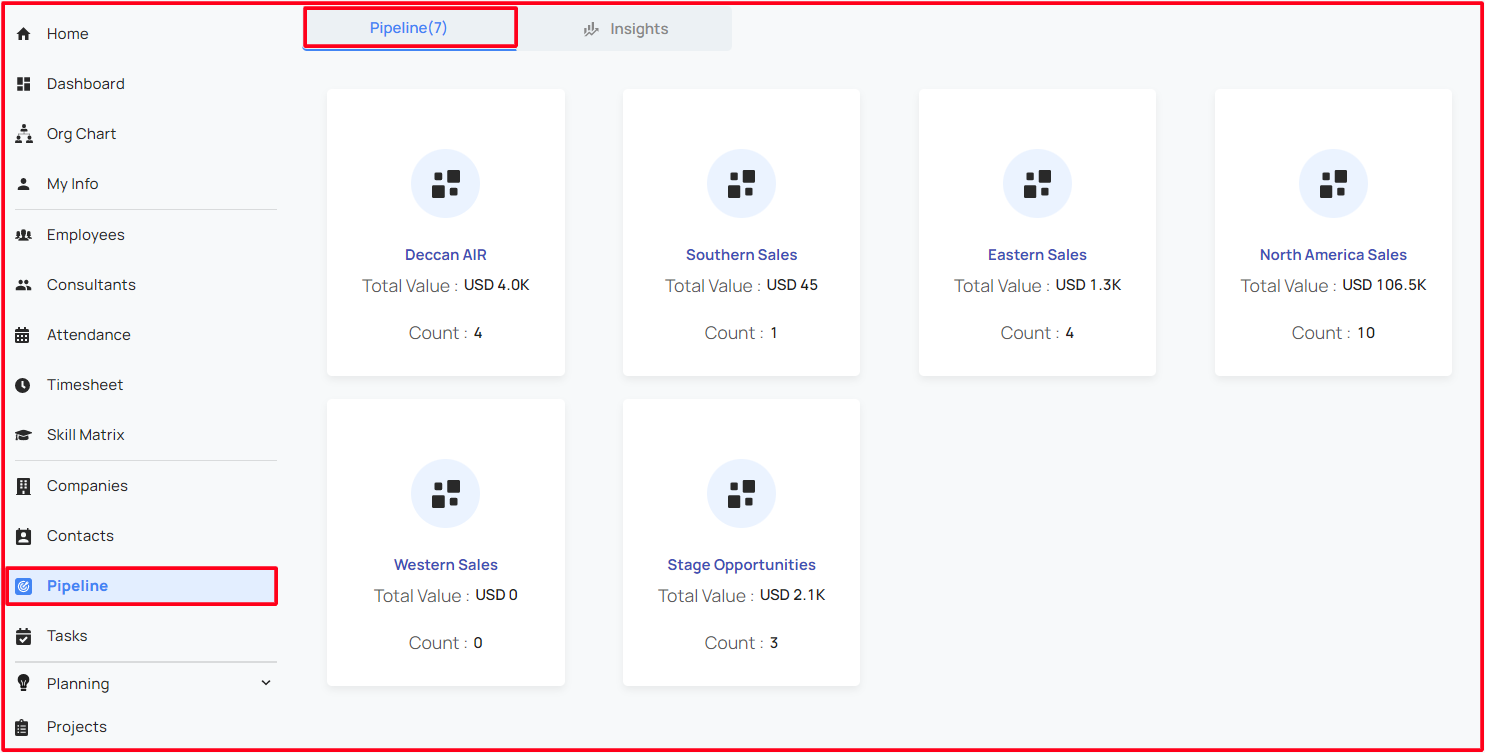
Pipeline View
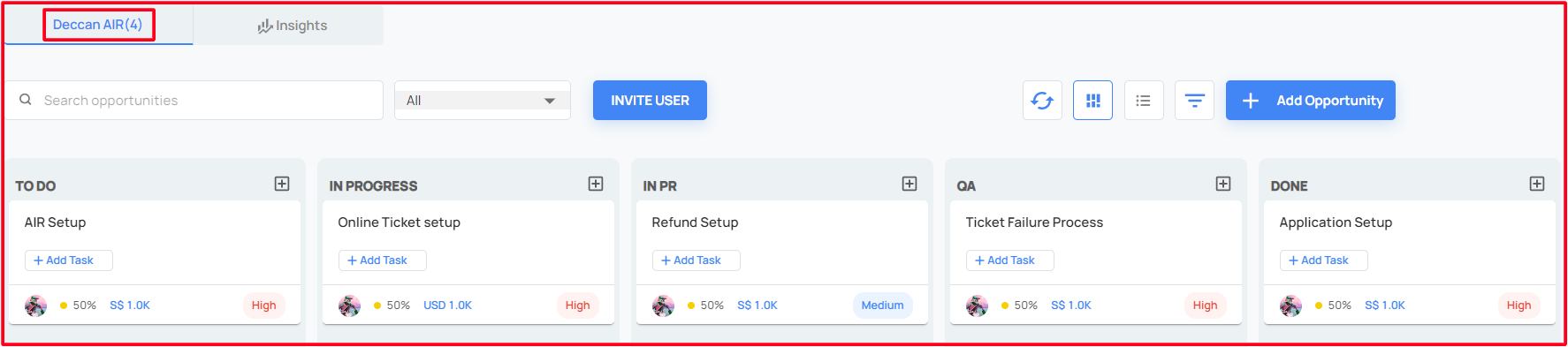
This will gives the grid view of added pipelines. When clicked a pipeline, it will get redirected to the detailed view of that pipeline.
This redirected page also has both pipeline and insight view of that perticular pipeline.
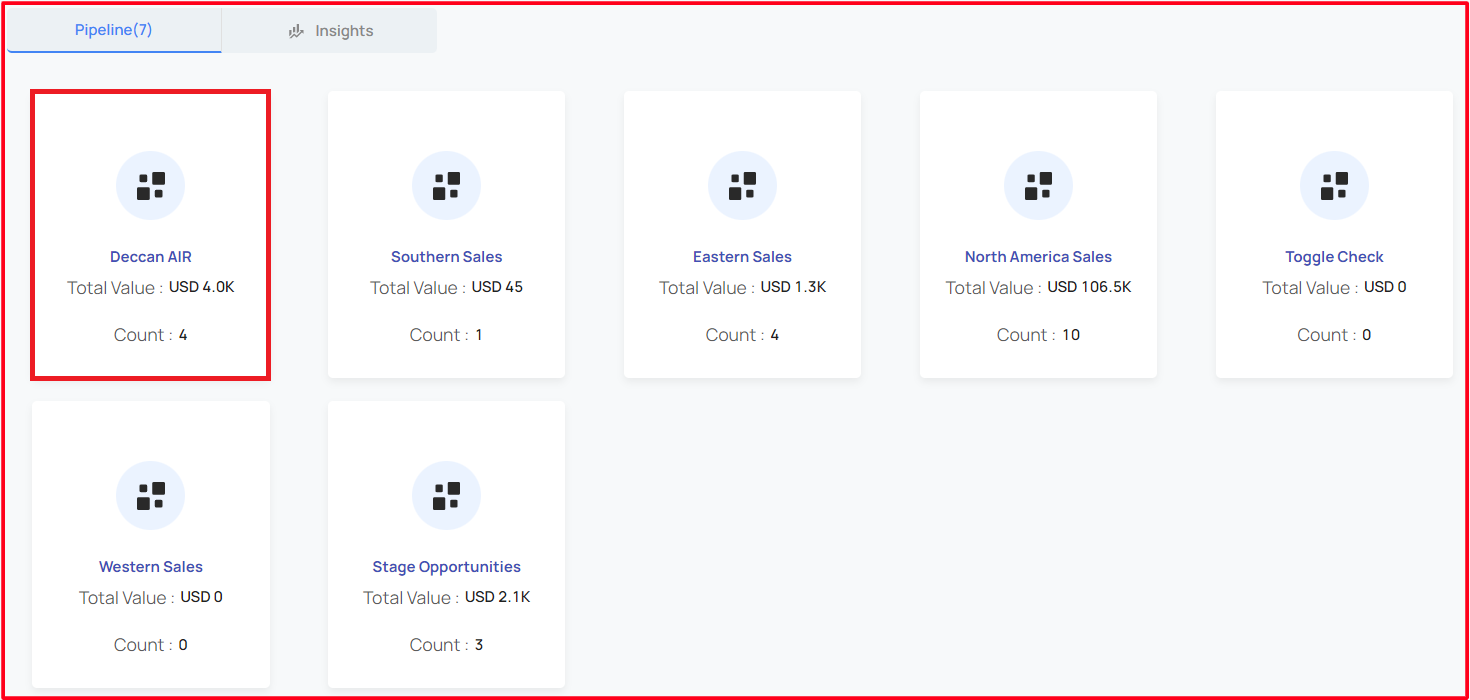
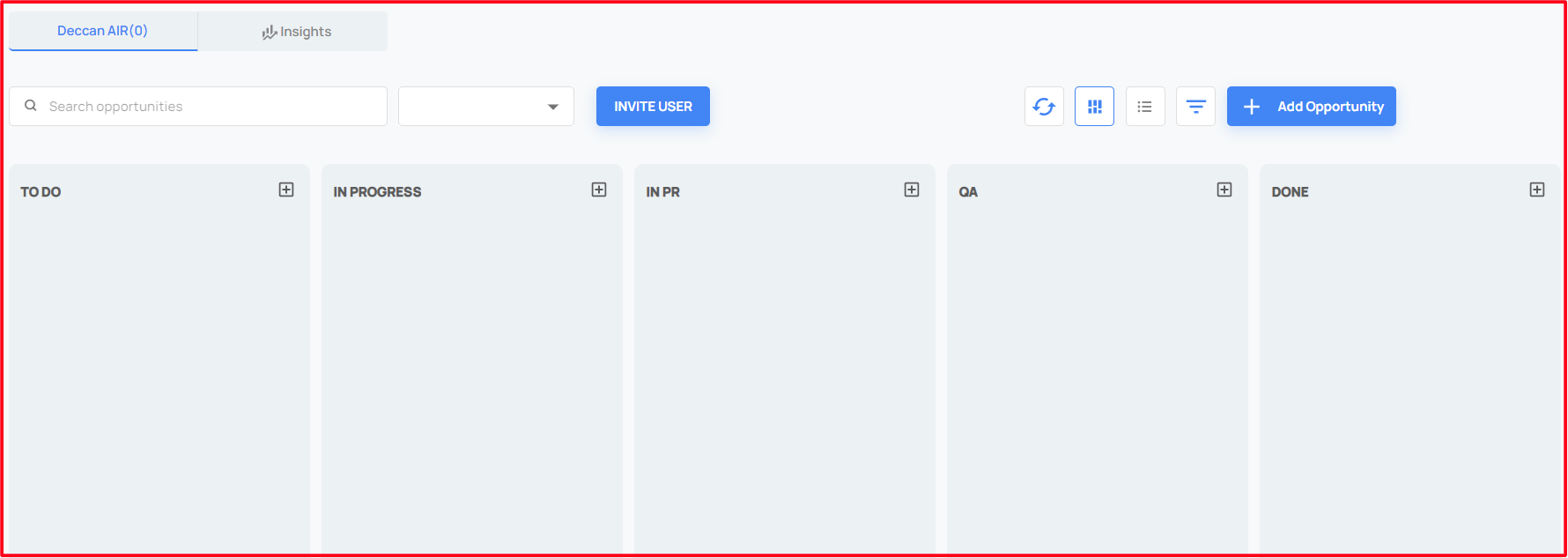
This page also has two views. View of that perticular Pipeline and its insight view.
UI options of a particular Pipeline view
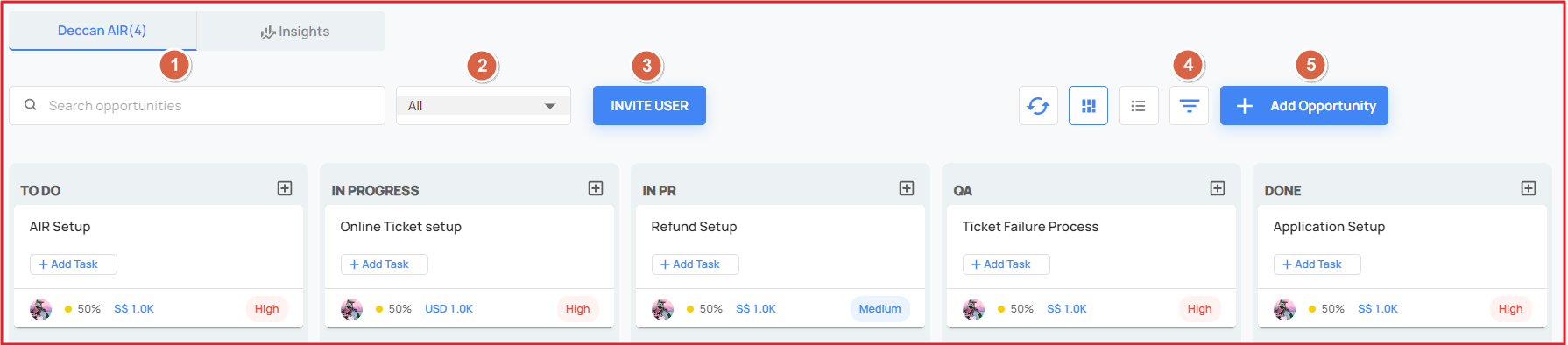
Search opportunities
- User can search the opportunity by its name.
Search by users
- User can search the opportunity by user's name who are added to that opportunity.
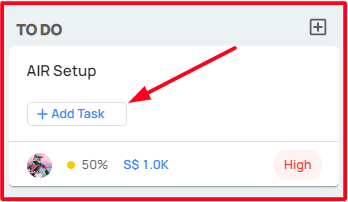
- Click on the Add Task, the user able to add their task
- User can search the opportunity by user's name who are added to that opportunity.
Invite User
- Users can be added to the pipeline using invite user button.Then the users can be selected from the list and can added to that pipeline.

- Users can be added to the pipeline using invite user button.Then the users can be selected from the list and can added to that pipeline.
Advanced Filters
- Clicking on this filter will render a drawer with advanced filter options like Company, LeadOwner, Win Percentage, Opportunity Value.
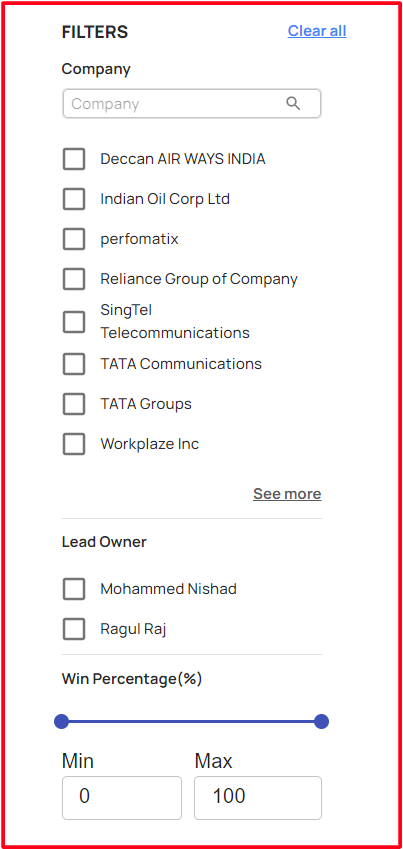
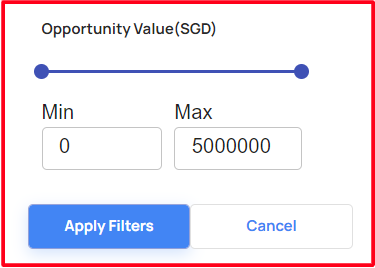
- Clicking on this filter will render a drawer with advanced filter options like Company, LeadOwner, Win Percentage, Opportunity Value.
Add Opportunity
- The user able to add the new opportunity
Add Opportunity Form
When clicked the Add Opportunity button, a form will pop up, where required details can be filled in to create new opportunity
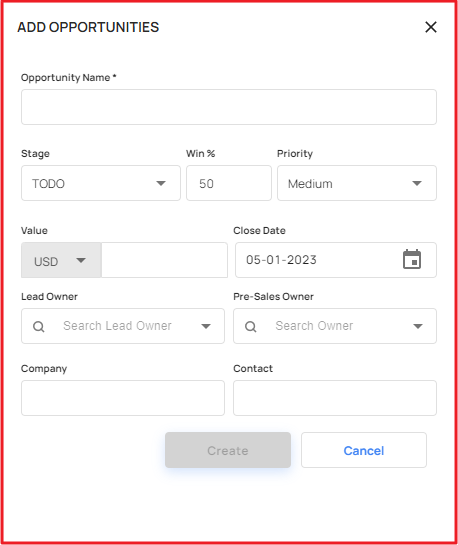
The fields to be filled in the add opportunity form are
- Opportunity Name
- Stage
- Can select from three stages TODO, WON, LOSS.
- Win Percentage
- Priority
- Can select from three priority stages,LOW, MEDIUM, HIGH.
- Value
- Close Date
- Lead Owner
- Can be selected from the users list given.
- Presales Owner
- Can be selected from the users list which is added using invite user button
- Company
- Contact
- Both Company and Contacts are selected from the list which are already added to Company and Contacts in business development section.
Edit Opportunity
When clicked to the ellipsis button edit and delete option shows.
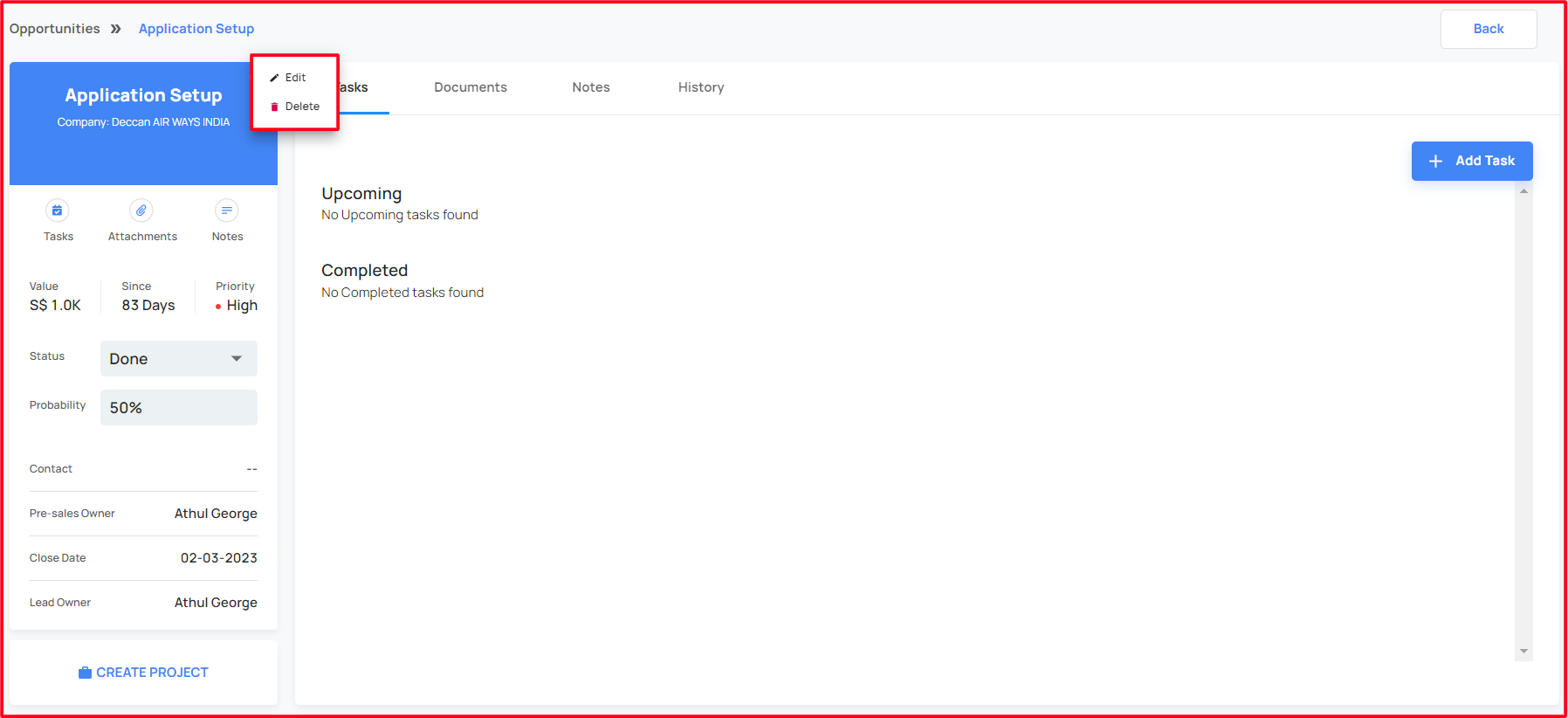
Click on the edit option a form will up, through which the opportunity can be edited and updated.
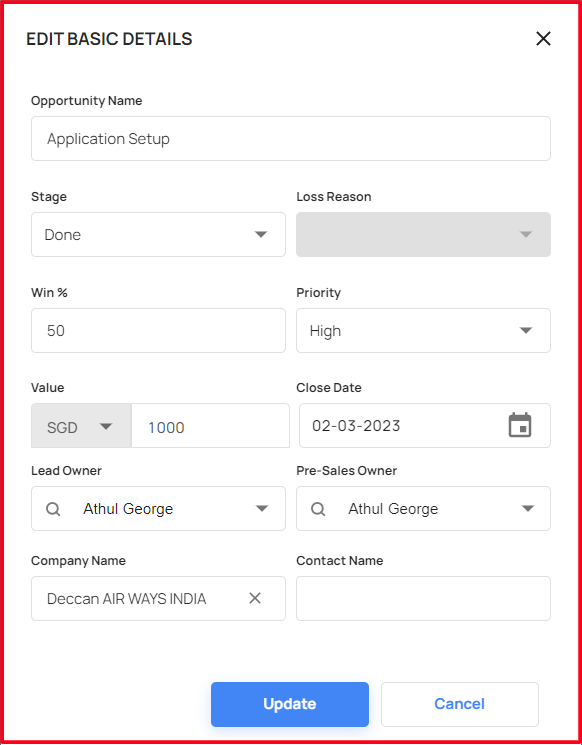
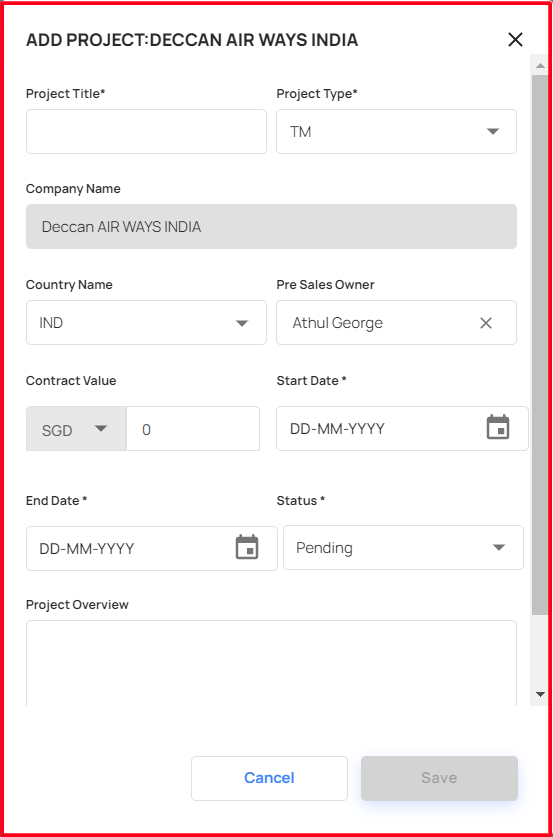
Projects can be added to the opportunity using create project button.
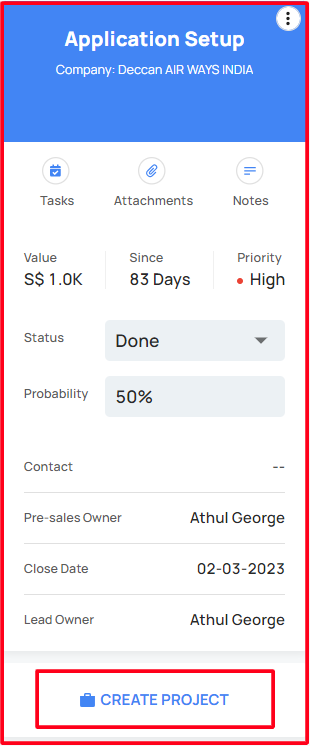
Clicking on to that button will pop up a form, where required details of the project is filled to create a project.
Delete Opportunity
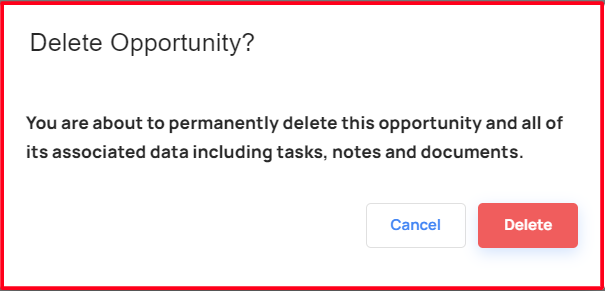
Clicking on to that Delete button will pop up a form, once click on the delete confirmation button, the user able to delete the opportunity.
Tasks
- In Tasks, the user able to create and manage the tasks!
Add Task
Using the Add Task button, the user can add task to that opportunity.
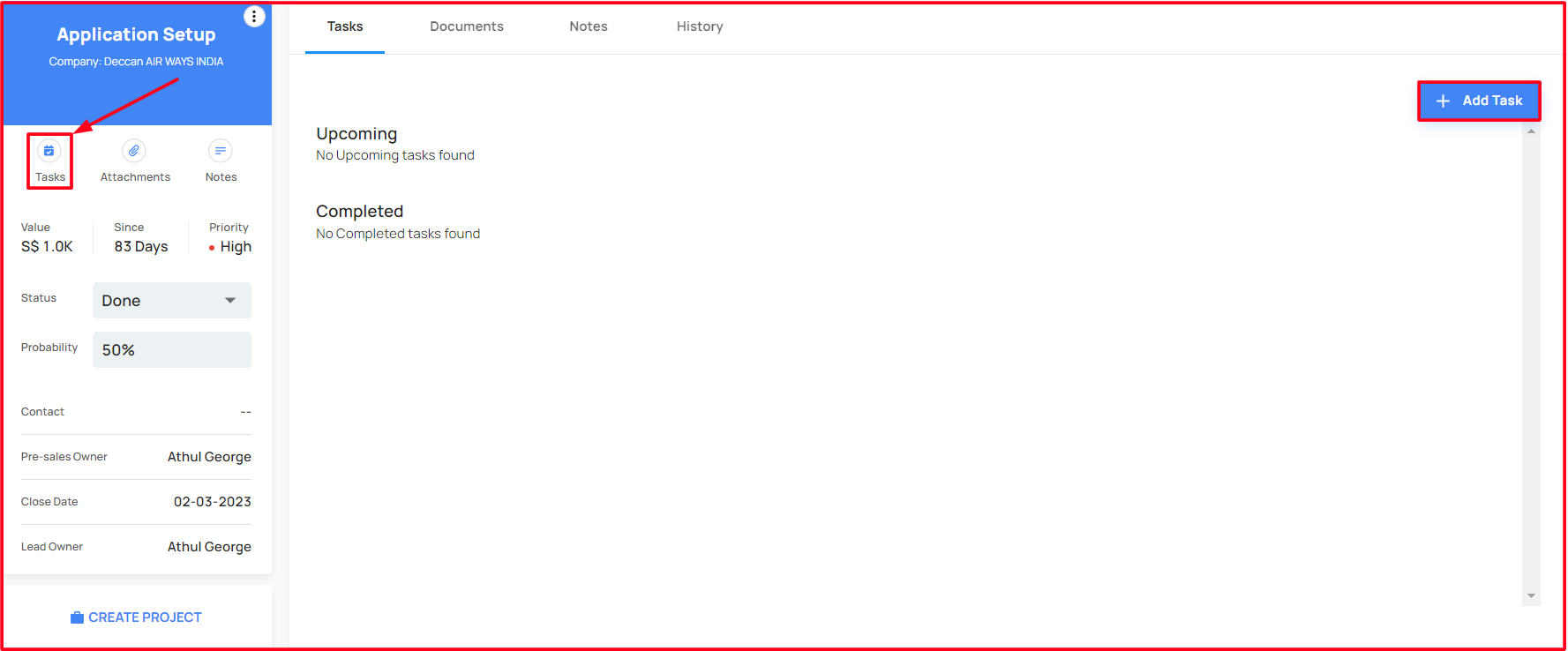
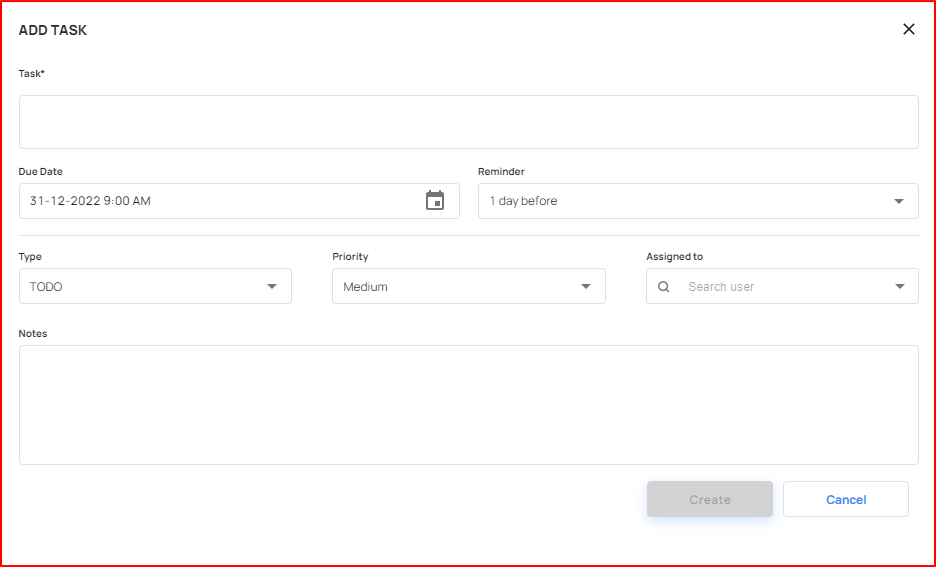
Clicking on to add task button, a form will pop up.
Filling this form with required details can add a new task to the opportunity.
Added tasks can be seen as list view
Manage Task
Each task added can be edited using the edit button at the end of each task table.
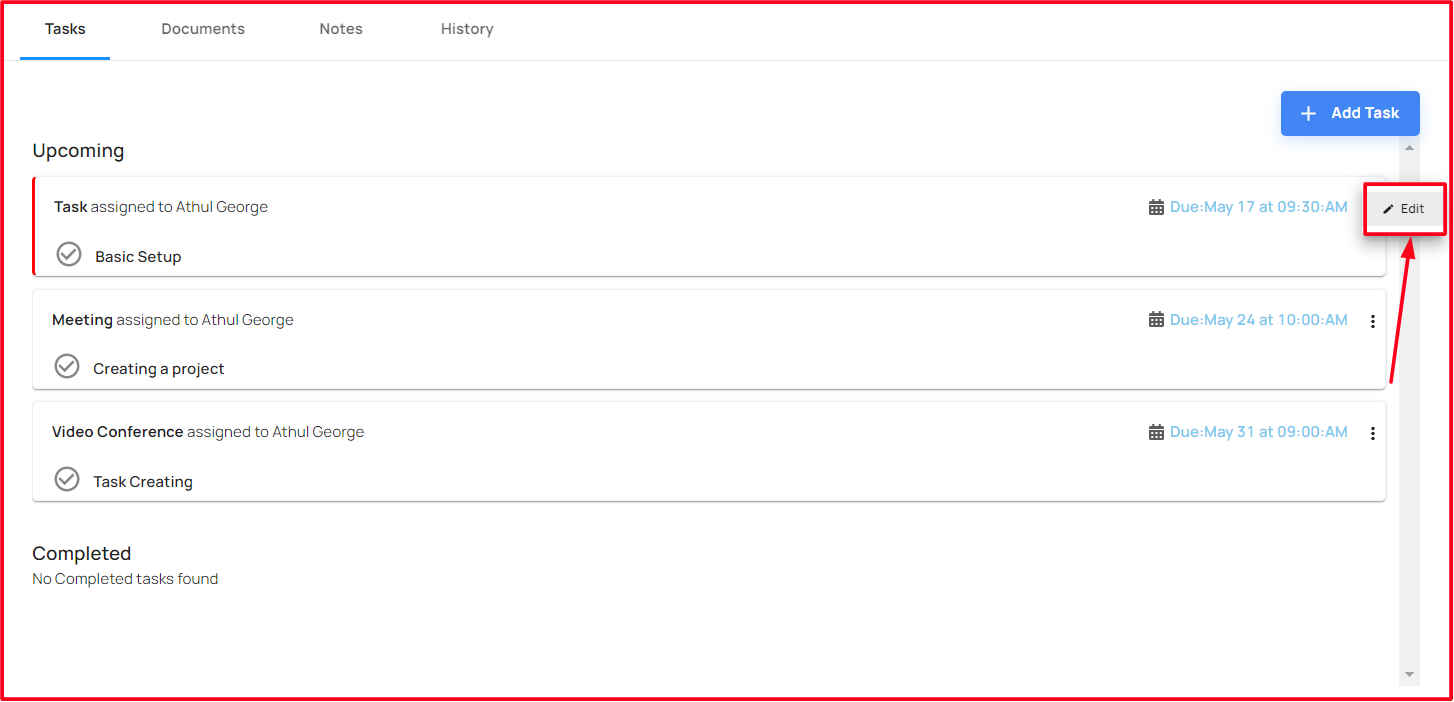
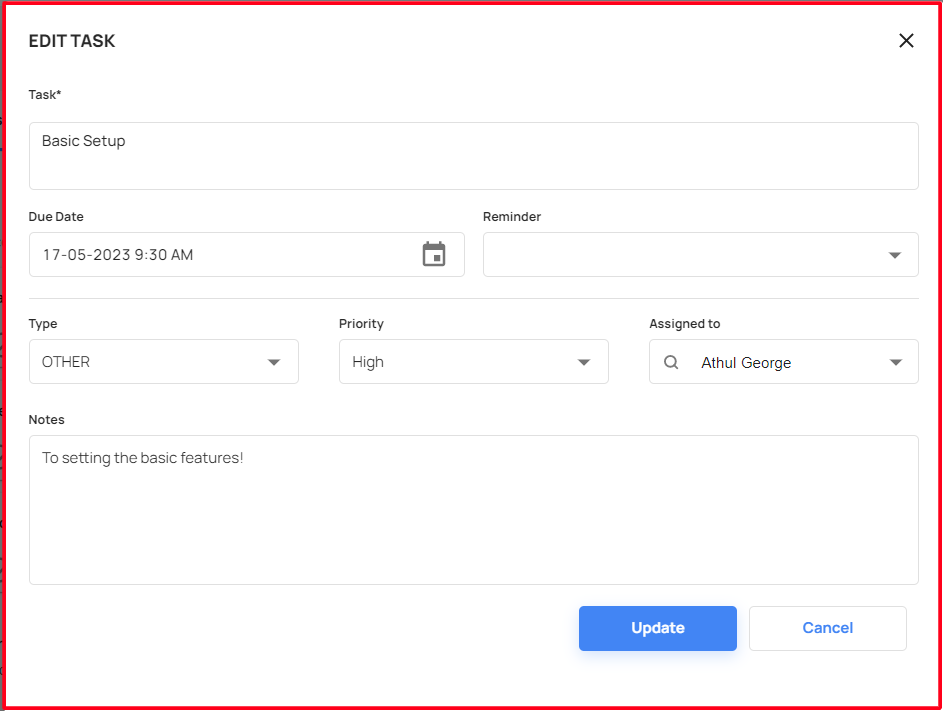
Clicking on to edit button pops up a form where already added details can be edited.
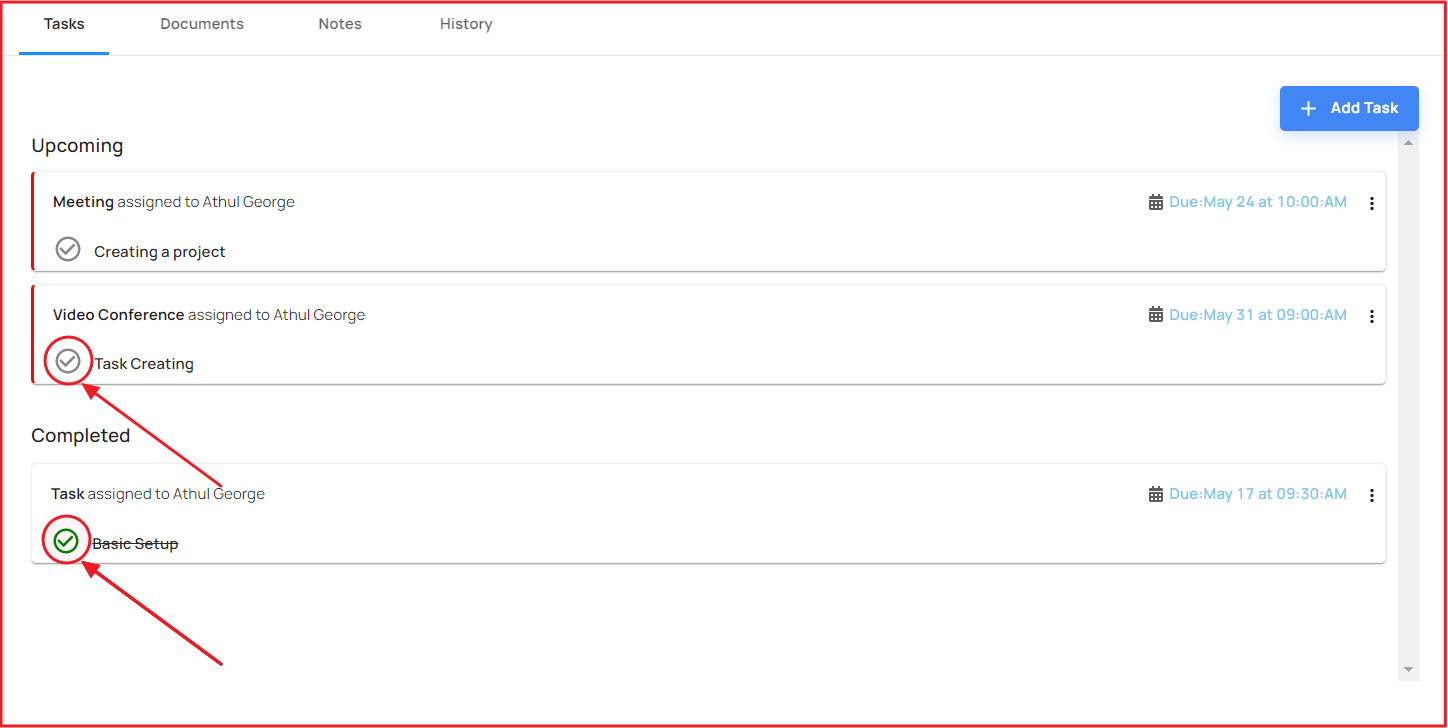
The User able to mark the task as completed and also able to unmark from the completed!
Documents
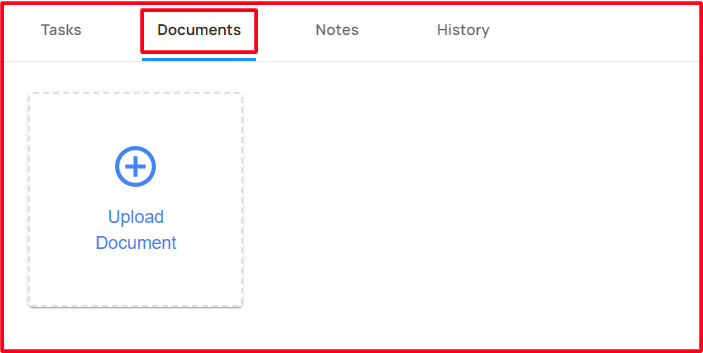
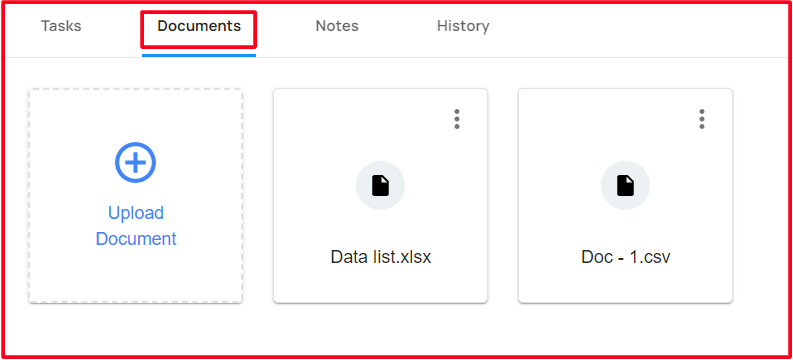
- In the Documentations, the user able to upload and manage the documents
Add Documents
- Click the Upload Document button, pops up the directory to select which file needs to upload!
Manage Documents
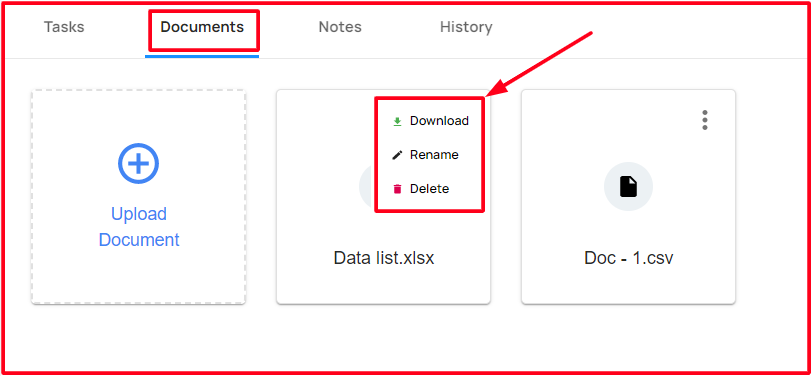
The user has an option to manage the documents and able to do the following changes:
- Download
- Able to download the uploaded document!
- Rename
- Able to rename the uploaded document!
- Delete
- Able to delete the uploaded document!
- Download
Notes
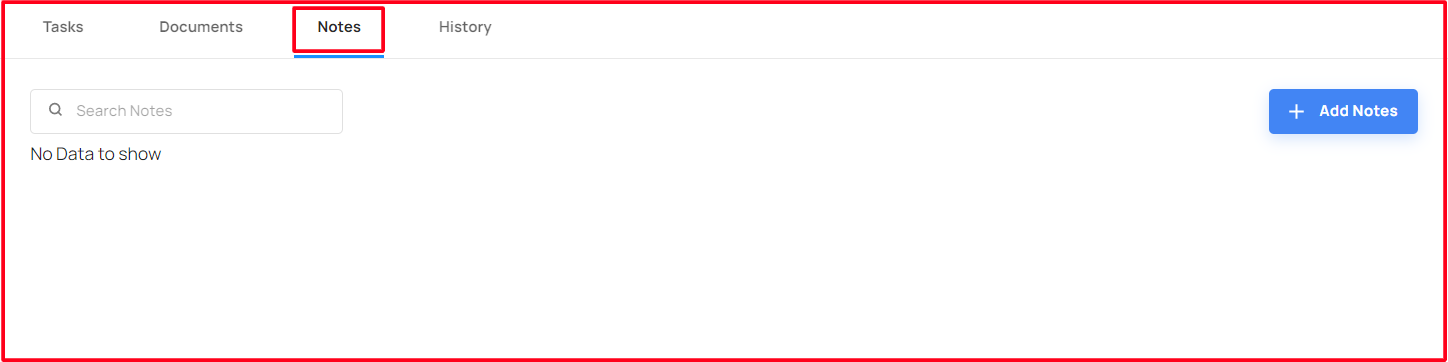
In the Notes, the user able to Add and Manage the Notes
Add Notes
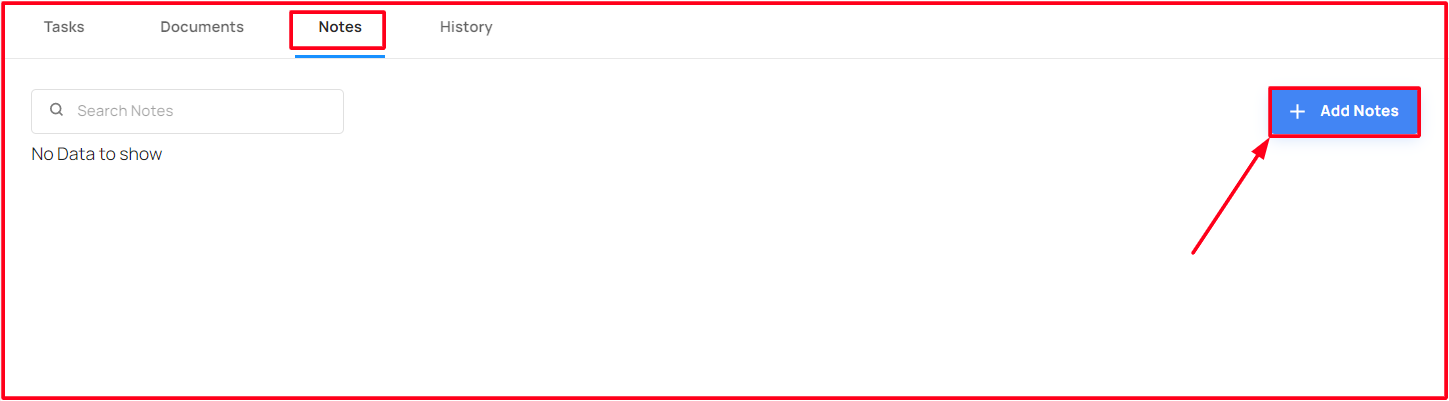
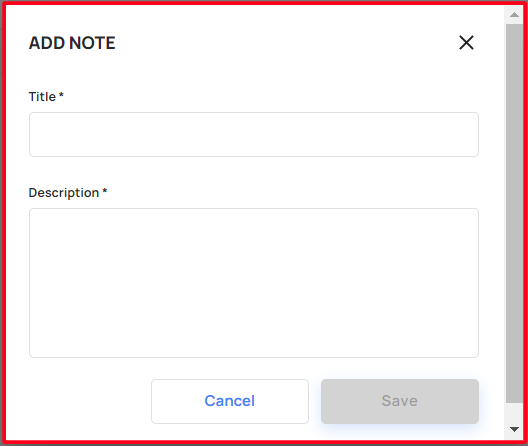
Click the Add Notes button, will pops up the form to add notes!
To fill the mandatory fields, the user able to add the notes!
Manage Notes
The user able to manage the notes using the below features!
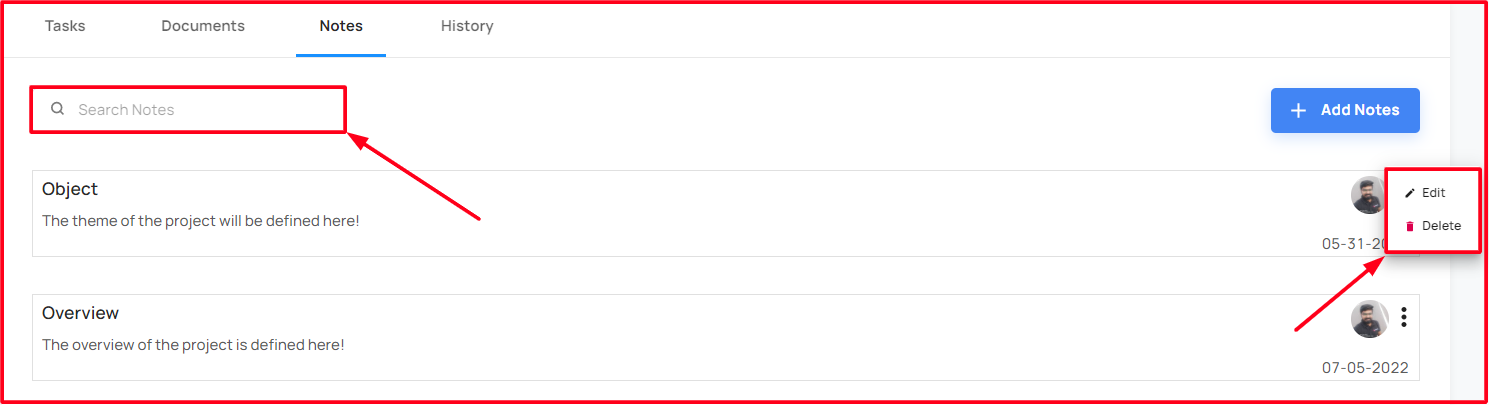
- Search Notes
- Able to search the note which one needed!
- Edit Notes
- Click the Edit button, will pops the edit form to edit the notes!
- To fill the mandatory fields, the user able to update the edited notes!
- Delete Notes
- Click the delete button, will pops the confirmation form to delete the notes!
- Once click the confirmation Delete button, notes will be deleted!
- Search Notes
Insights
It gives the graphical repesentation of various details like Opportunity total value, Opportunity weighted value, Opportunity total cost, Total Sales and the Total revenue of that particular pipeline in current financial year.

- Opportunity Total Value
- Shows the total values of the active opportunities
- Opportunity Weighted Value
- ''
- Opportunity Total Count
- Shows the total active opportunities count!
- Total Sales
- Shows the total values of won opportunities!
- Lost Revenue
- Shows the total values of lost opportunities!
- Opportunity Total Value
Summary
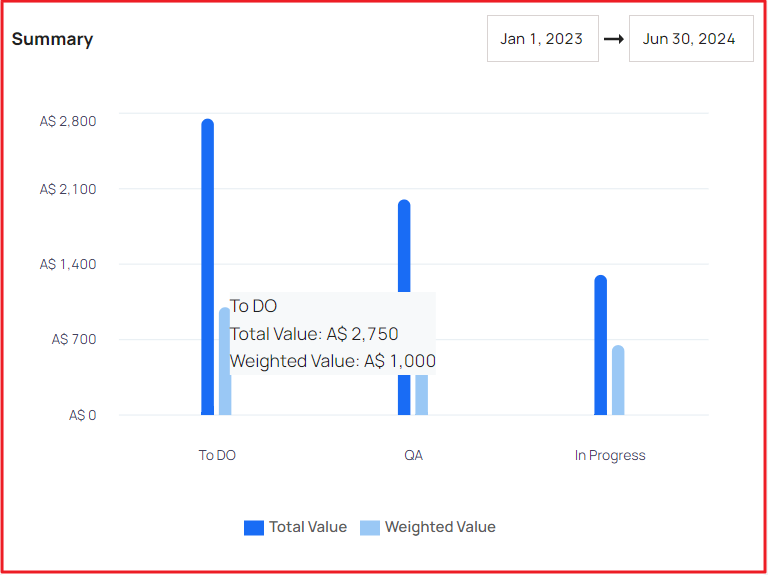
- It gives the total value and the weighted value of opportunities at different stages.
Owner
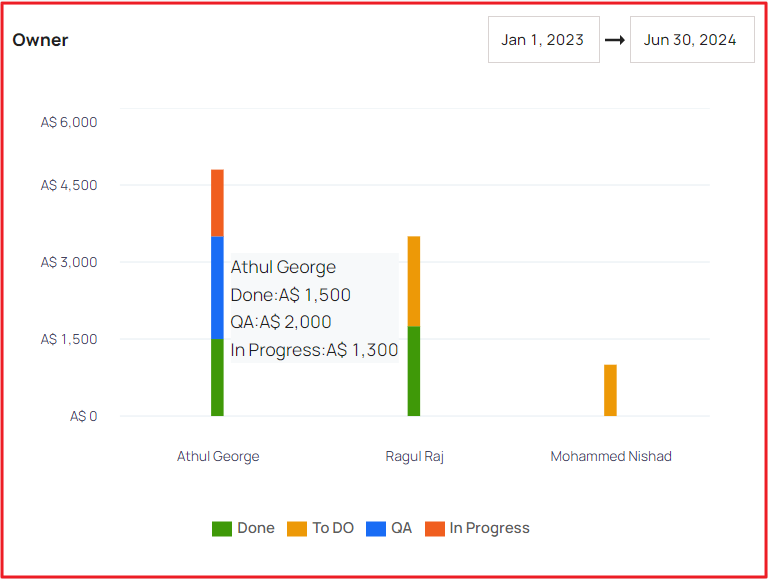
- This representation shows the different stages of an opportunity of the different owner.
Loss Reason
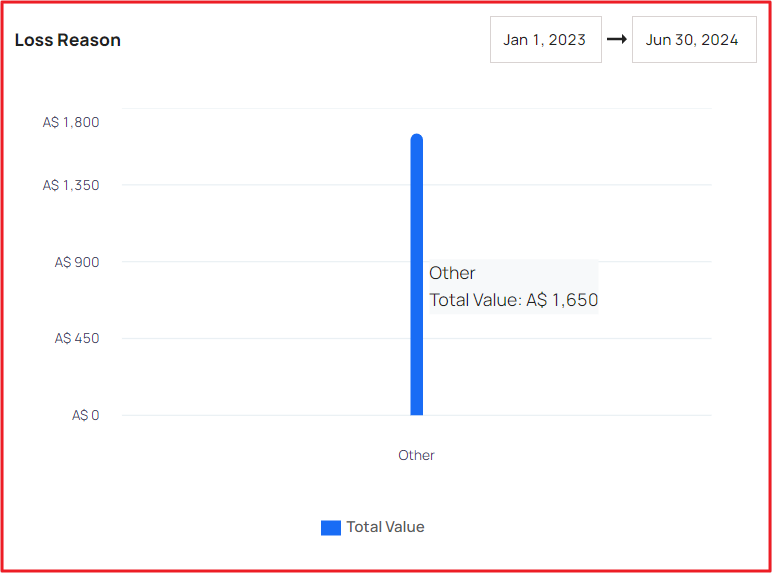
- This representation shows the value and the reason for the loss.
Total Sales
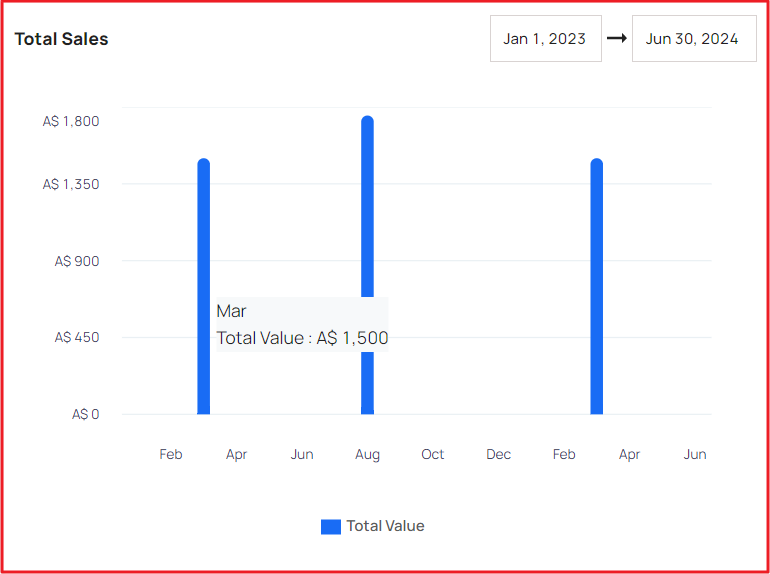
- This representation shows the Total sales of that opportunity.
By Owner
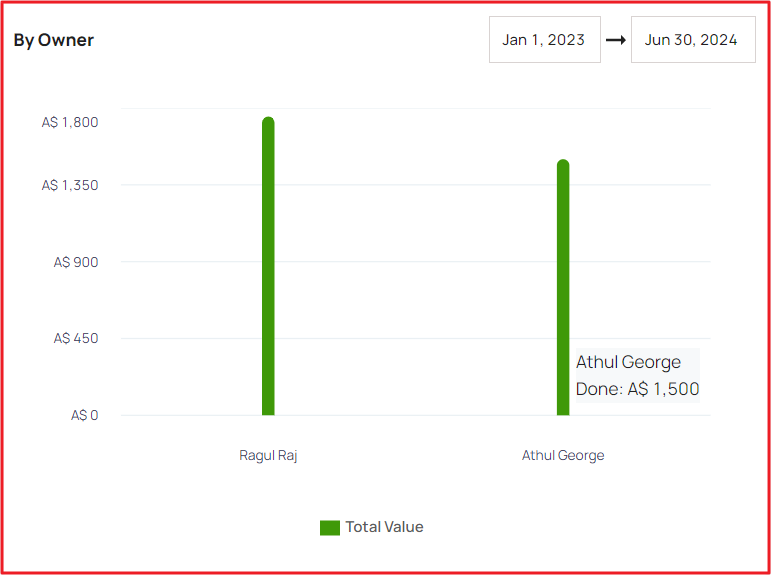
- This representation shows the Total value of won opportunity of the each owner.
Sale by Geography
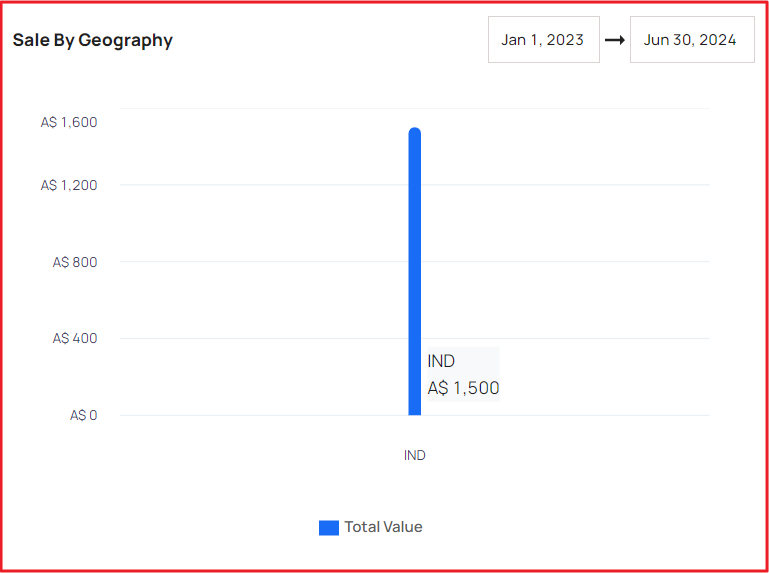
Sales Forecast
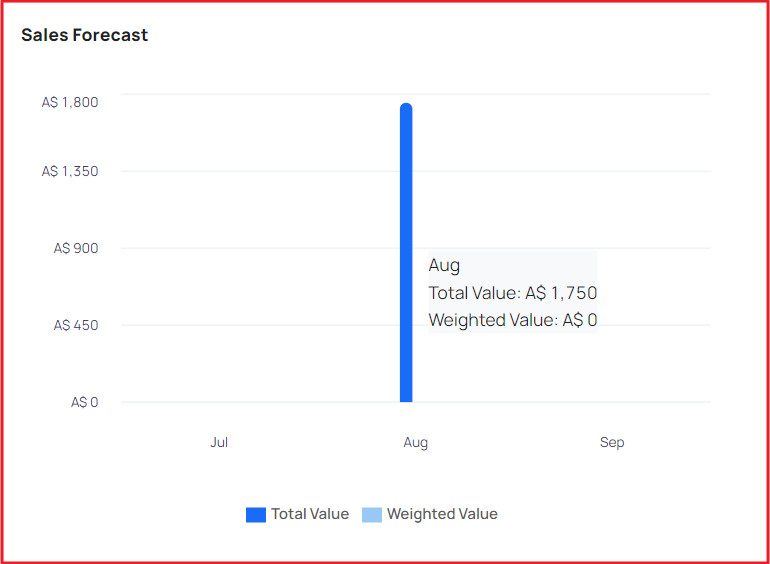
- This representation shows the Sales value for the next three months