Companies
Overview
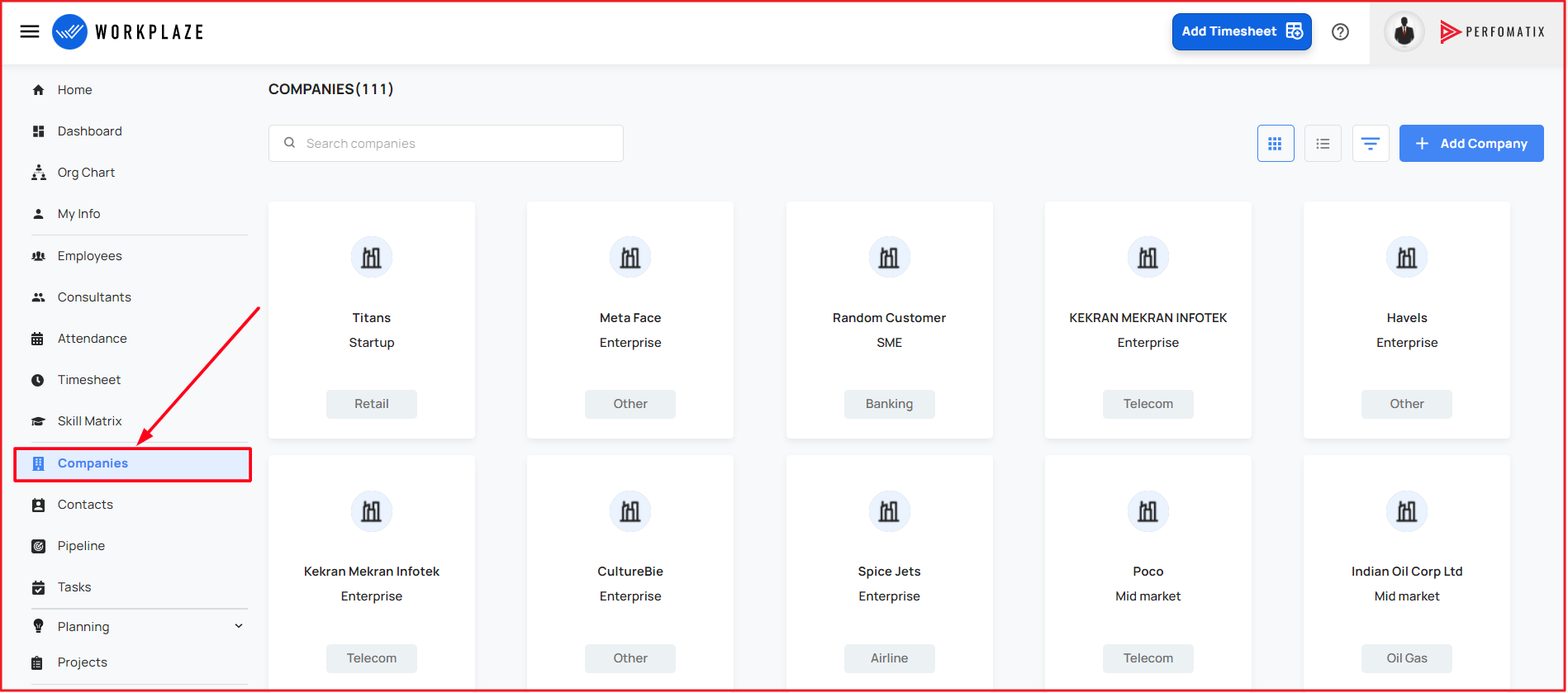
Navigate to Companies
Workplaze → Companies
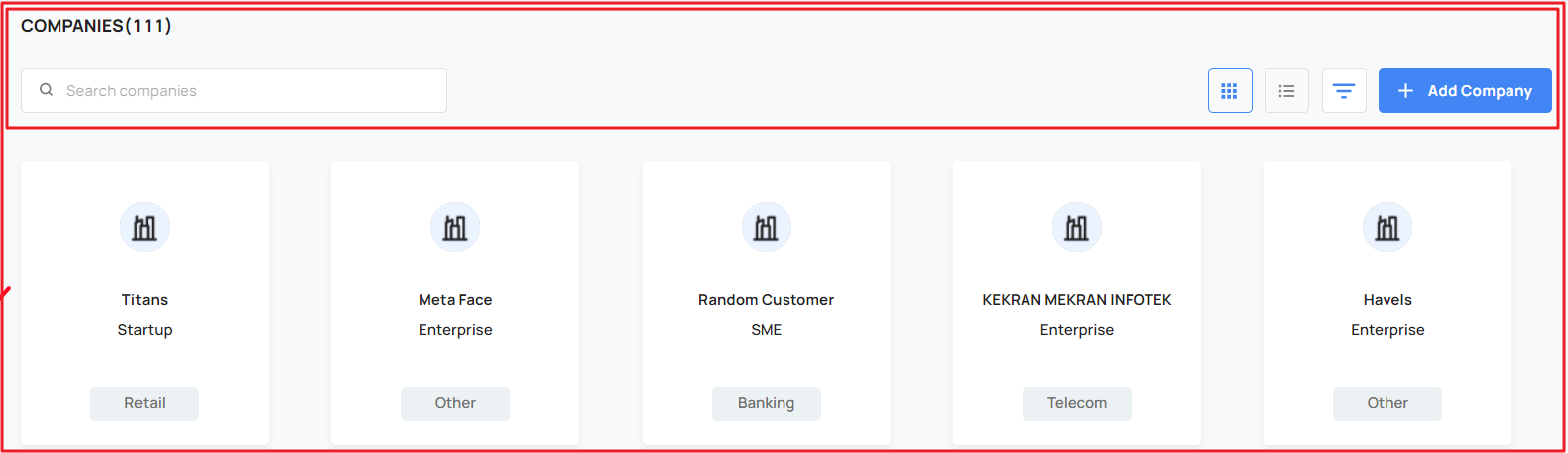
Add a Company
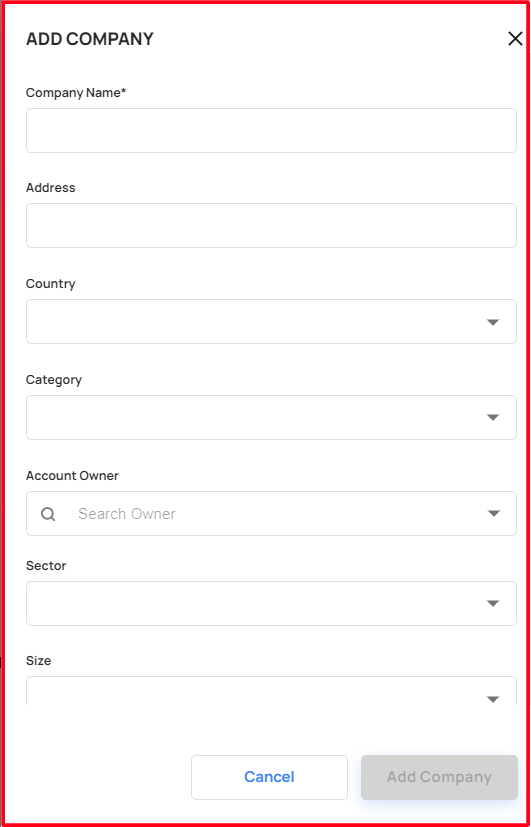
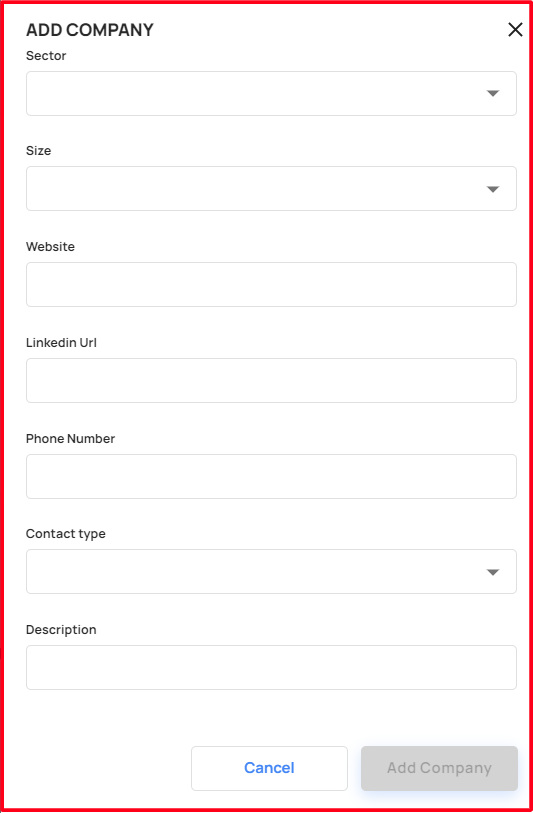
The user can add a company details by using the add company button
Fill the mandatory fields and add company details
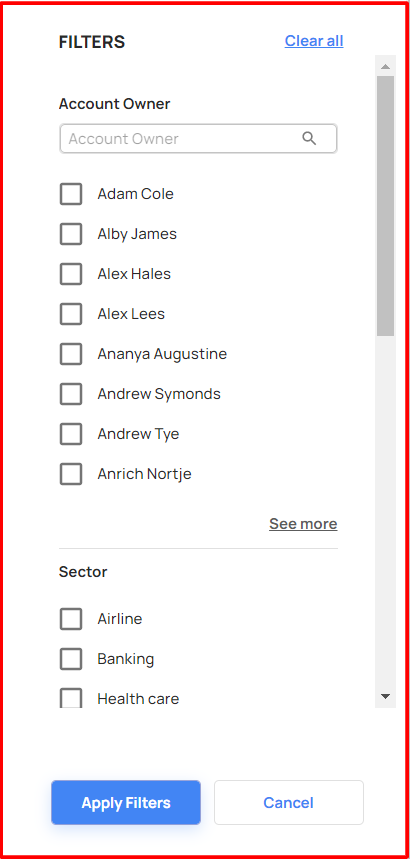
Search and Filter the company
The user able to search the company
Also the user search the company using this filter
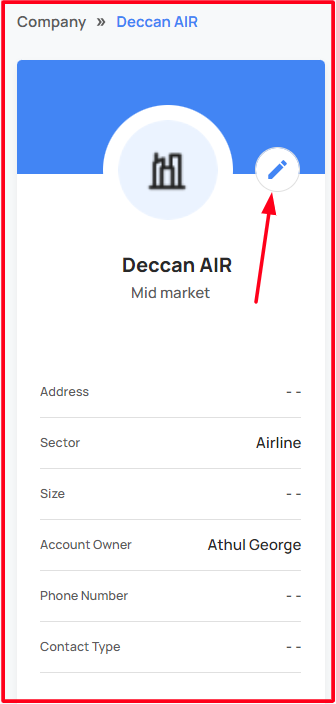
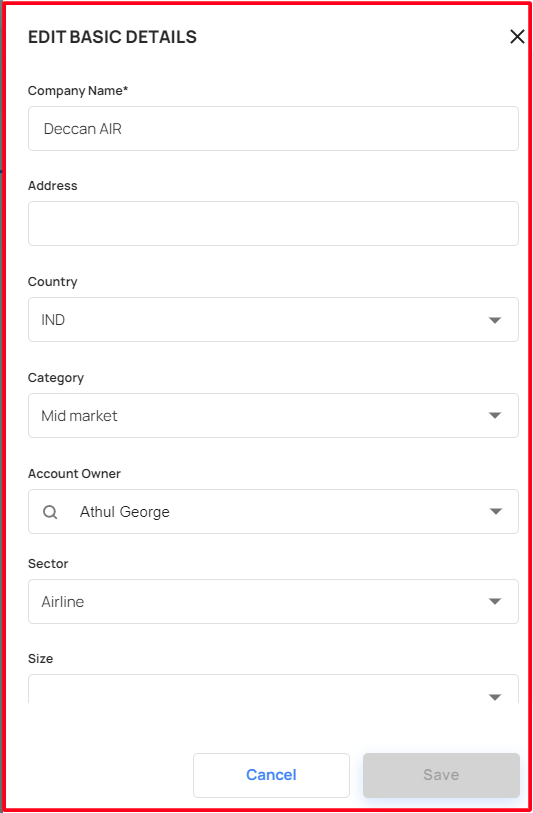
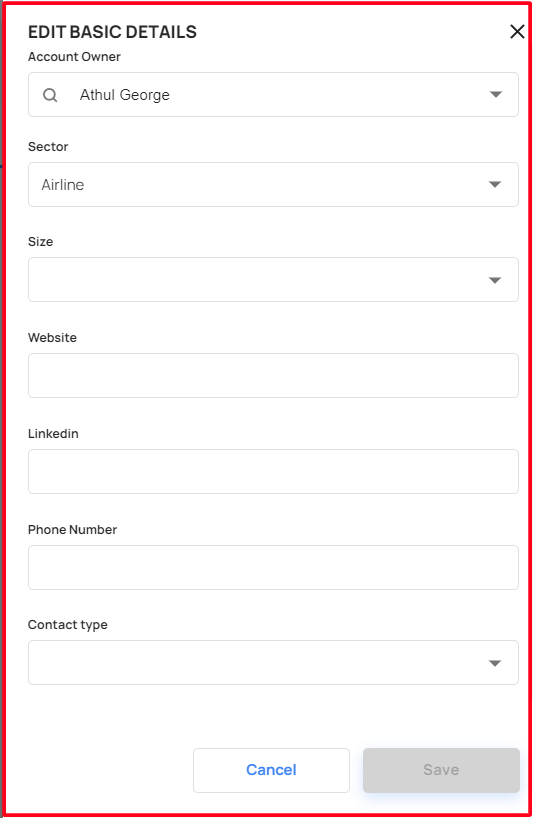
Edit the basic details of company
Select the company that needs to be edited
Edit the fields and modify the company details
Manage Company
- The user able to manage the company using the below features
- Opportunity
- Contacts
- Notes
- Projects
Create and Manage Opportunity
The user able to add and manage the opportunity!
Also the user search the previously updated opportunity details
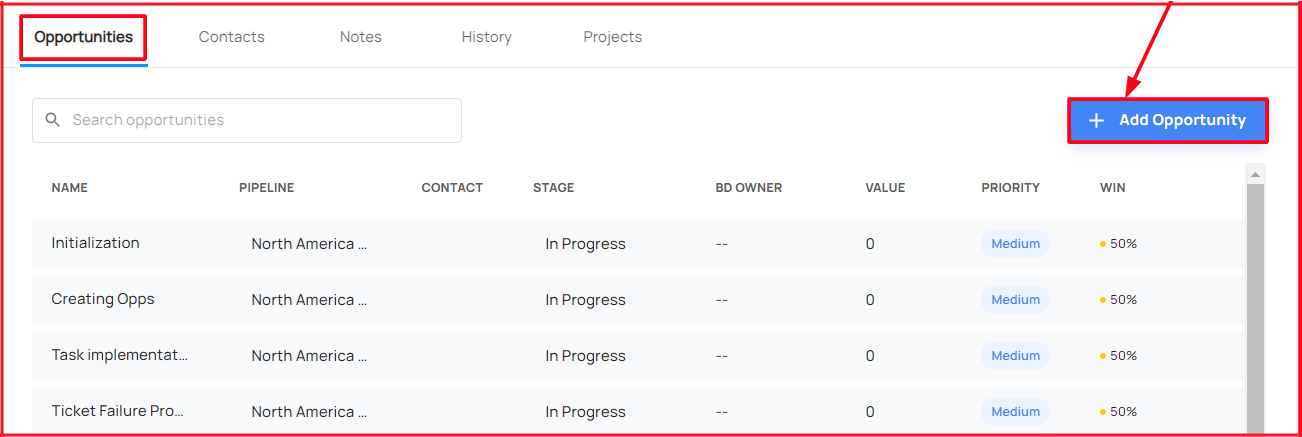
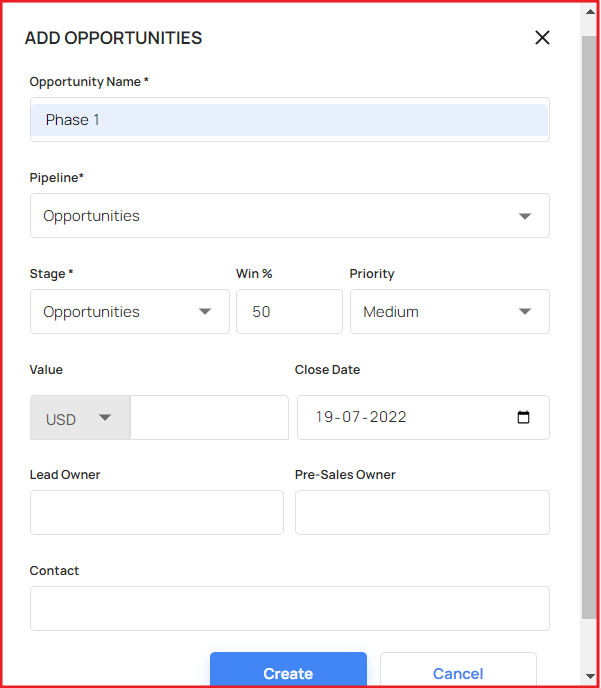
Click on the Add Opportunity pops up a window, by filling the mandatory details user able to create a new opportunity under the company!
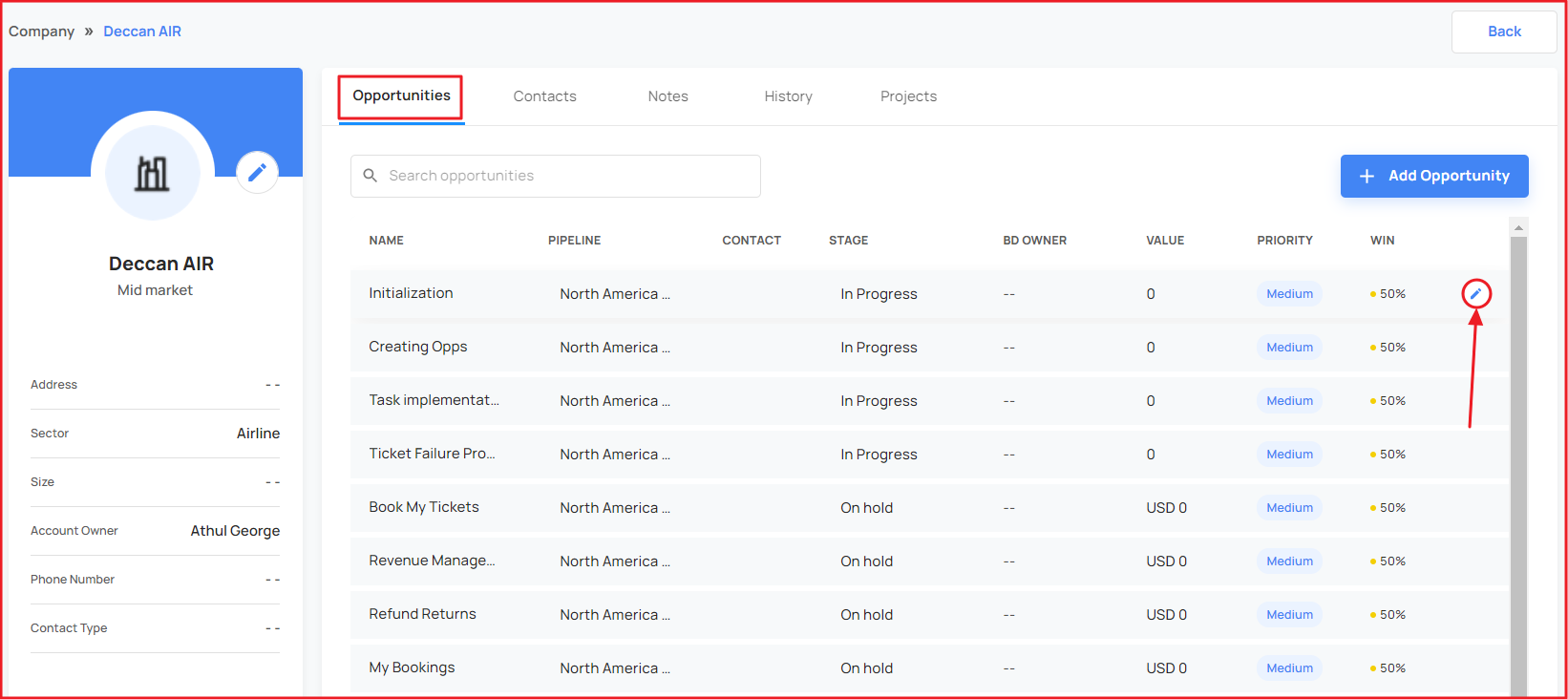
Click on the edit option, the user able to edit the opportunity!
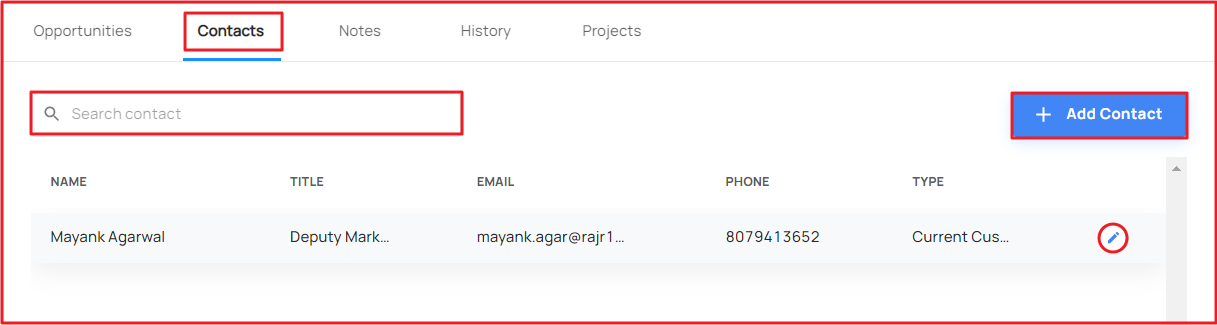
Create and Manage Contacts
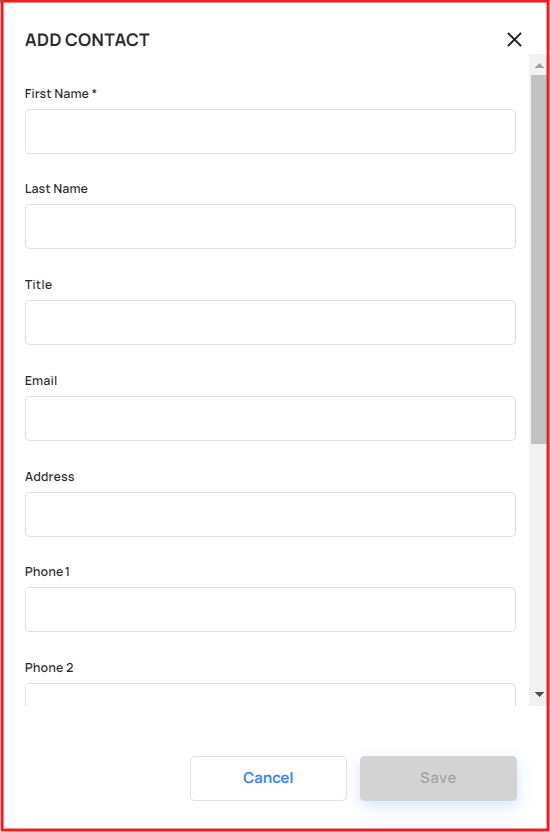
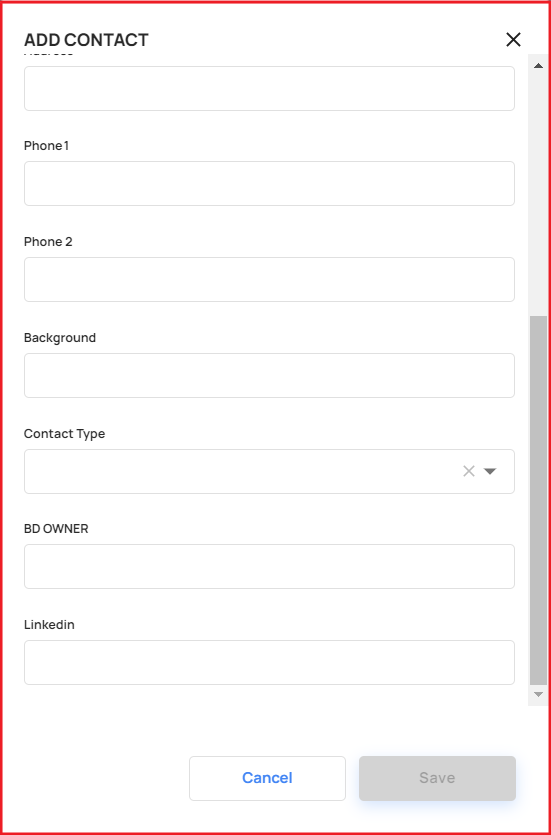
To select the contact label and click on the Add Contact will pops up a window!
By filling mandatory fields, the user able to create the Contacts and the user able to edit the contacts details!
Also search the previously updated contact details
Create and Manage Notes
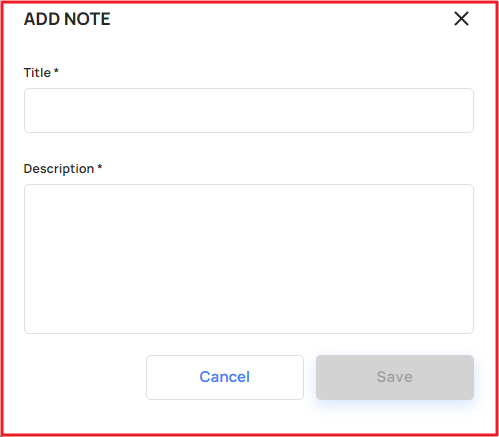
To select the Notes label and Click on the Add Notes will pops up a window!
By filling mandatory fields, the user able to create the Notes!
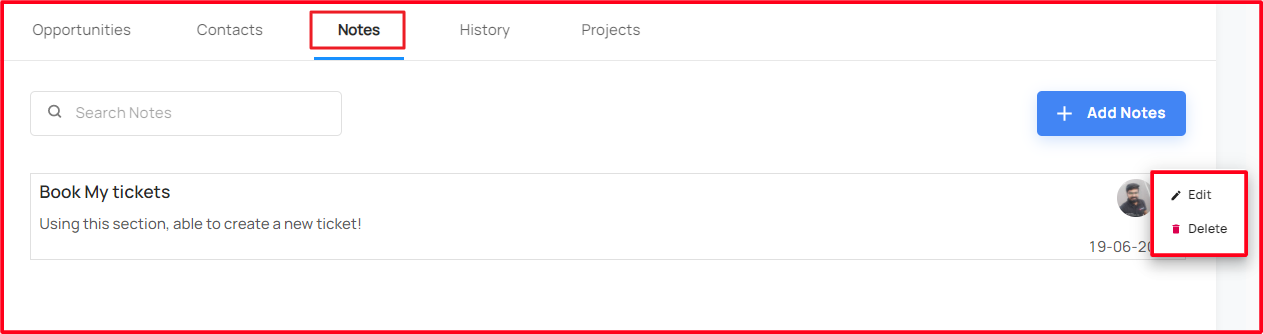
Able to search the previously updated notes details
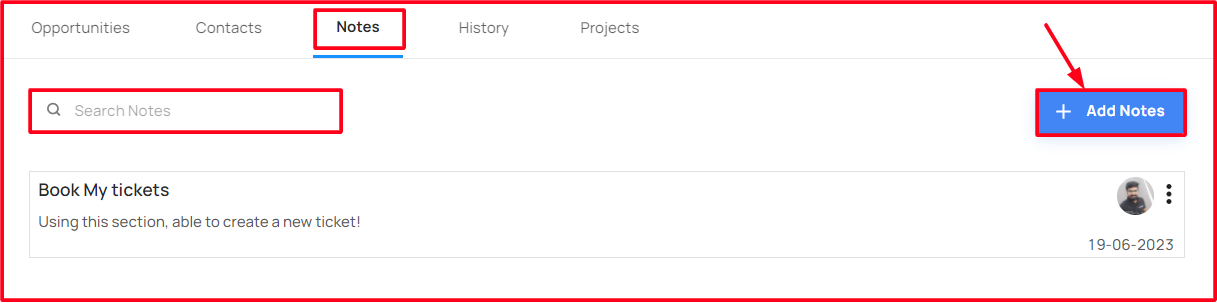
The user able to edit and delete the notes!
Manage Projects
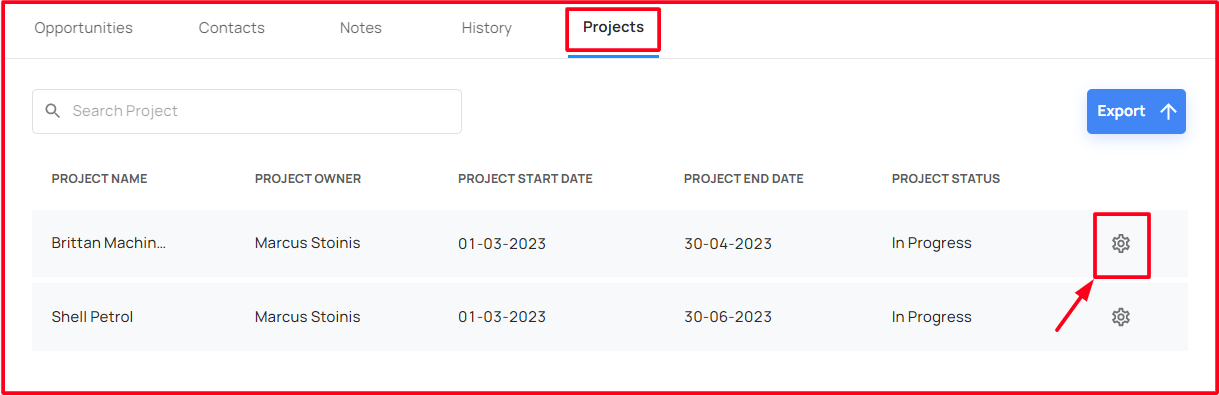
To click on the Projects label, it will navigates to the created projects under the Companies
The user able to search the project
Also. the user able to export the projects details under the company!
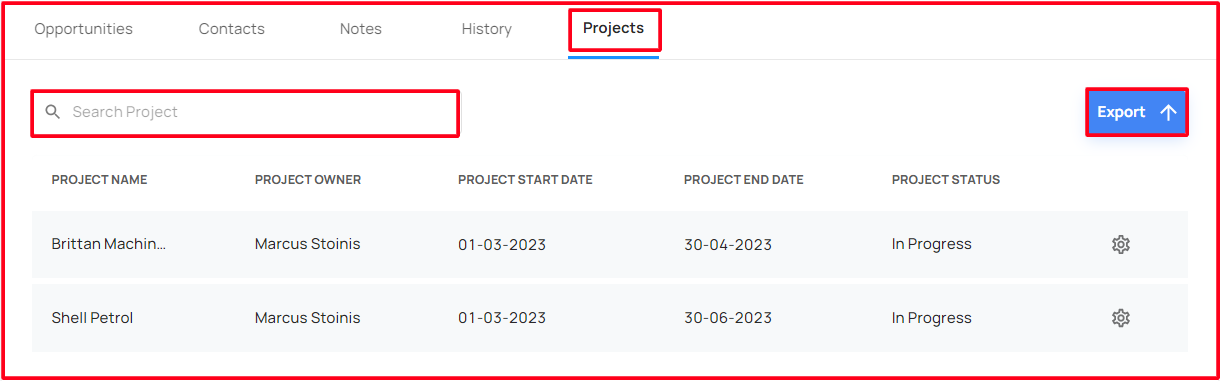
Click on the Settings icon, it navigates to manage the project module!