Assets Module
Overview
Navigate to Assets
Workplaze → Assets
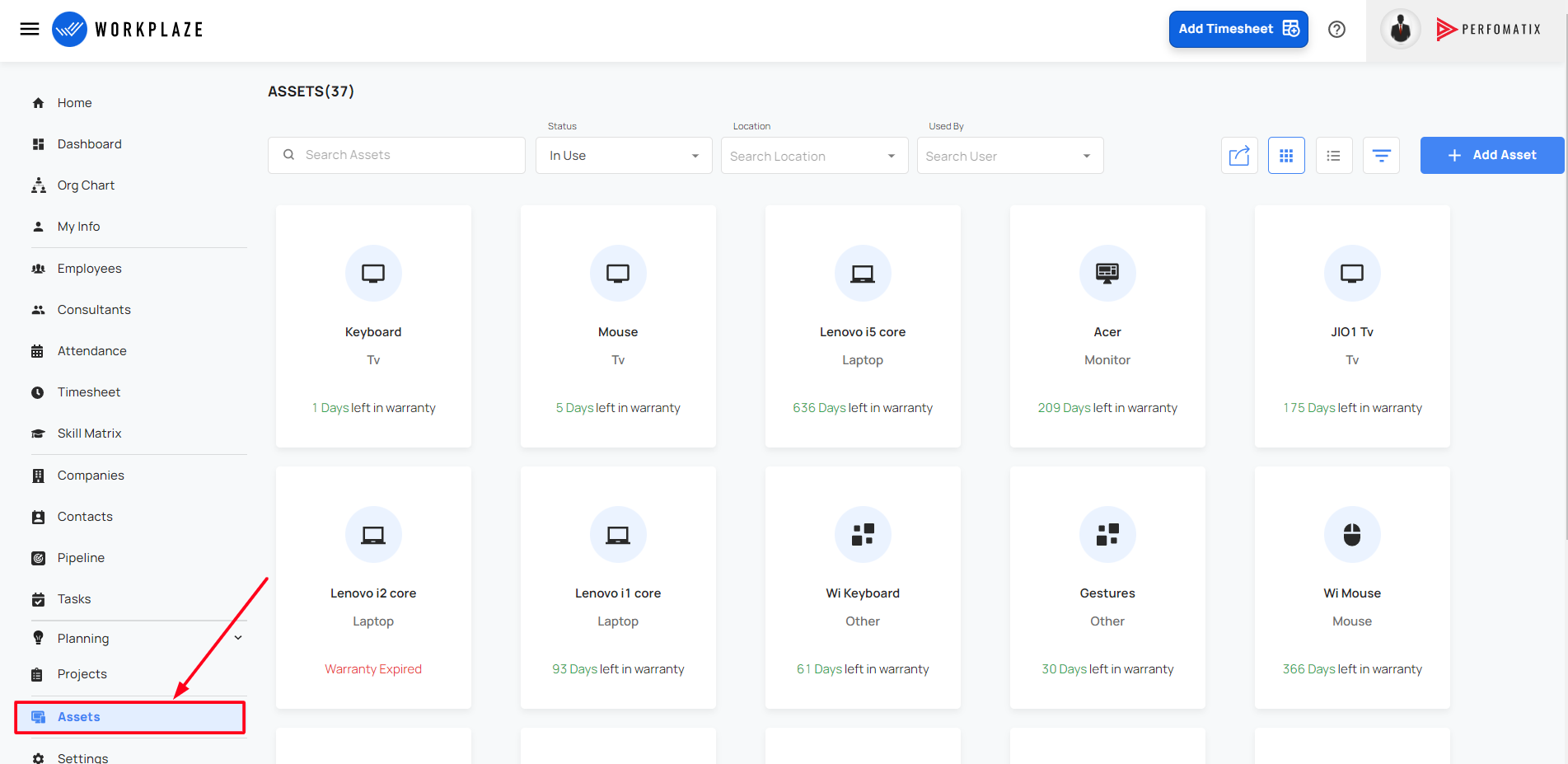
UI Options
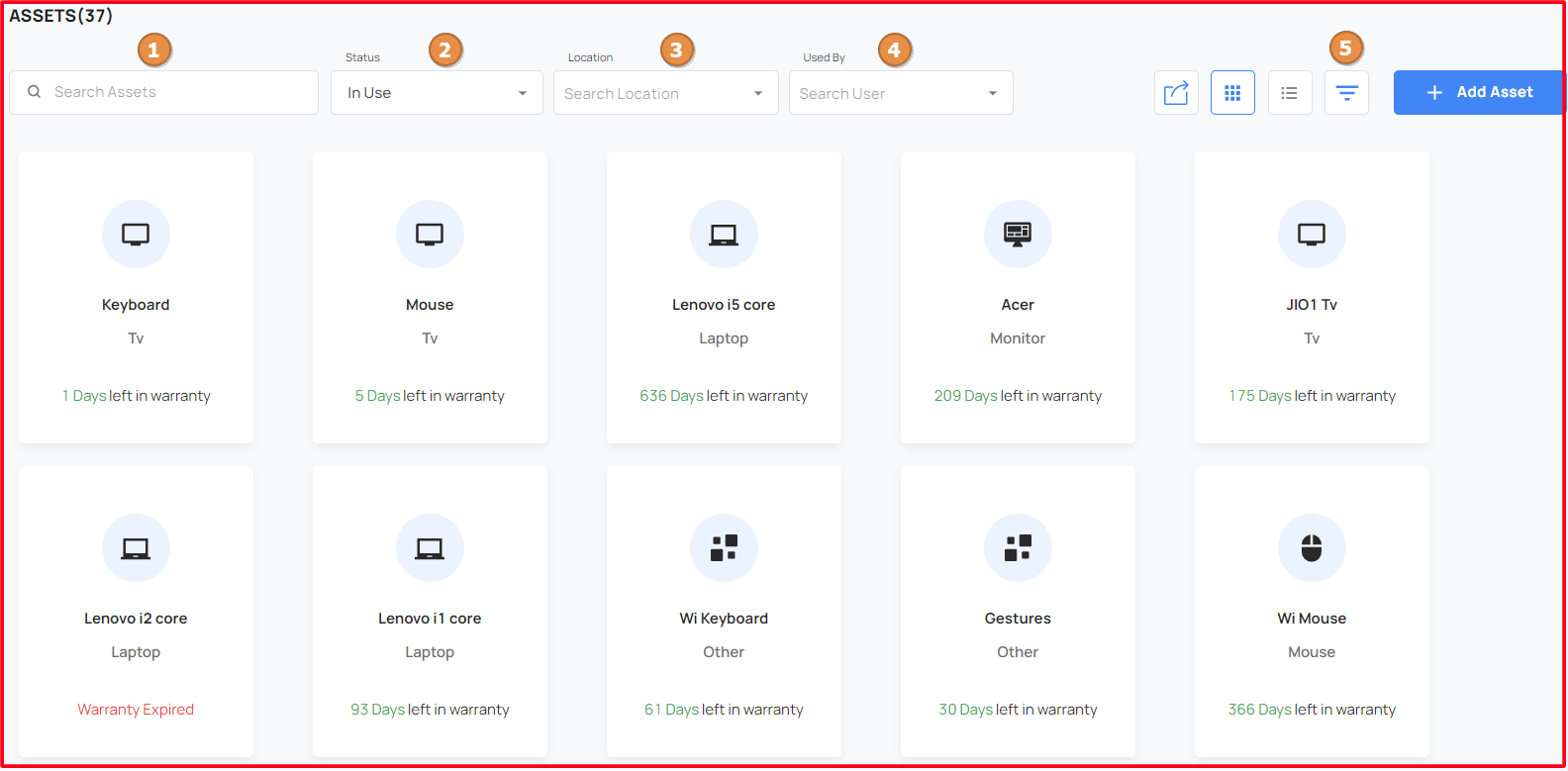
Search Assets
- Will allow user to search assets.
Status
- User can filter the assets using its status (All, In Stock and In Use).
- The default value is In Use
Location
- User can filter assets by thier respective location
Used By
- User can filter assets by thier respective user
Filter Assets
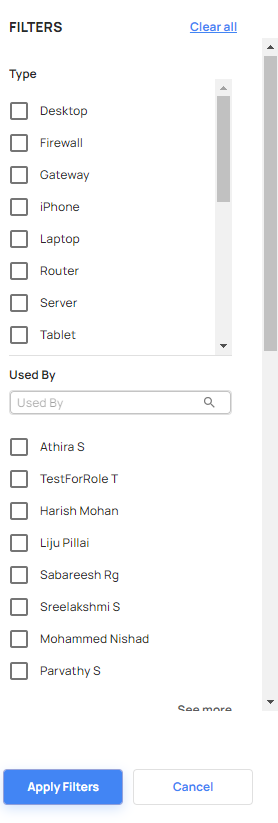
Advanced Filter allows you to search assets using various filters. When you press filter button from ui a drawer will render on the screen. The filter options are as below
- Type
- Used By
- Managed By
- Departments
Check below the image for filter options
Add a new Asset
To Add a asset
Workplaze > Assets > Add Asset
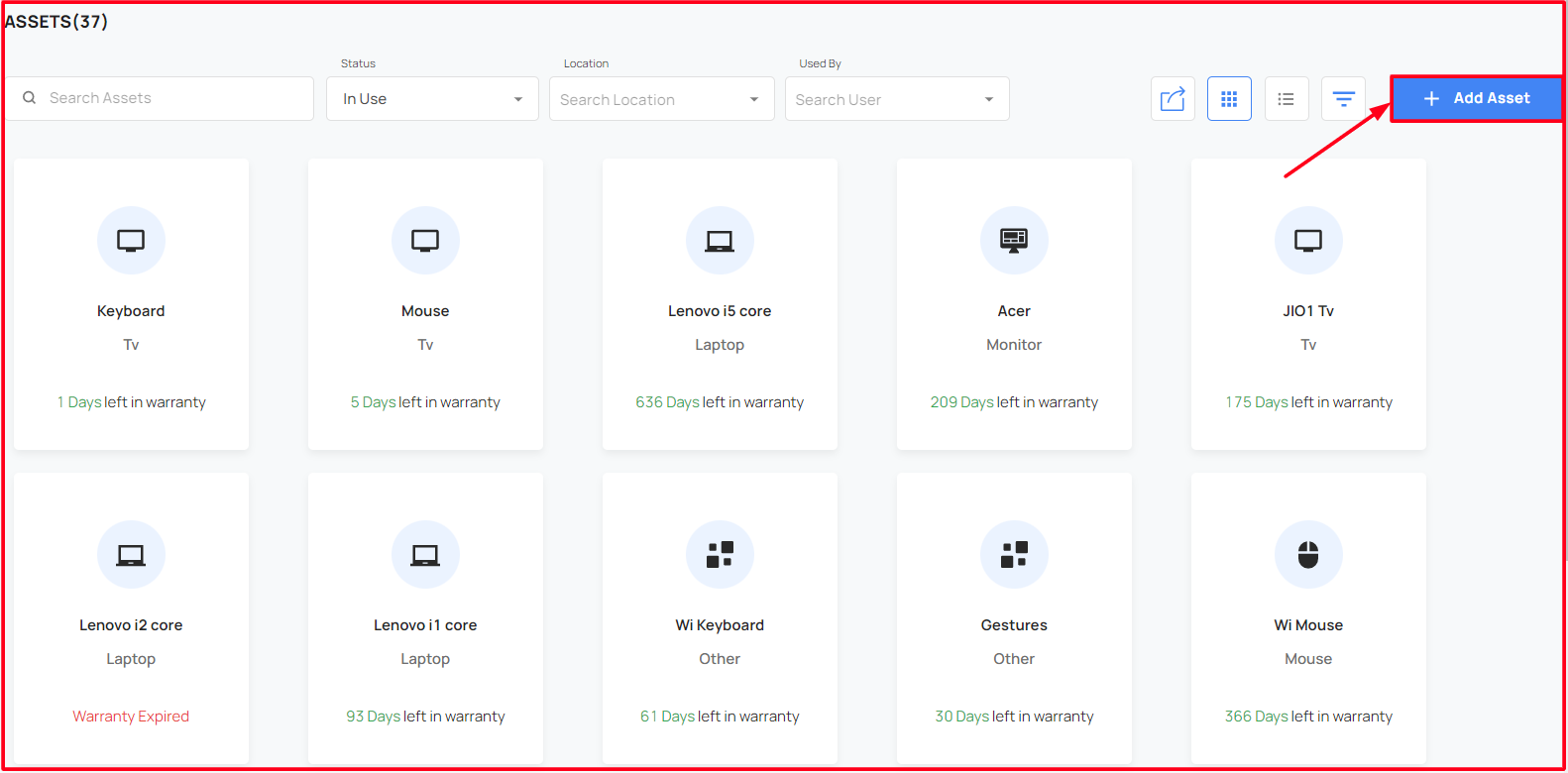
Add Asset Form pops up
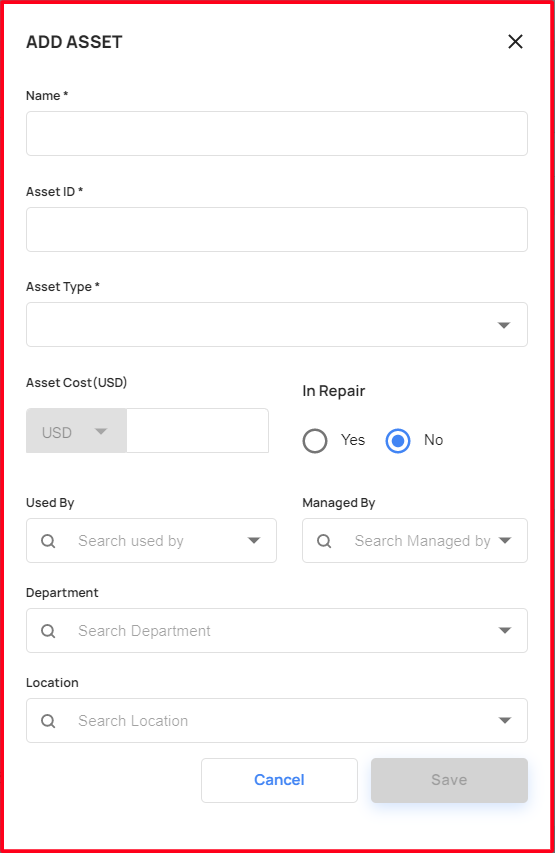
Add Asset Form Details
- Name
- Name of the asset.
- Asset ID
- ID of the asset.
- Asset Type
- Type of that asset selected from the dropdown.
- Asset Cost
- Cost of that asset
- In Repair
- to record whether asset is in repair or not.
- Used By
- Records name of user using the asset.
- Managed By
- Records the name of user who manages the asset.
- Department
- Records the department where the asset is being used.
- Location
- Records the location of organization with which it is mapped.
Edit a new asset
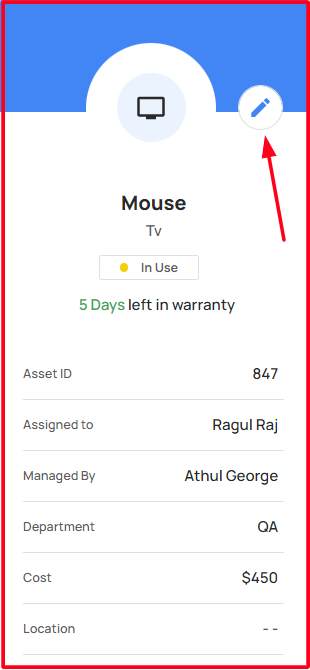
- If user need to change the asset details added at the time of asset addition ,user can edit it using edit button. Clicking on it opens a pop up form with the added details in it.
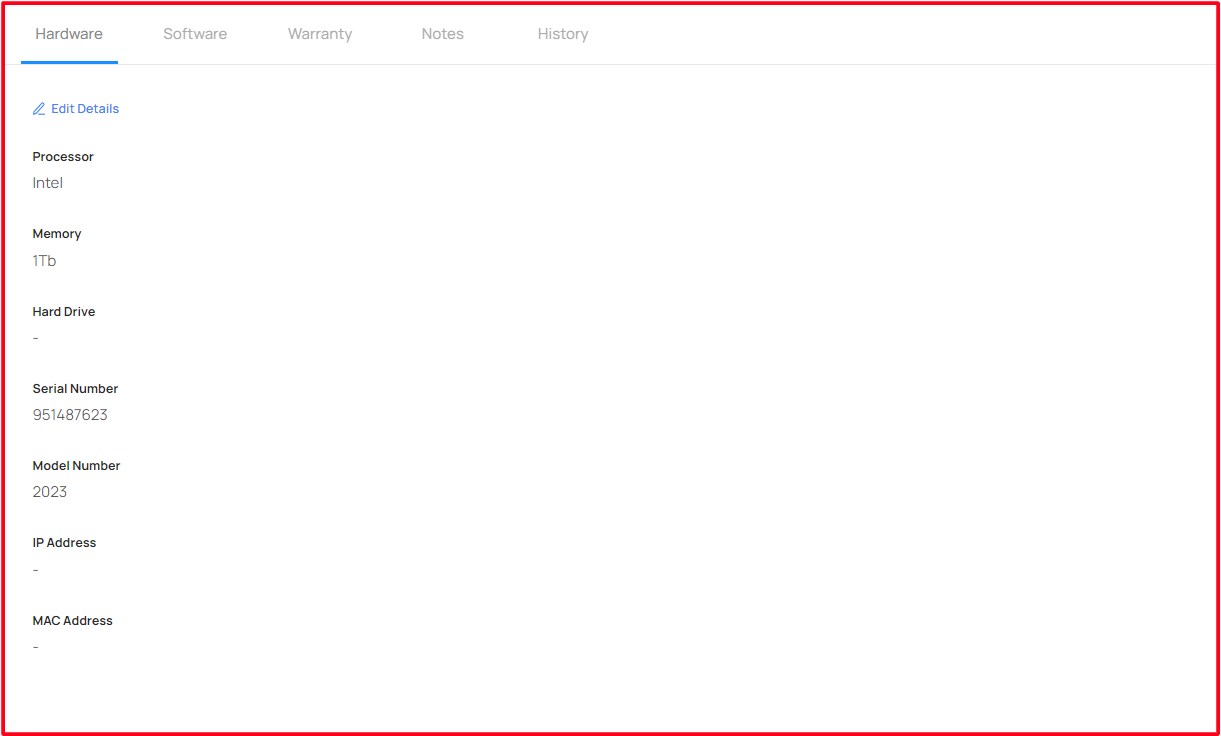
- After an asset added, user can add more asset details on its Hardware, Software ,Warranty, History or can add any notes on the asset in edit details button section.
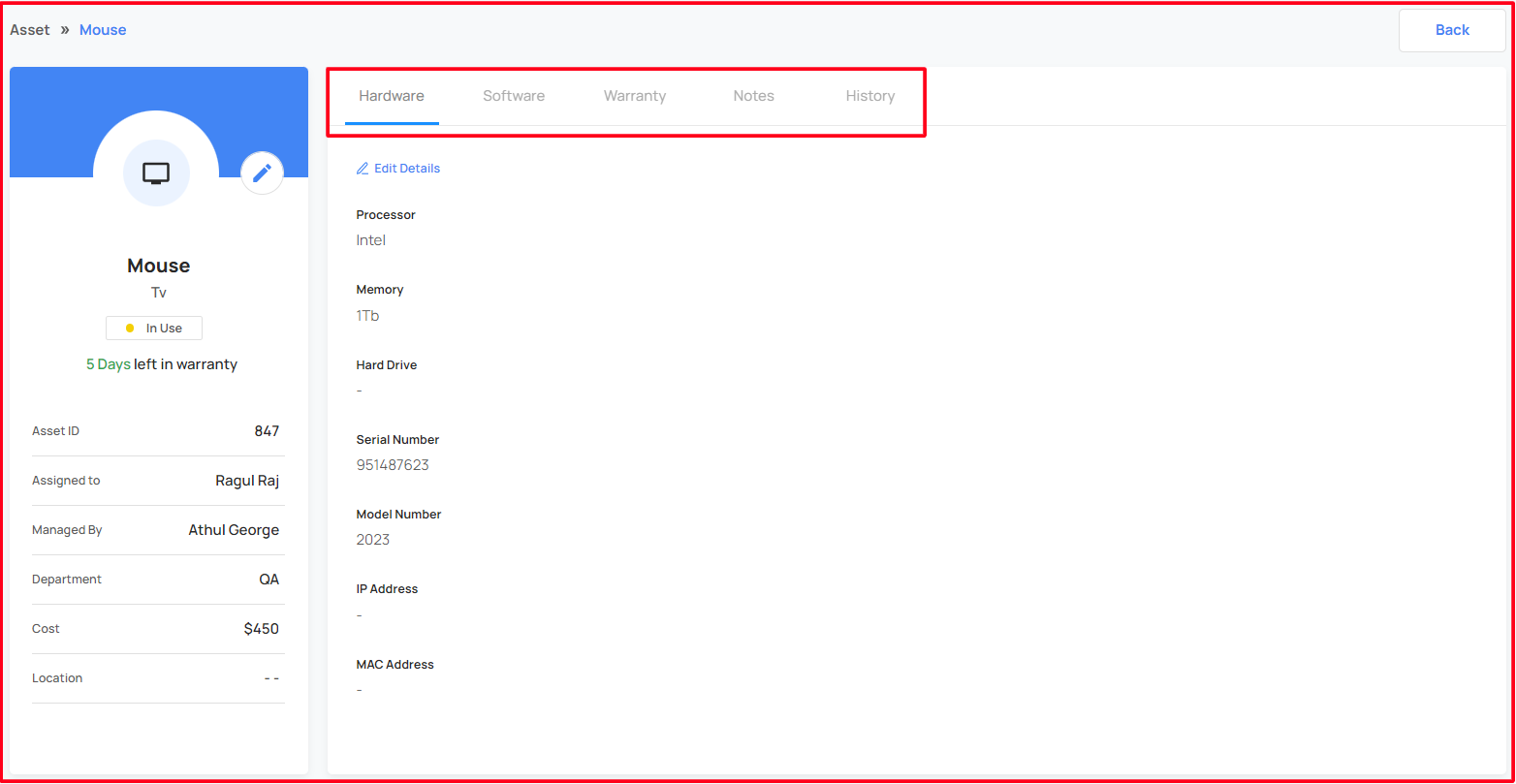
- Only CXO,Admin,System Admin and HR Manager have access to edit this fields.